Blog

  • 3x Nail Studio Bookings On WhatsApp and Instagram

    How I 3× My Nail Studio Bookings by Automating WhatsApp and Instagram with CalendarApp

    Hi, I’m Chloe. I run a small but thriving nail studio called Aesthetic Nails by Chloe. If you’re anything like me, you love your craft, you adore your clients, but you’re completely exhausted from answering every DM, confirming appointments, rescheduling bookings, and hoping people actually show up.

    That was my life for a long time. Then I found CalendarApp.

    This post is for you if you’re trying to grow your studio but don’t have time to answer 50 messages a day. I’m going to walk you through every step of how I automated my WhatsApp and Instagram bookings using CalendarApp. I’ll share screenshots, explain every click I made, and show you exactly how you can do the same.

    Let’s begin.


    Table of Contents


    Step 1: Sign Up and Create Your CalendarApp Business

    The very first step is to sign up for CalendarApp. After that, you create your CalendarApp business.

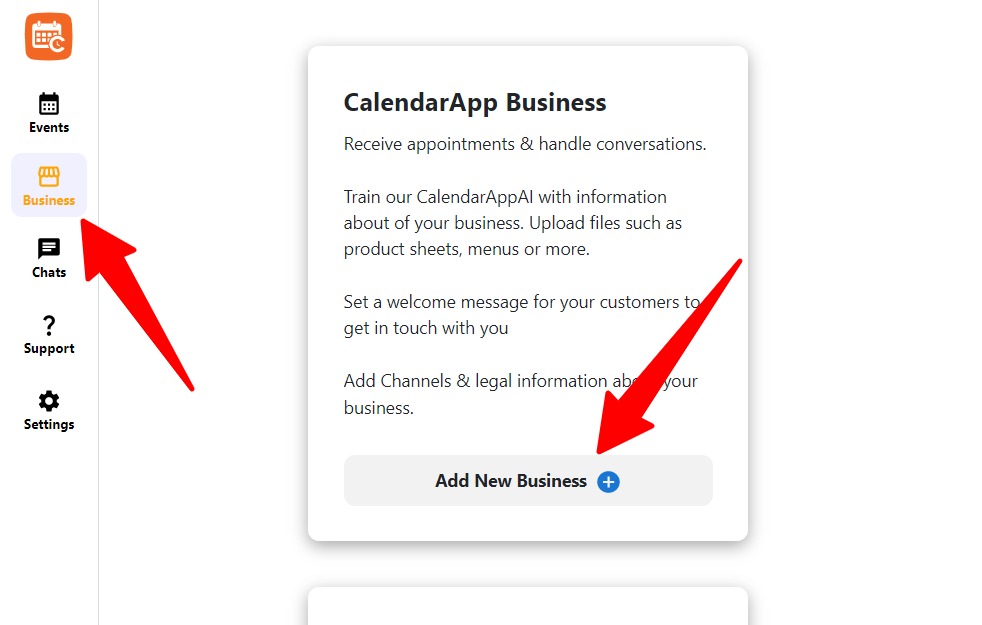
    • Navigate to Business
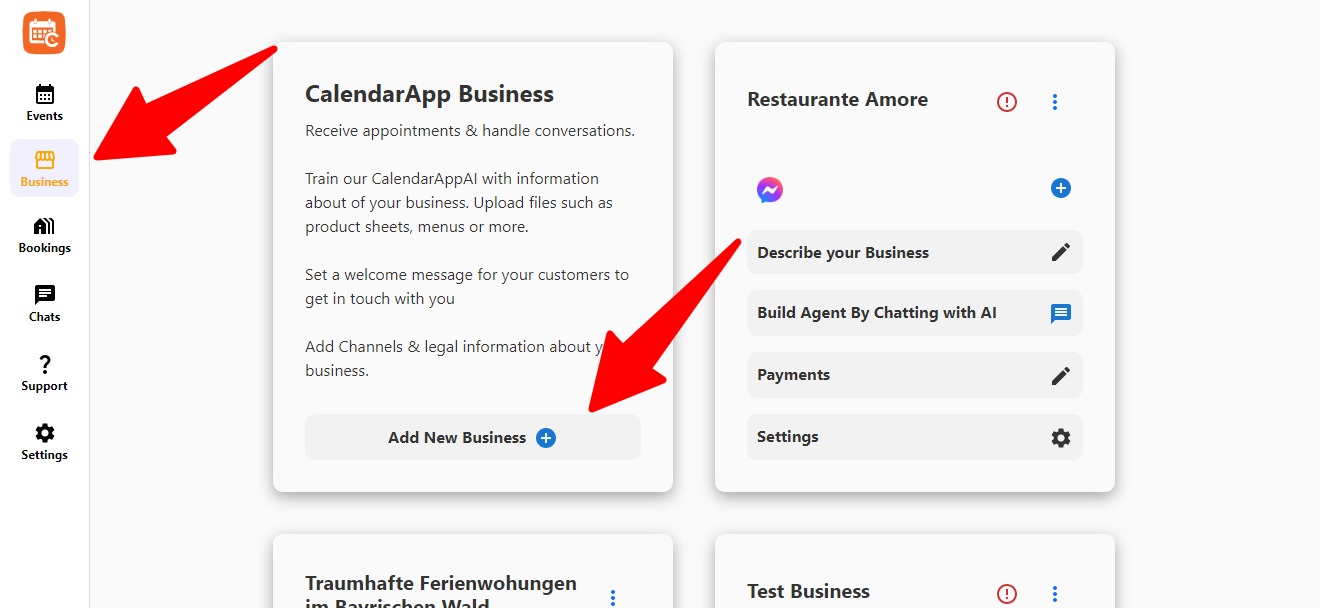
    • Click on + Add New Business
    Create a new calendarapp business
    • Input the name of your CalendarApp Business. The name is for your reference. You customers will not see it. You may change it later
    Input your calendarapp business name and click next

    You simply enter the name you want to give your business. That’s the starting point for everything else.


    Step 2: Connect Instagram

    Now it was time to connect my messaging channels. Since most of my clients reach me through Instagram DMs or WhatsApp, linking both was essential.

    There are 2 ways of connecting Instagram to your CalendarApp Business.

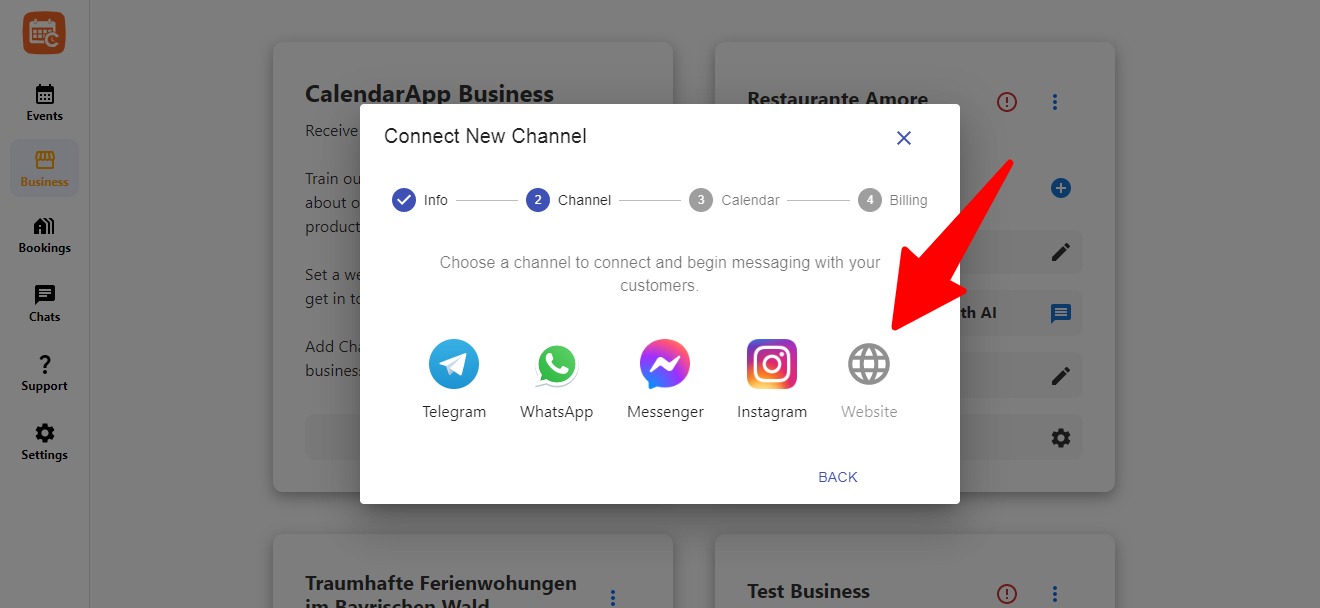
    If you clicked Next on the previous step you are automatically shown possible channels to connect. In this case simply click on Instagram.

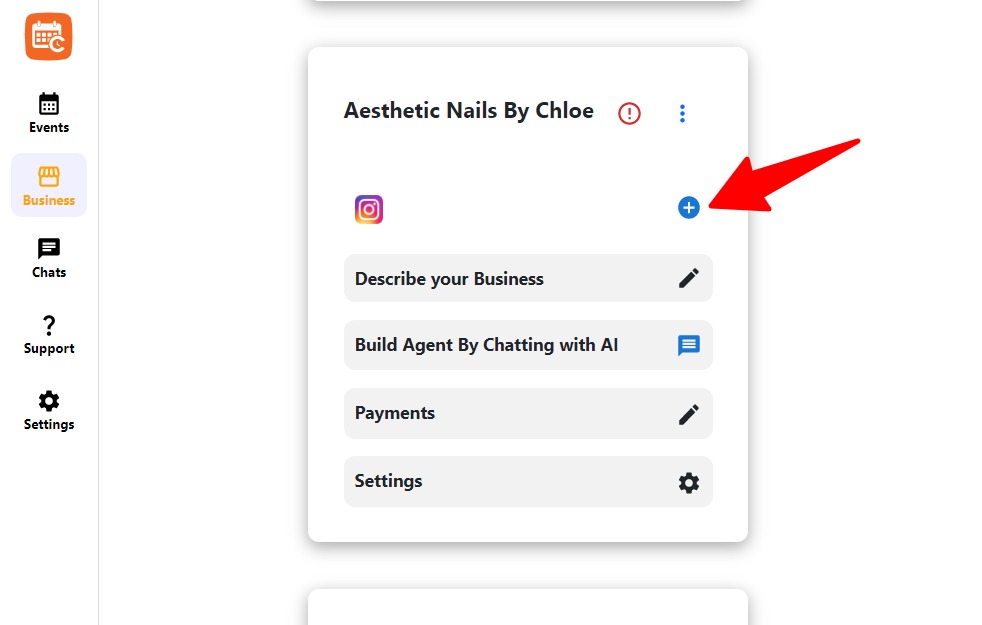
    In case you navigated to www.calendar-app.de/business or clicked on Business in the navigation you are presented with your already exisitng businesses. Then:

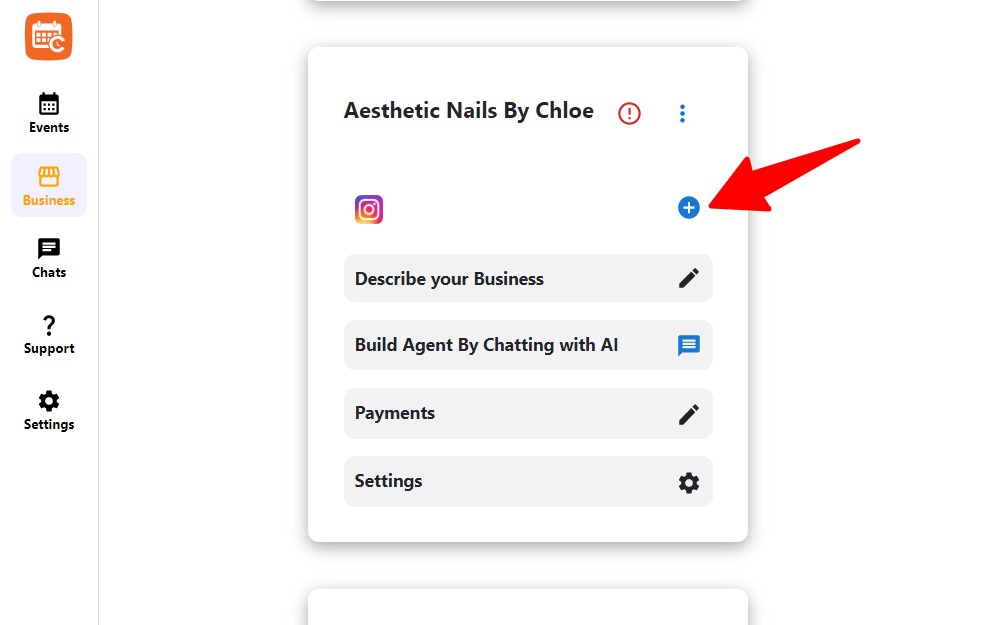
    • Click on + to add a new channel
    Click the plus icon to add a channel to your calendarapp business
    • Select Instagram from the available options
    Select instagram to connect instagram to the calendarapp
    • Click the button to begin connecting your Instagram page
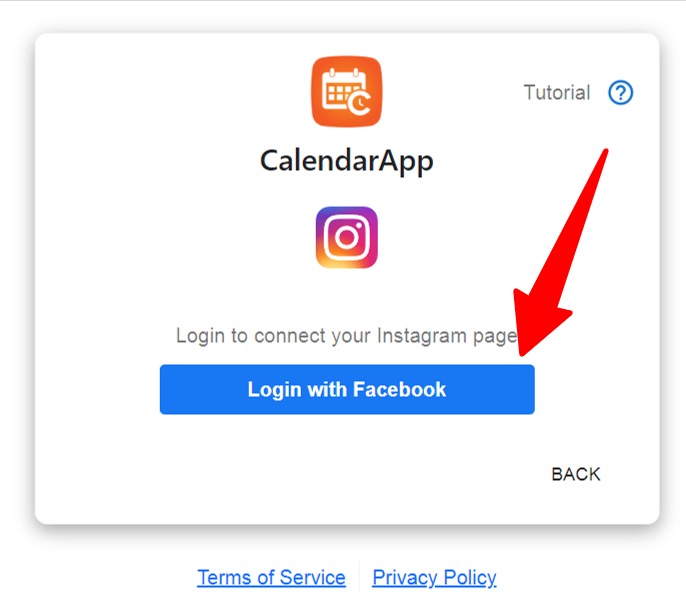
    Click the button to connect your instagram page
    • A Facebook dialog will open. Go through the required permission screens
    • Start by logging in with your Facebook Account. Important: the facebook account must have admin permissions on the page you want to connect to your CalendarApp Business
    Login with Facebook to connect your Instagram page to your calendarApp business
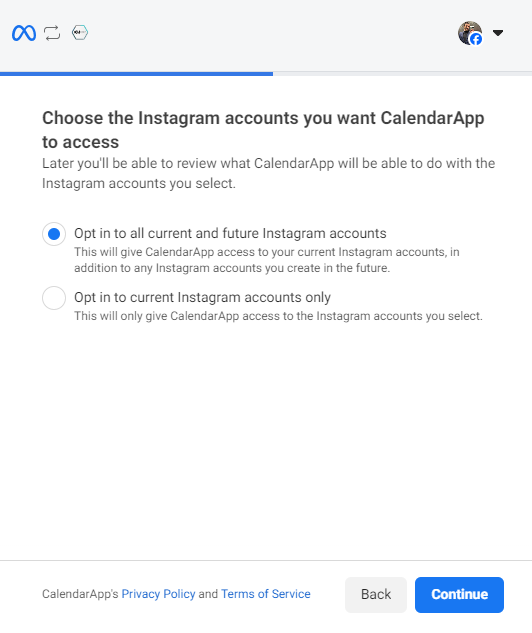
    • Select Opt in to all current and future Instagram accounts
    • then select Continue
    Click continue to grant calendarapp access to your instagram pages
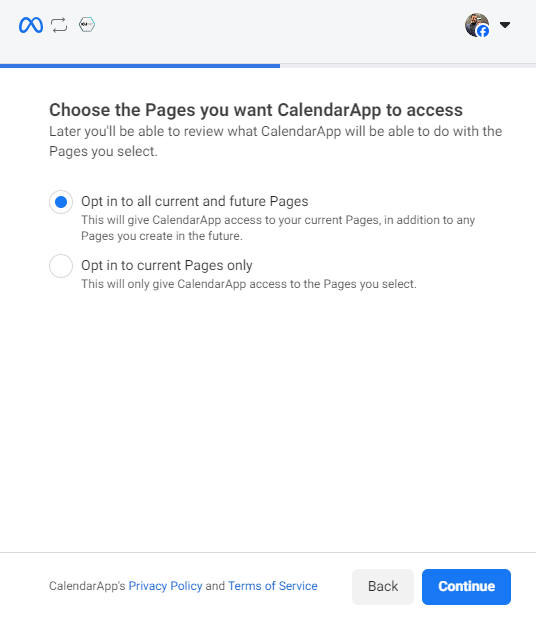
    • Select Opt in to all current and future pages
    • Then click Continue
    Click continue to opt in with all connected pages
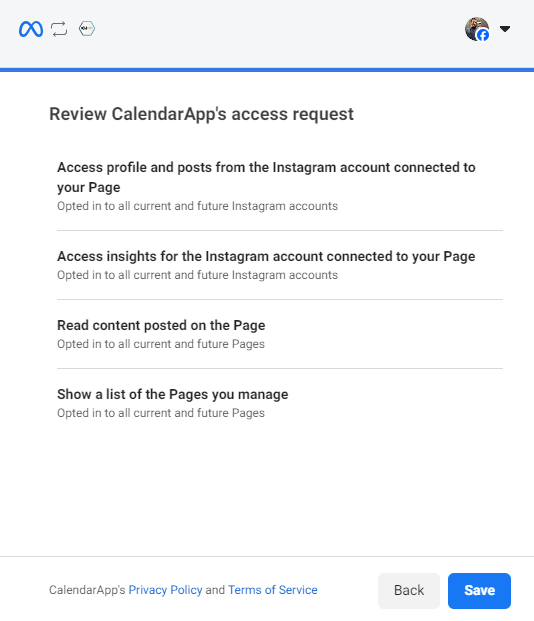
    • Click on Save


    Review the permissions you grant the calendarapp for instagram and click save
    • Click on Got it
    On success your instagram page has been connected
    • Choose the Instagram page you want to link
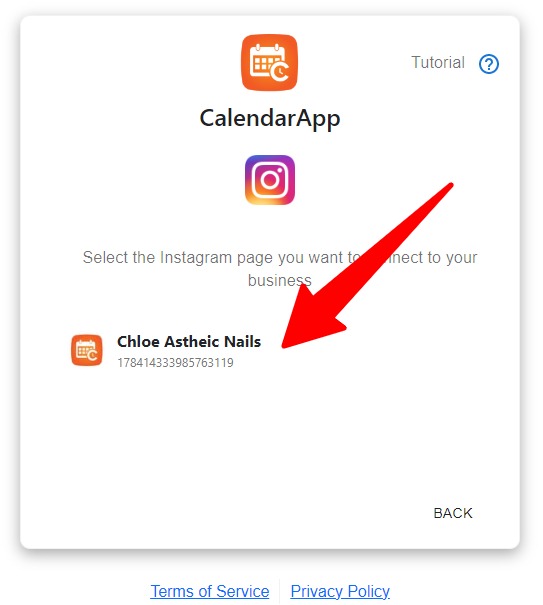
    Select your instagram page from the list of the pages you manage
    • Confirm the connection by clicking on Submit
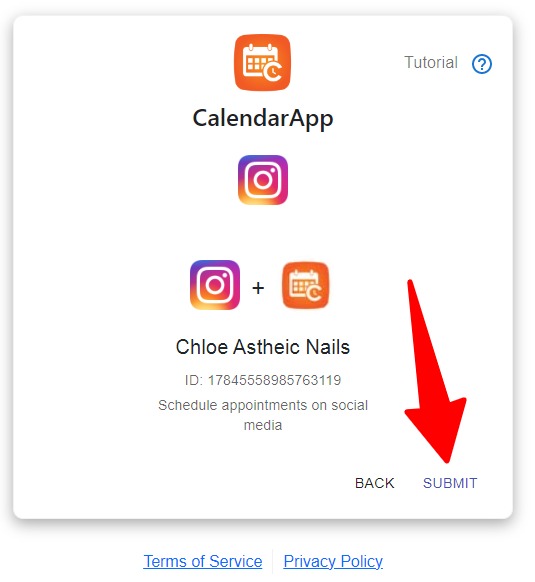
    Click submit to add the instagram page to your calendarapp business
    •  Well done! Your Instagram page has been successfully connected

    Step 3: Connect WhatsApp

    Now it’s time to connect Whatsapp to your CalendarApp Business.

    Before we start you want to consider these 2 options:

    1. Use your current Whatsapp phone number.
    2. Get a new Whatsapp phone number.

    Current Whatsapp Phone Number

    If you want coexistence, you must use the WhatsApp Business app. During setup you scan a code and we sync your messages. After that you can keep using the WhatsApp Business app for one to one chats, while the Calendarapp helps you send messages at scale.

    Coexistence does not work if your number is on the regular WhatsApp Messenger. It only works with the WhatsApp Business app.

    New Whatsapp Phone Number

    You may use or own phone number or get a phone number from Whatsapp

    If you use your own number, you verify it by SMS or phone call.

    If you get a phone number from WhatsApp, it will work with limited features.

    If you choose new number, messages go through our system and replies appear in our dedicated chat interface. With a new number, you answer manually inside our chat, not in the WhatsApp app.

    Now let’s get started:

    Follow these simple steps to add Whatsapp to your CalendarApp Business:

    • Naviagte to Business
    • Find the CalendarApp you want to add Whatsapp to
    • Click on Click on the plus icon of your calendarApp business to add whatsapp to your calendarapp business in order to receive messages via whatsapp
    • Start the WhatsApp connecting process by click on Add Whatsapp Phone Number
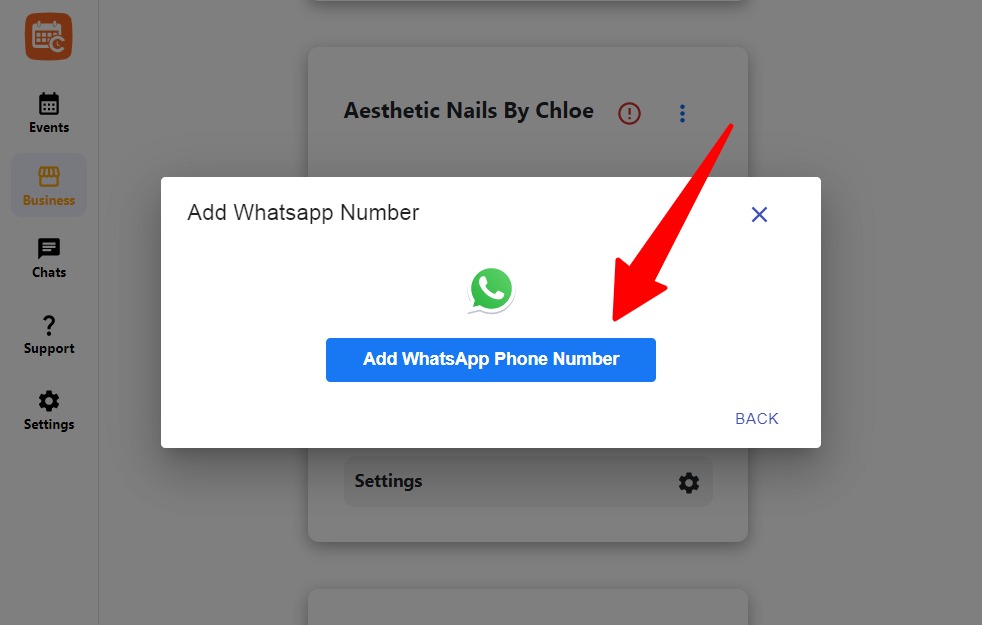
    Click the button to add your whatsapp number
    • Log in via Facebook to proceed with WhatsApp Business connection
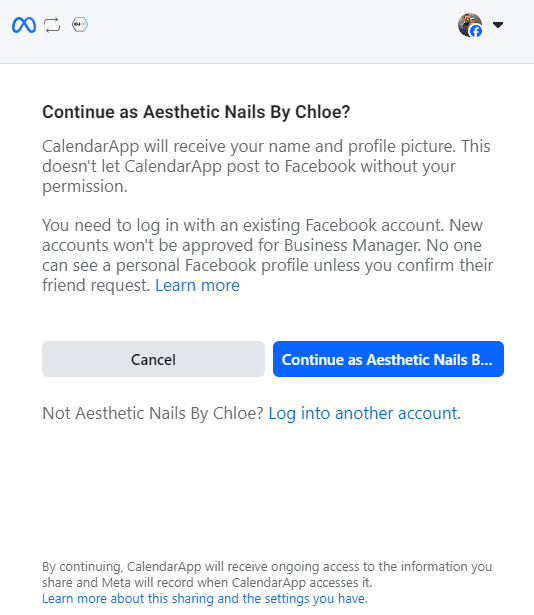
    Login with facebook to start connecting whatsapp with the calendarapp
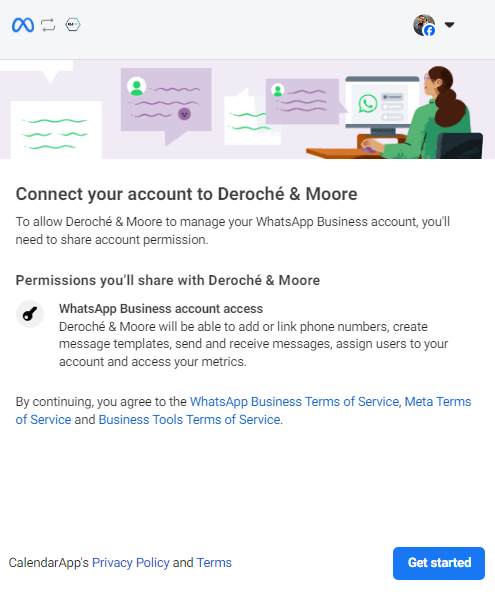
    • Click get started
    Get started with connecting whatsapp with the calendarapp by clicking on get started
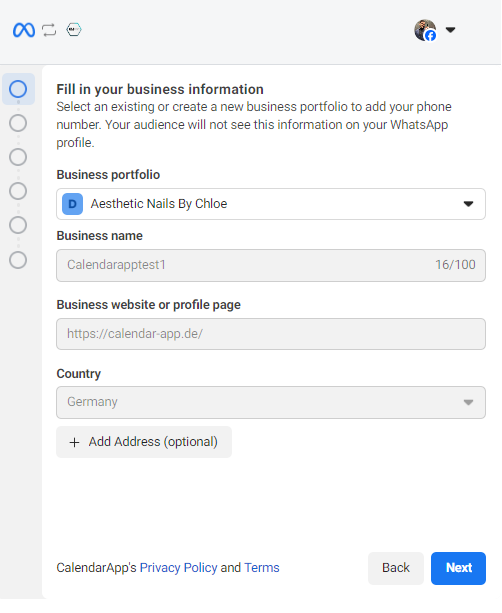
    • Select your Whatsapp business profile or create a new one
    • Then click Next
    Input your business name to create a whatsapp business profile
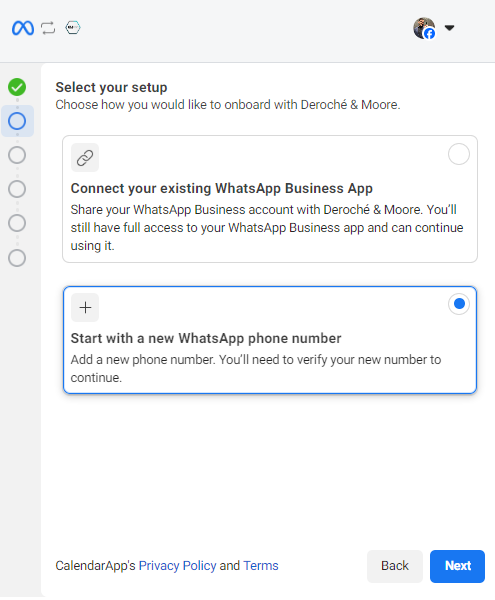
    • Choose to connect an existing number or start with a new one
    Click connect and existing phone number or get a new one
    Click start with a new number if you want to use whatsapp on a new number
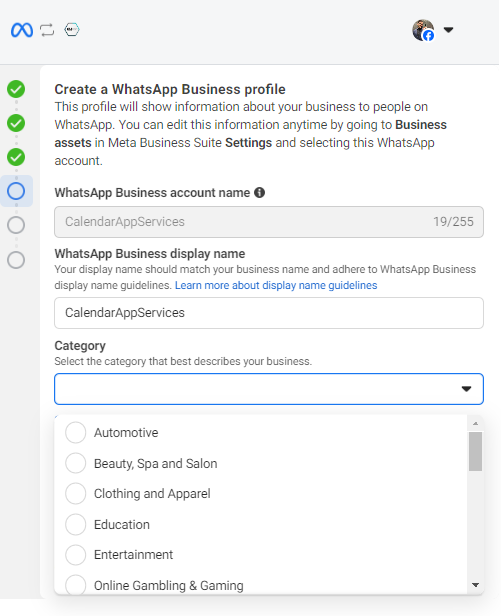
    • Proceed to set up your WhatsApp Business profile
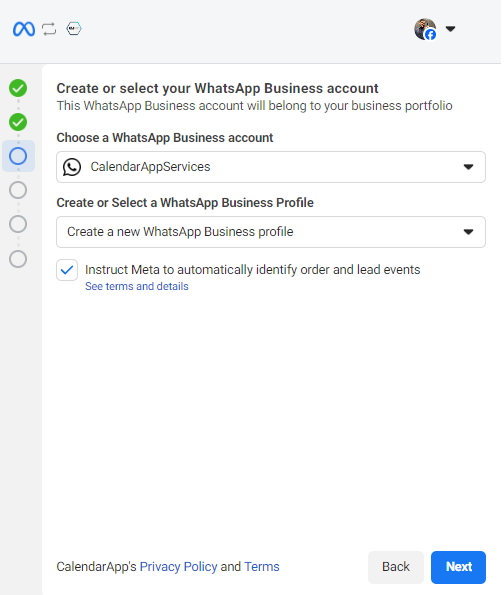
    Click next to create a whatsapp business profile
    • Select your business industry
    Select the industry of your business. it will be visible on your whatsapp profile
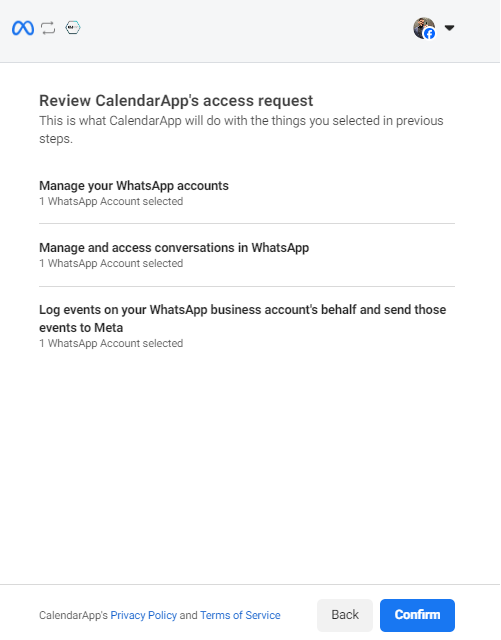
    • Confirm the setup
    Click on confirm to add your whatsapp business profile to the calendarapp and start automating messages on whatsapp
    • Wait for your number to be added
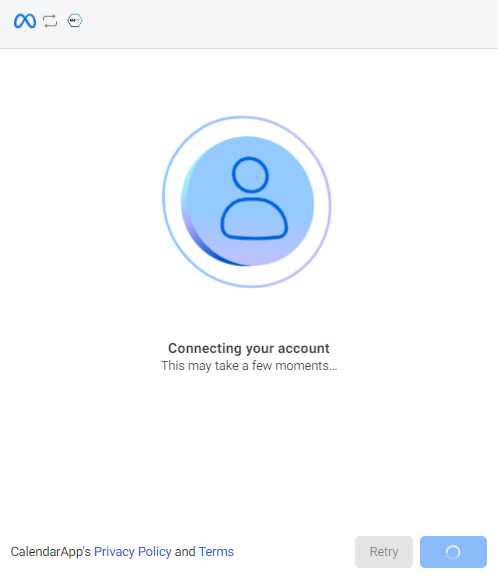
    Wait until your whatsapp number is being added
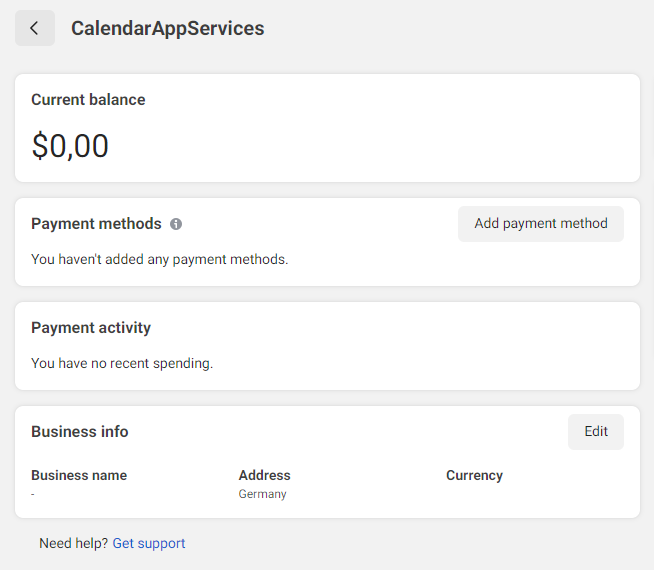
    • not required but recommended: Add Payment method

    why? WhatsApp charges businesses for certain message types. Without a valid payment method, messages that cost money may be blocked, which can break your customer conversations and automations.
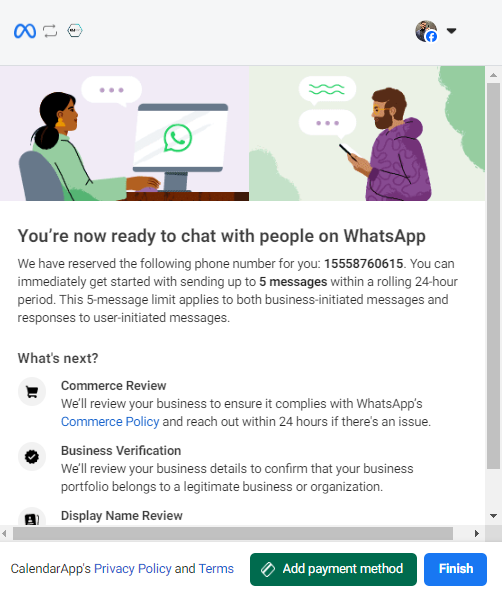
    • Click Add Payment Method 

    • after adding a payment method you may close the dialog. Your Whatsapp number has been successfully added to your CalendarApp Business
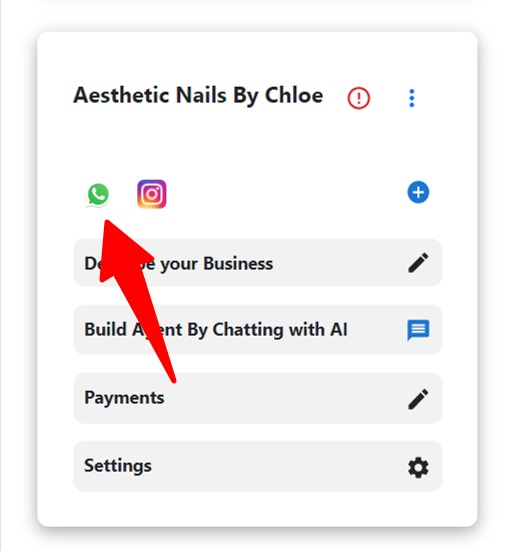
    Your Whatsapp Number has been addedd successfully


    Step 4: Add Google Calendar

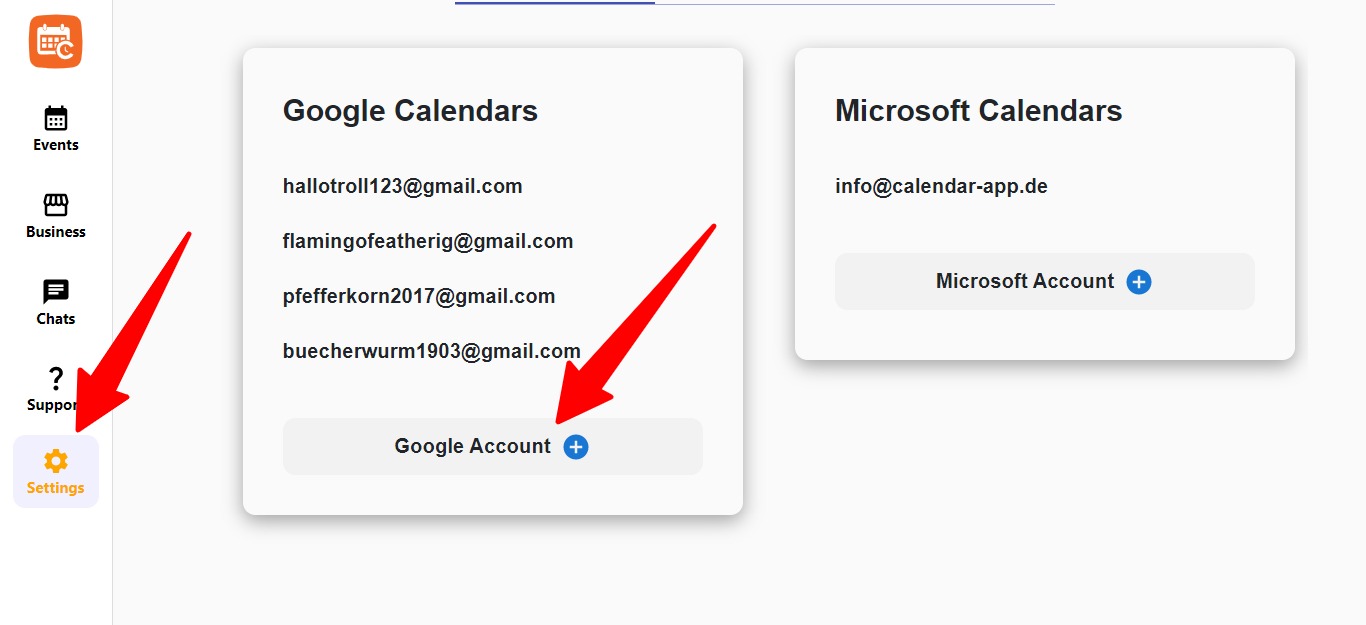
    We now select and add the calendar where our bookings are going to be stored. I choose the Google Calendar. You have to ways of adding your Google Calendar:

    1. you see the option right away after connecting your Channel or
    2. you navigate to Settings then click on + Google Account 
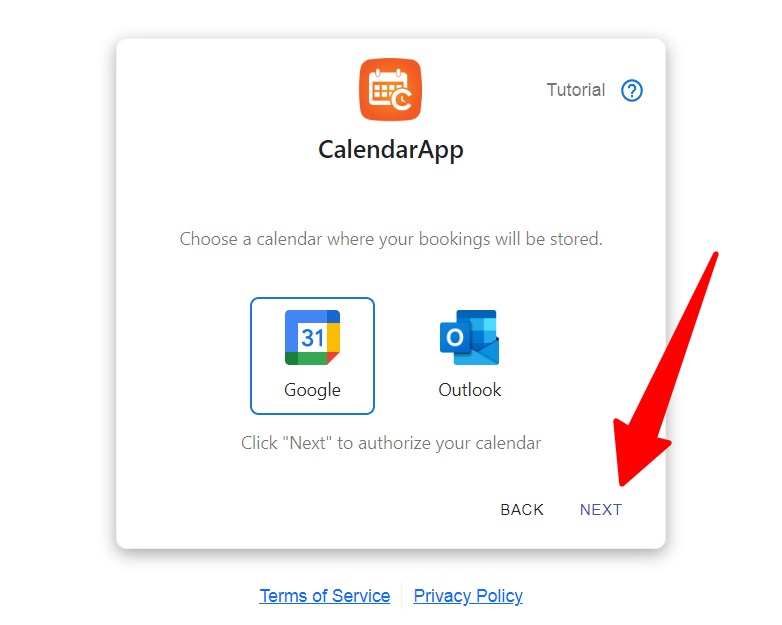
    • From the calendar connection view, select Google (Option 1)
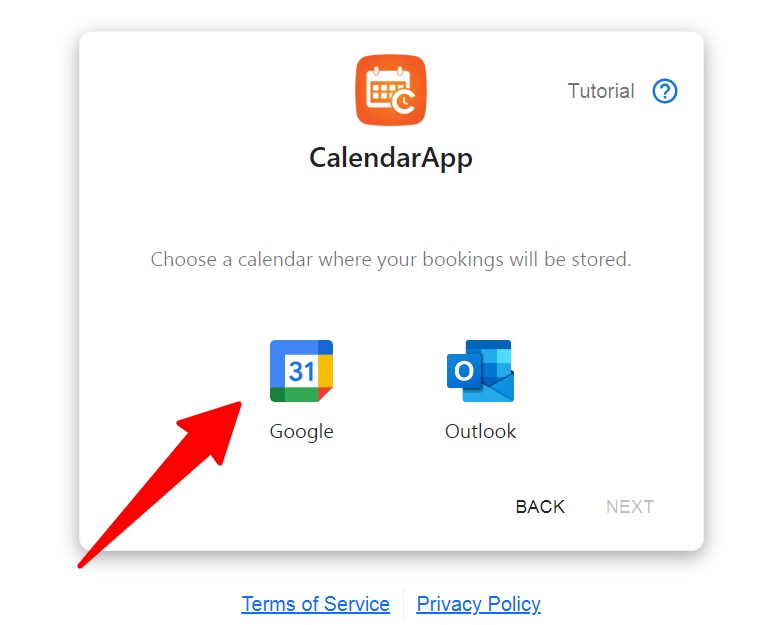
    Select google to connect your google calendar with the calendarapp
    • Click next
    Click next to authorize your google calendar
    • Option 2
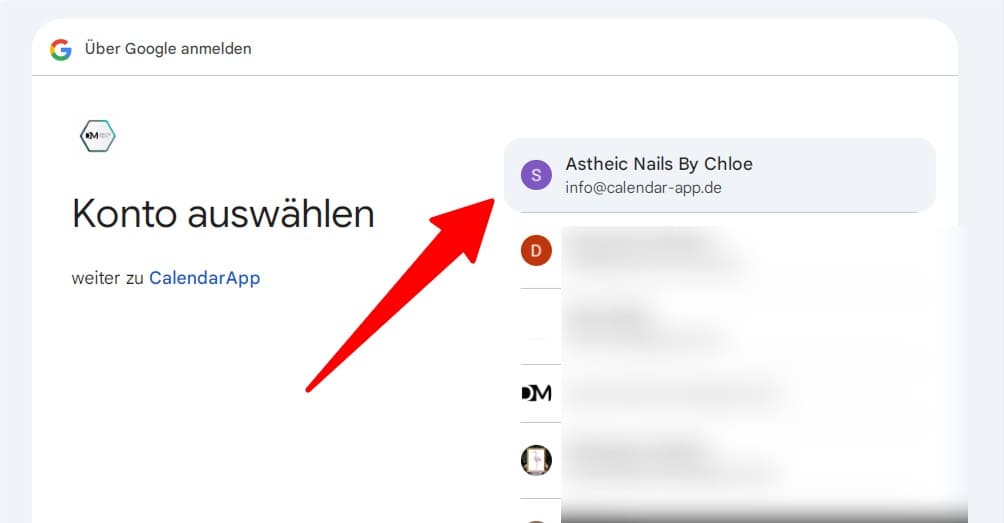
    • Select your Google account
    Select the google account you want to connect to your calendarapp business
    • Click continue to complete the integration
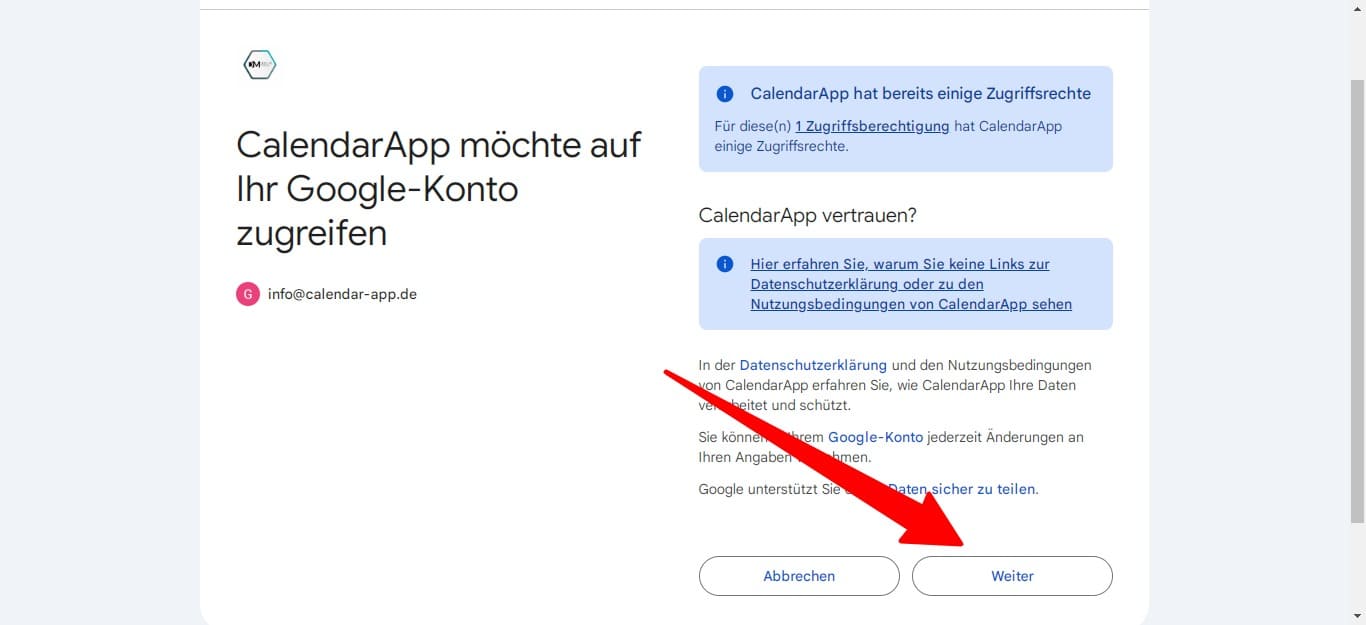
    Click continue to authorize your google calendar

    Well done! Your Google Account has been connected successfully!


    Step 5: Training My AI Assistant

    The goal is to give the assistant enough context about the nail studio so it can answer like a real team member. Think of it as teaching a new receptionist who learns your voice, your rules, and your offer.

    I went through a guided setup where I answered things like:

    • How I greet clients
    • What services I offer
    • What tone to use

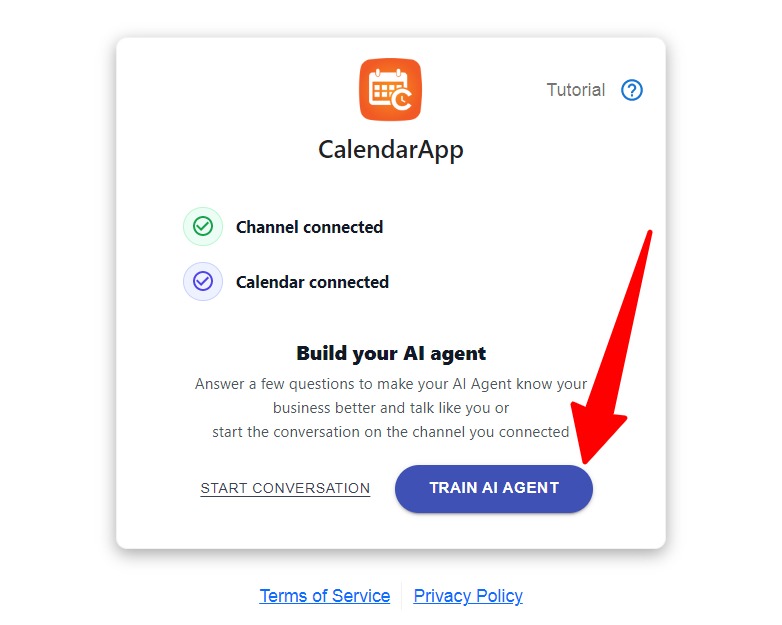
    To train your CalendarApp AI Agent you have 3 options:

    1. you are prompted with the window to train the AI Agent
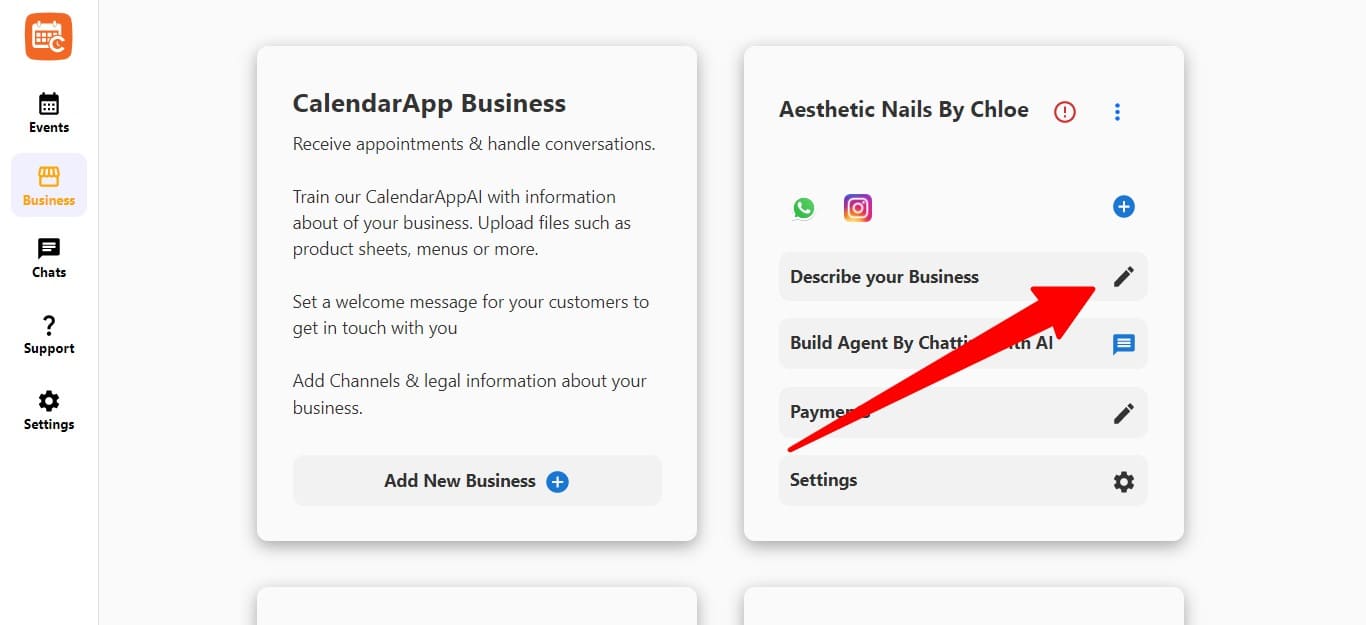
    2. Click on Build AI Agent By Chatting With AI
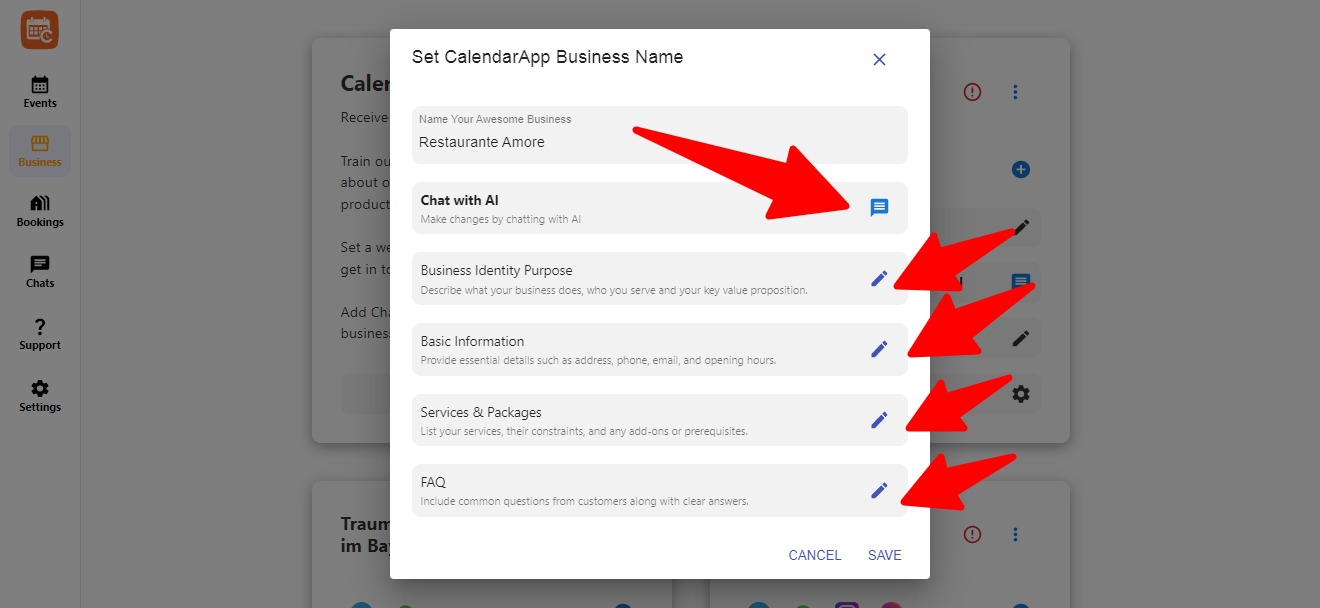
    3. Click on Describe Your Business of your CalendarApp Business. You pick the specific part you want to adjust and click the pencil icon
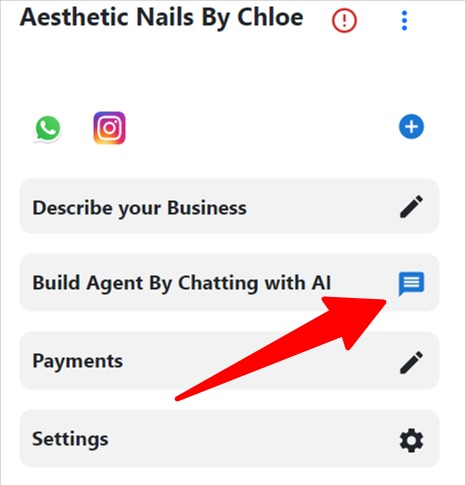
    Form interface for editing business information in CalendarApp

    If you start the chat you will be prompted with guidlines.

    First message when chatting with the ai to train your own personal ai agent
    • Click Start to start training the AI Agent
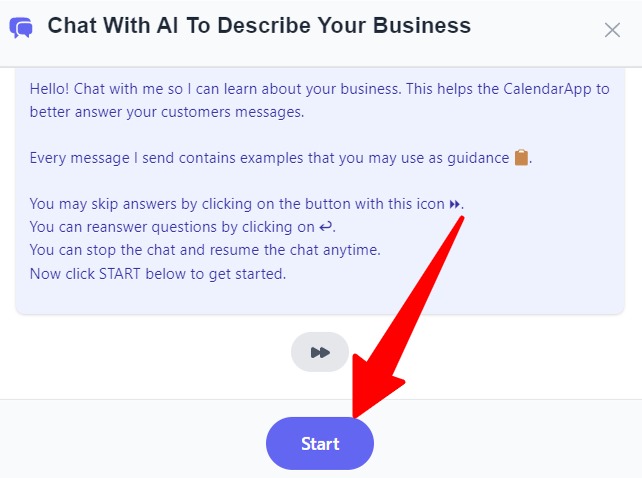
    • The 1. question is about your business identity:

    Describe what your business. Include what it does, who you serve, your key differentiators, your core value proposition,..

    You answer something like this:

    Aesthetic Nails By Chloe is a boutique nail studio offering high-quality manicures, nail art, and personalized self-care experiences for style-conscious women. It stands out through expert craftsmanship, strict hygiene, and one-on-one service in a luxurious yet welcoming environment. The core value proposition is delivering trend-forward, custom nail designs that make clients feel confident and cared for.

    • Click on the arrow icon to send the message
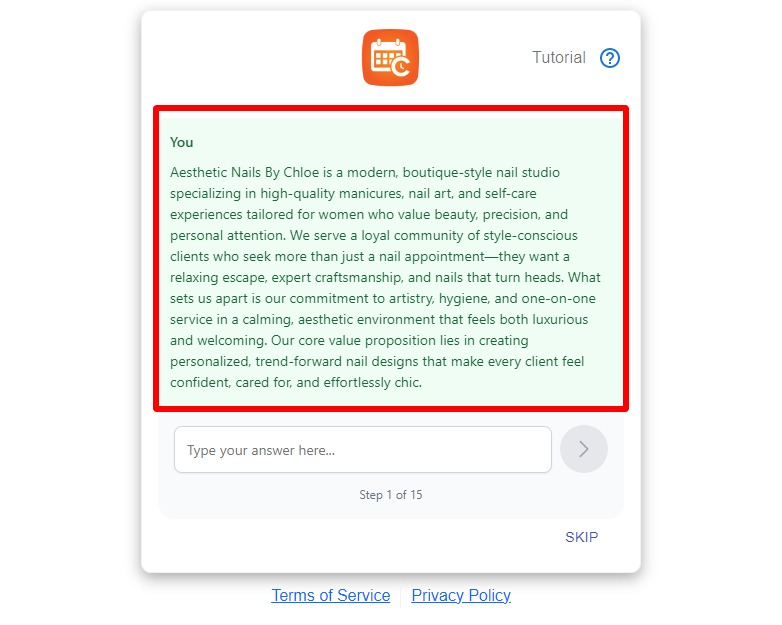
    Example of a business identity of a nail studio used to train the calendarapp ai
    • The 2. question is about your contact details:

    Provide essential details such as address, phone, email, and opening hours.

    You may answer like this:

    Name: Designated Studio
    Address: 123 Main Street
    Phone: 555-1234
    Email: info@studio.com
    Website: studio.com
    Opening Hours: Monday–Saturday 10:00 AM – 7:00 PM, Sunday closed
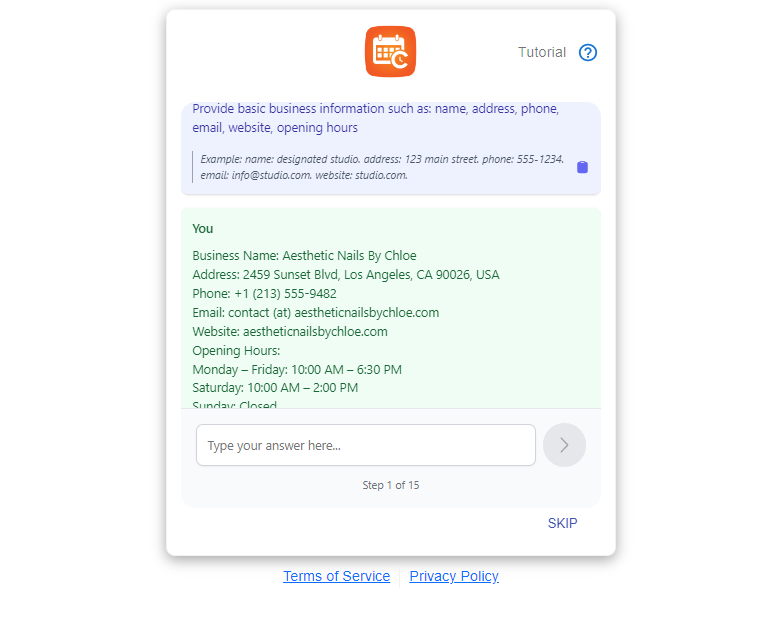
    Example of basic information provided of a nail studio
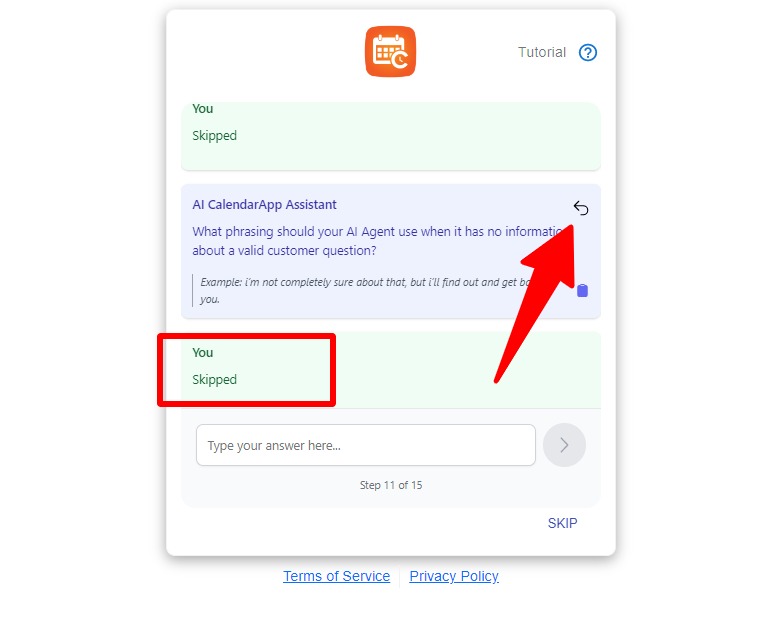
    • Some questions I skipped and filled out later.
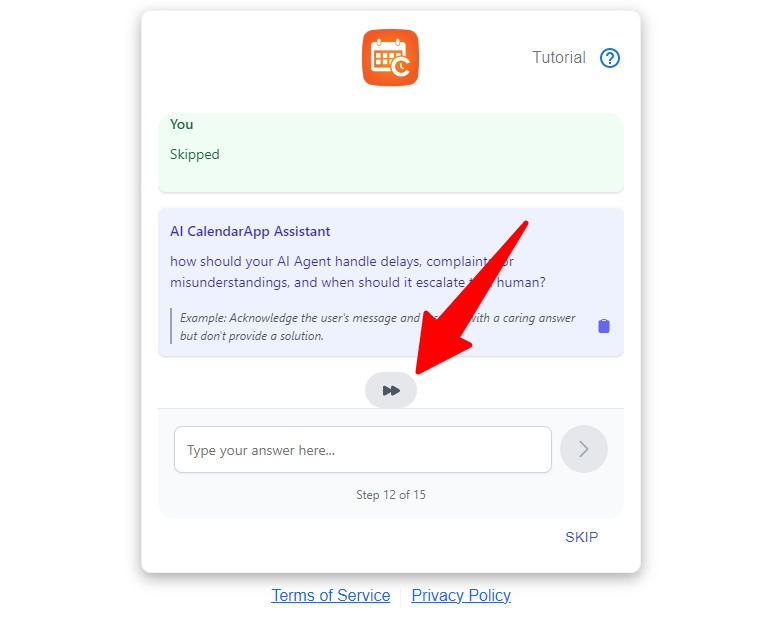
    You may skip questions by clicking on this button
    • Click on this icon to answer the question again
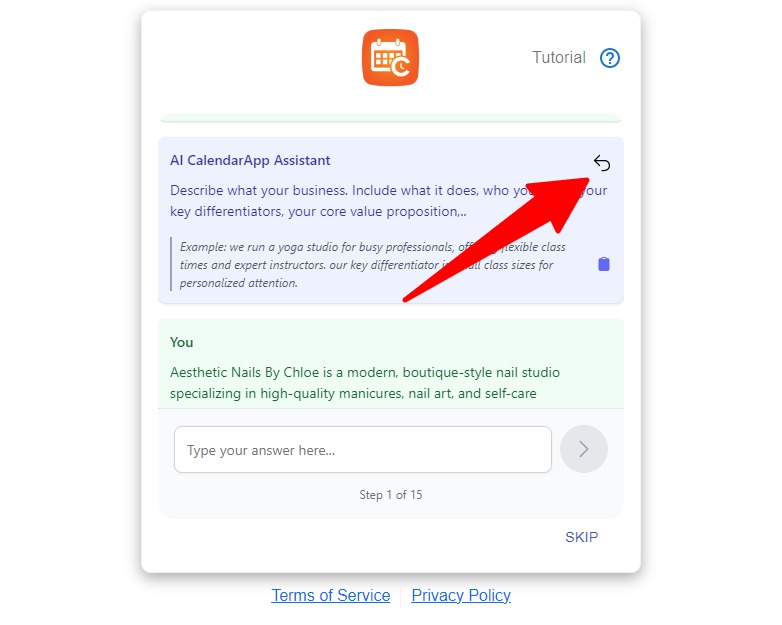
    Click this icon to reanswer the question
    You may click the arrow to reanswer the question

    When training was done, I clicked finish and the AI was ready to use.
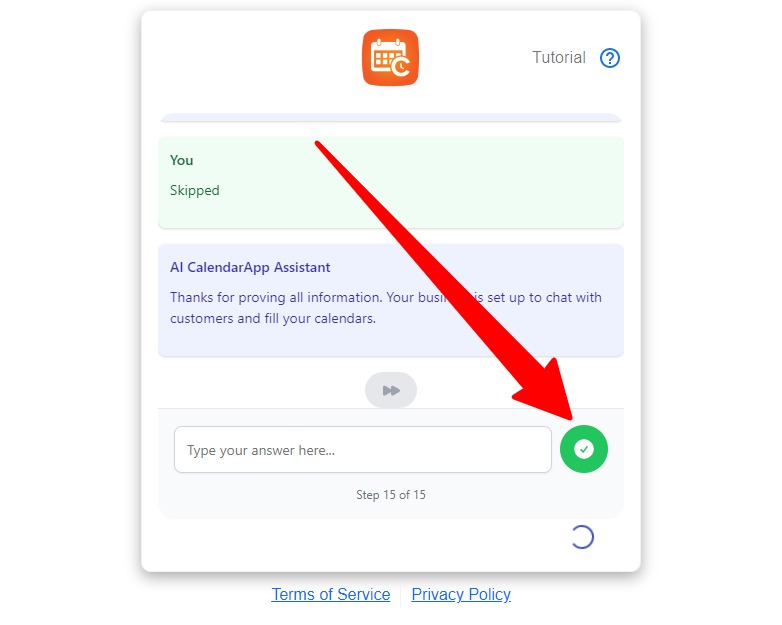
    Click on the green circle to finish training to your calendarApp Ai Agent

    Step 6: Adjusting My First Event – Pedicure

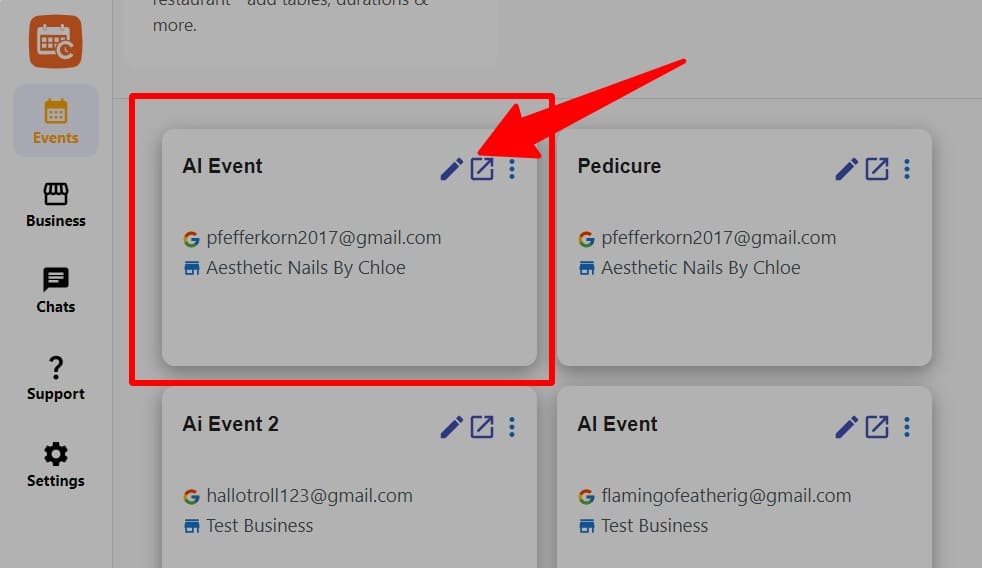
    The Pedicure event was already created, but I wanted to make sure it reflected my setup. I opened the event and made some changes.

    Navigate to event click on the first event to make changes

    I renamed it to Deluxe Pedicure and updated these fields:

    • Duration: 60 minutes
    • Booking Window: show available slots every 30 minutes
    • Add to Calendar button: enabled
    Click the pencil icon to edit your calendarapp event

    Next, I added the description so that clients understand what they’re booking.
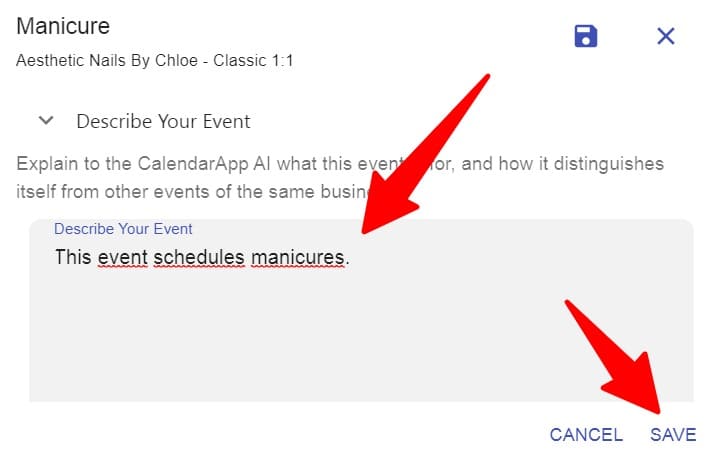
    Describe your calendarapp event
    Input a event description that is visible to the user above the calendar include details about the event

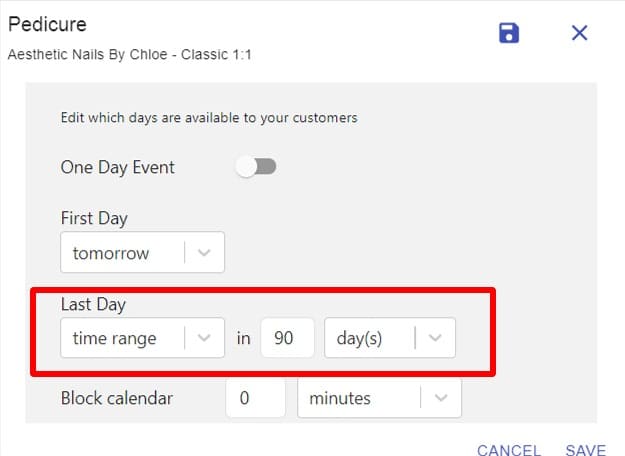
    Then I adjusted the first and last possible booking day so clients couldn’t book too far out.
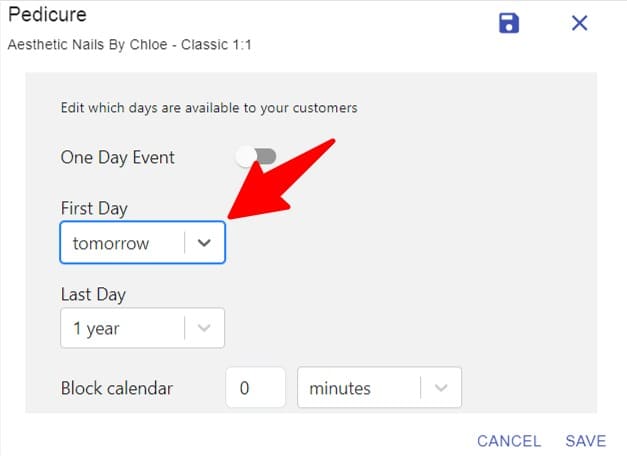
    Select tomorrow as the first day where appointments can be booked
    To select the last day select time range of 90 minutes to have a 90 day rolling window

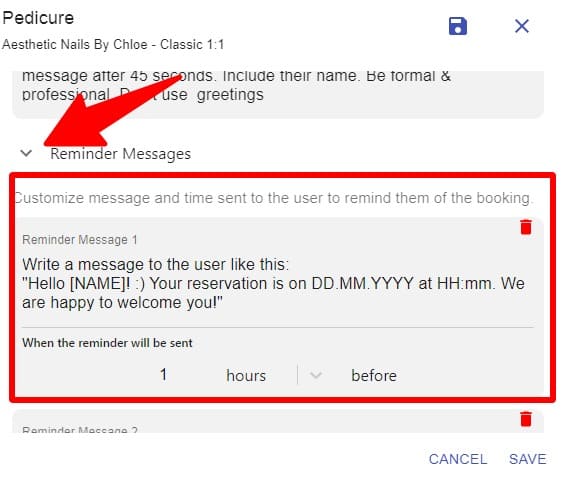
    I also fine-tuned the confirmation and reminder messages to sound personal.
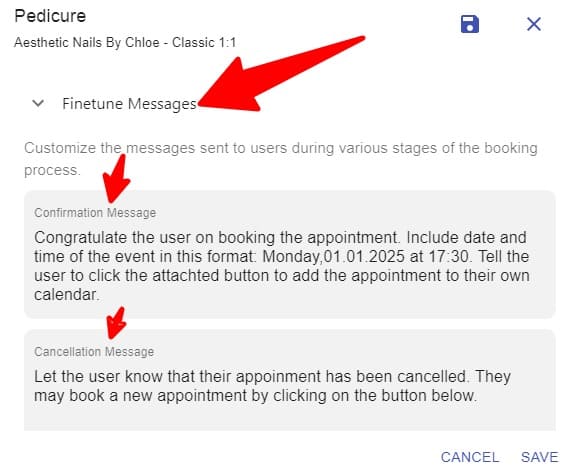
    Finetune confirmation and cancellation messages
    Edit the reminder messages if you want to make adjustments

    Finally, I saved all the changes.

    Click on save to save your changes

    Step 7: Creating Opening Hours

    To control when people can book, I created a calendar specifically for my opening hours.

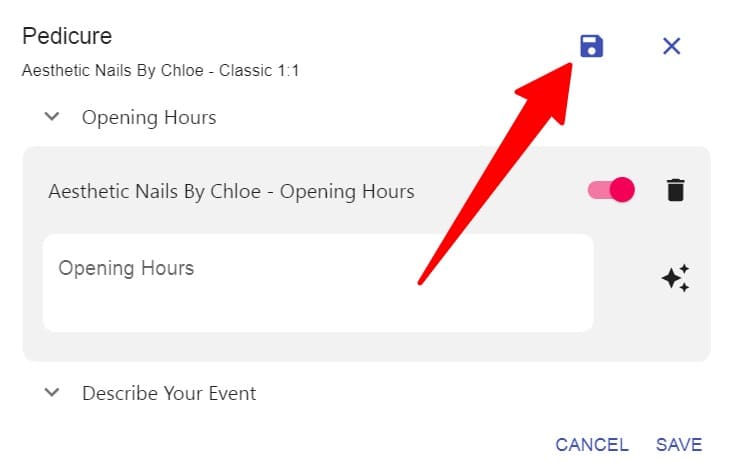
    I clicked into the opening hours section:

    Click opening hours to create a new calendar for your opening hours

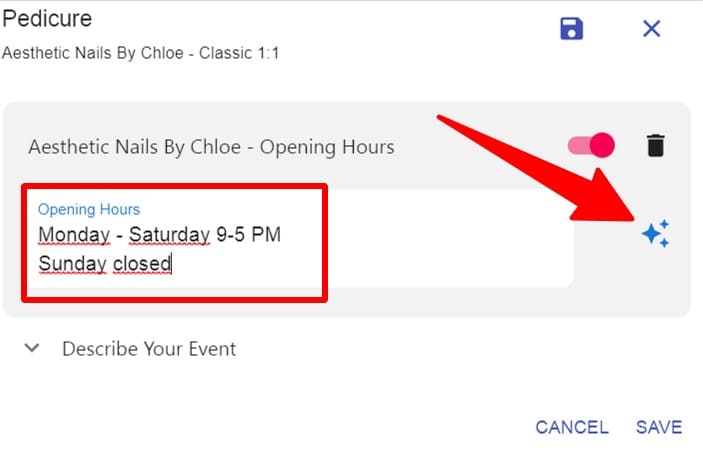
    I then wrote my hours (for example: Monday to Friday, 10:00 to 18:00) and applied them.
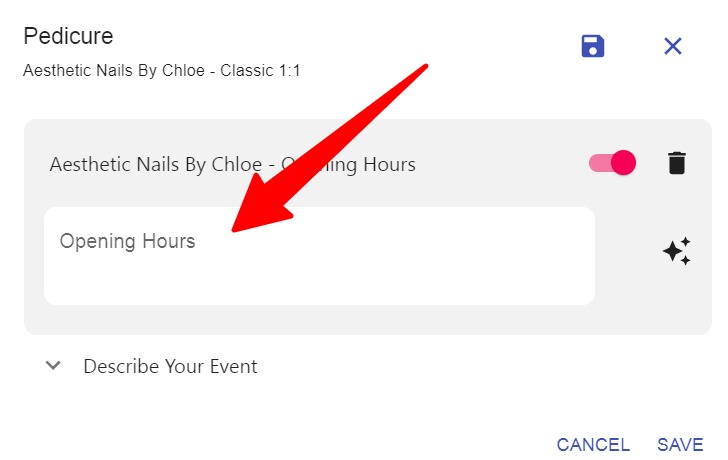
    Input your opening hours here
    Write your opening hours and click on the icon to create them in the selected calendar

    Once saved, the CalendarApp automatically applies these rules to every appointment.
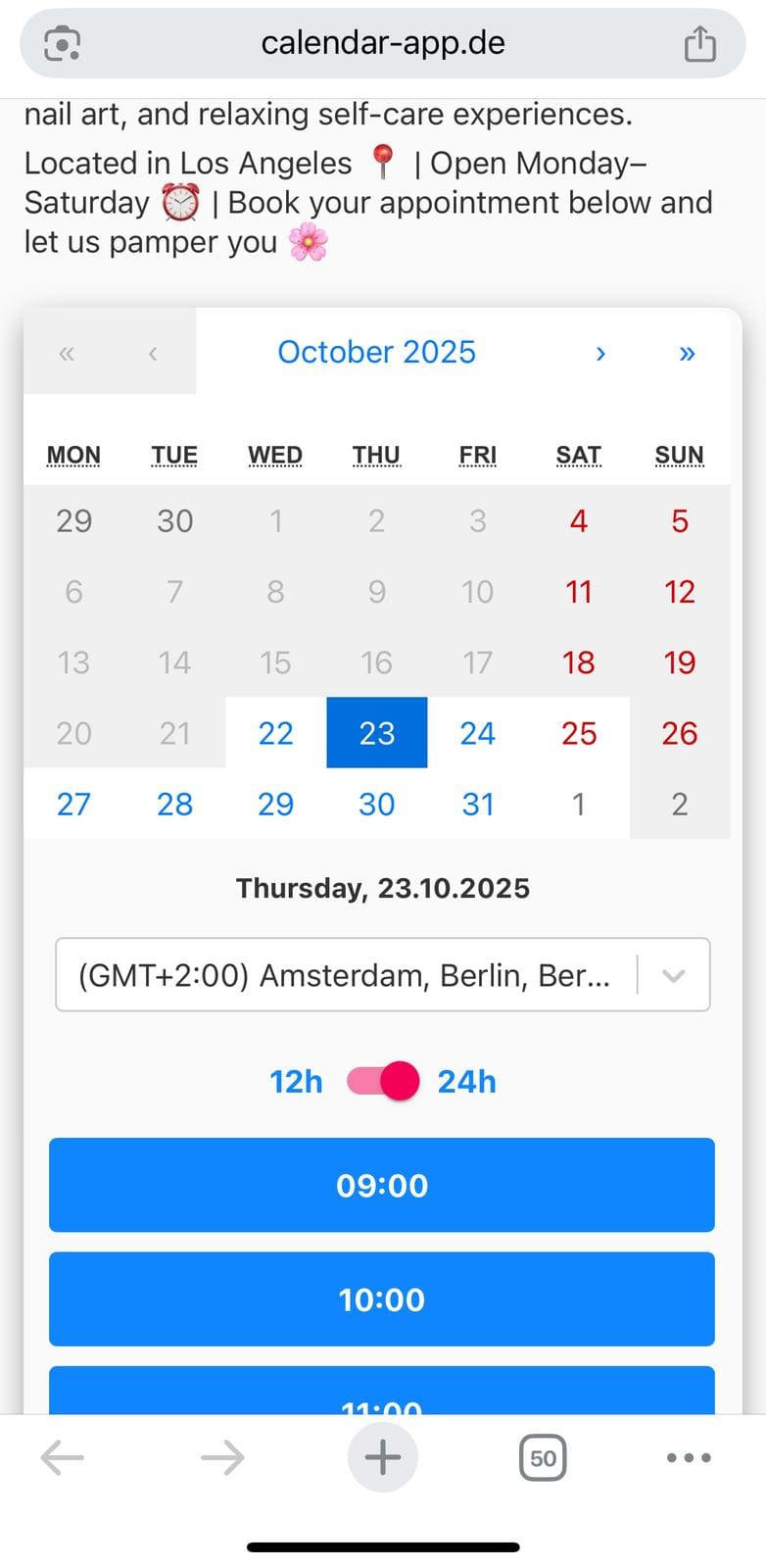
    Your opening hours have been applied automatically

    Step 8: Booking Flow on WhatsApp

    Now that everything was set up, I tested the WhatsApp flow.

    • A client sends a message on WhatsApp.
    Your customers may start the conversation with your by writing a message
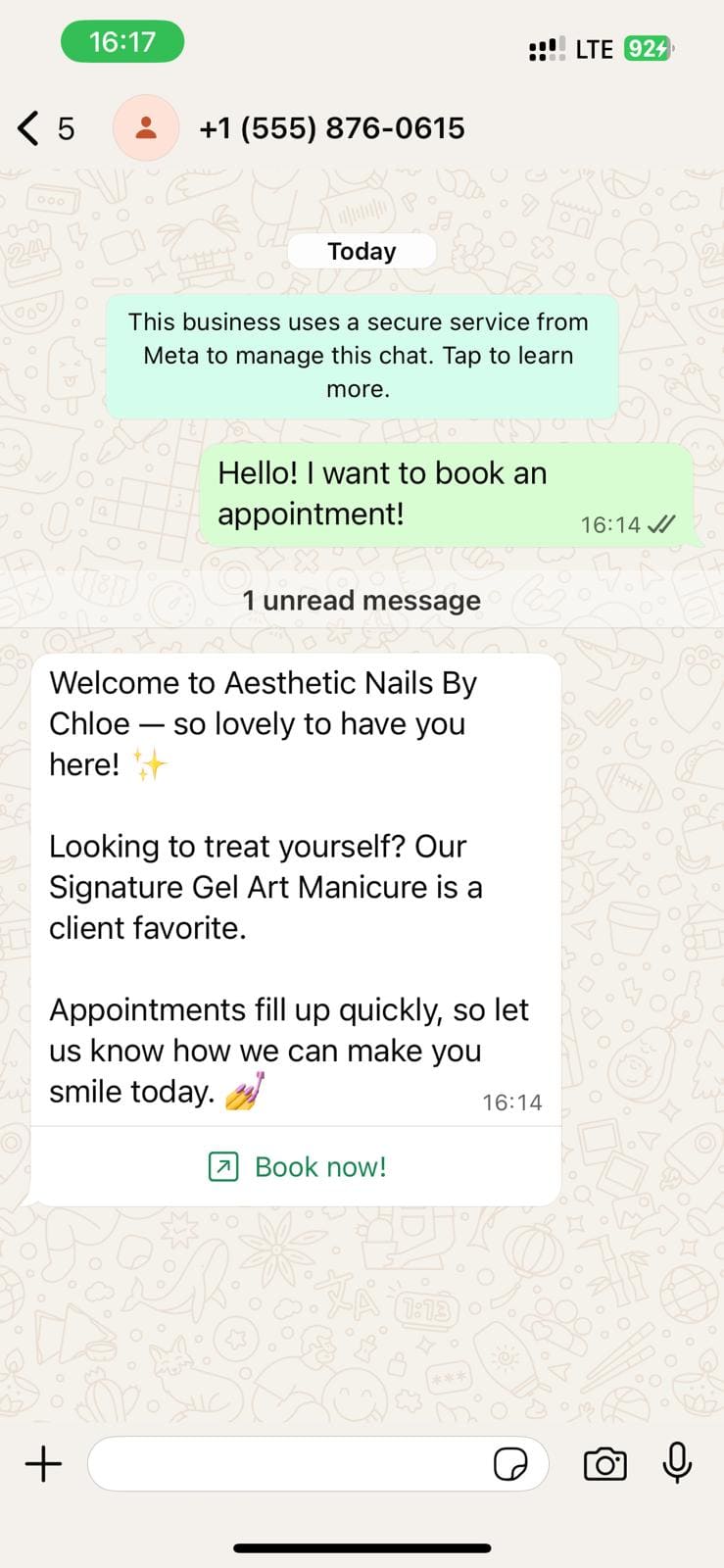
    • The system replies with a welcome message.
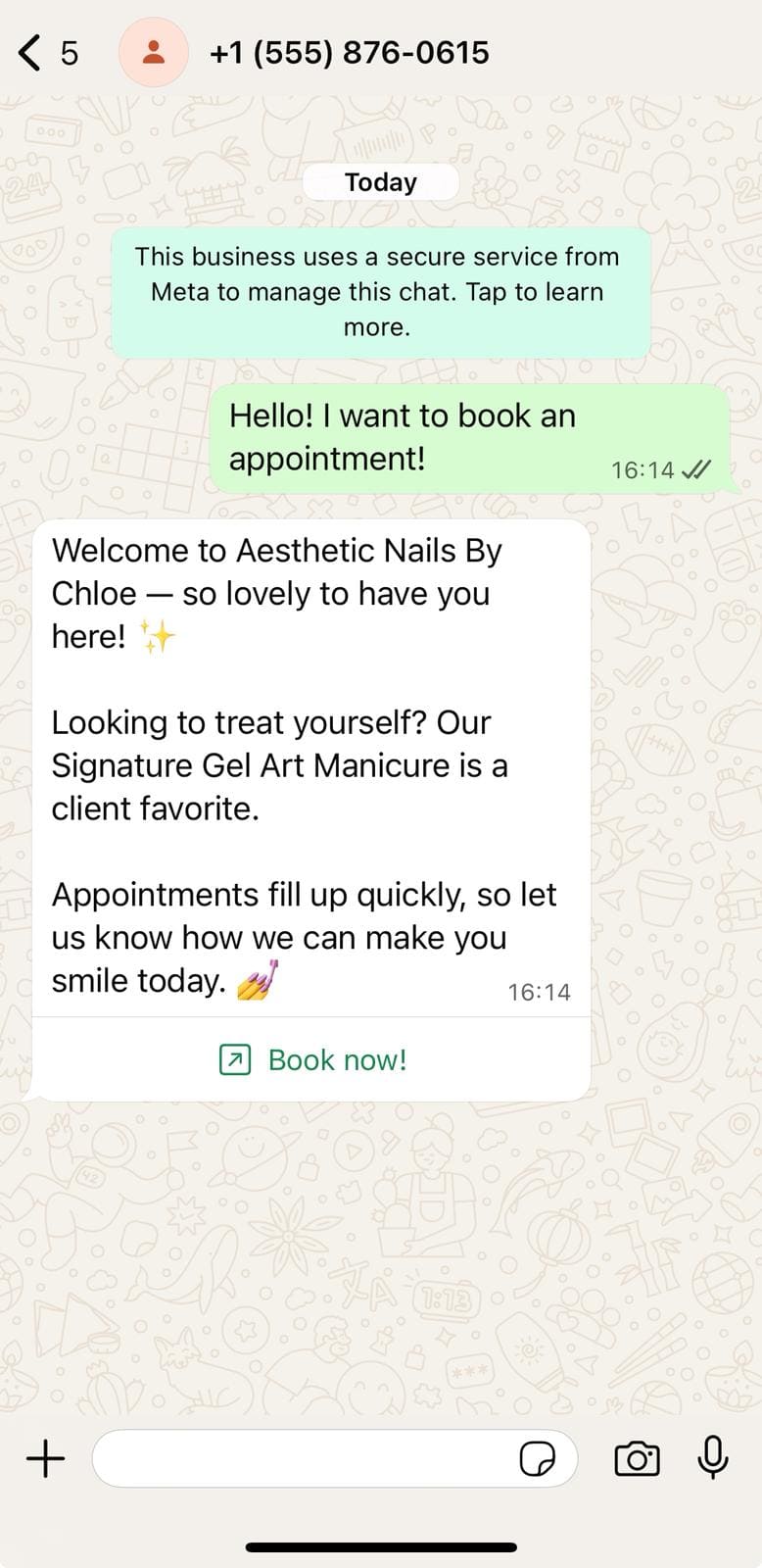
    Welcome message sent to the user on whatsapp
    Your customer receives the welcome message you have set in your calendarapp business
    • A booking button appears which opens up a calendar with real-time availability.
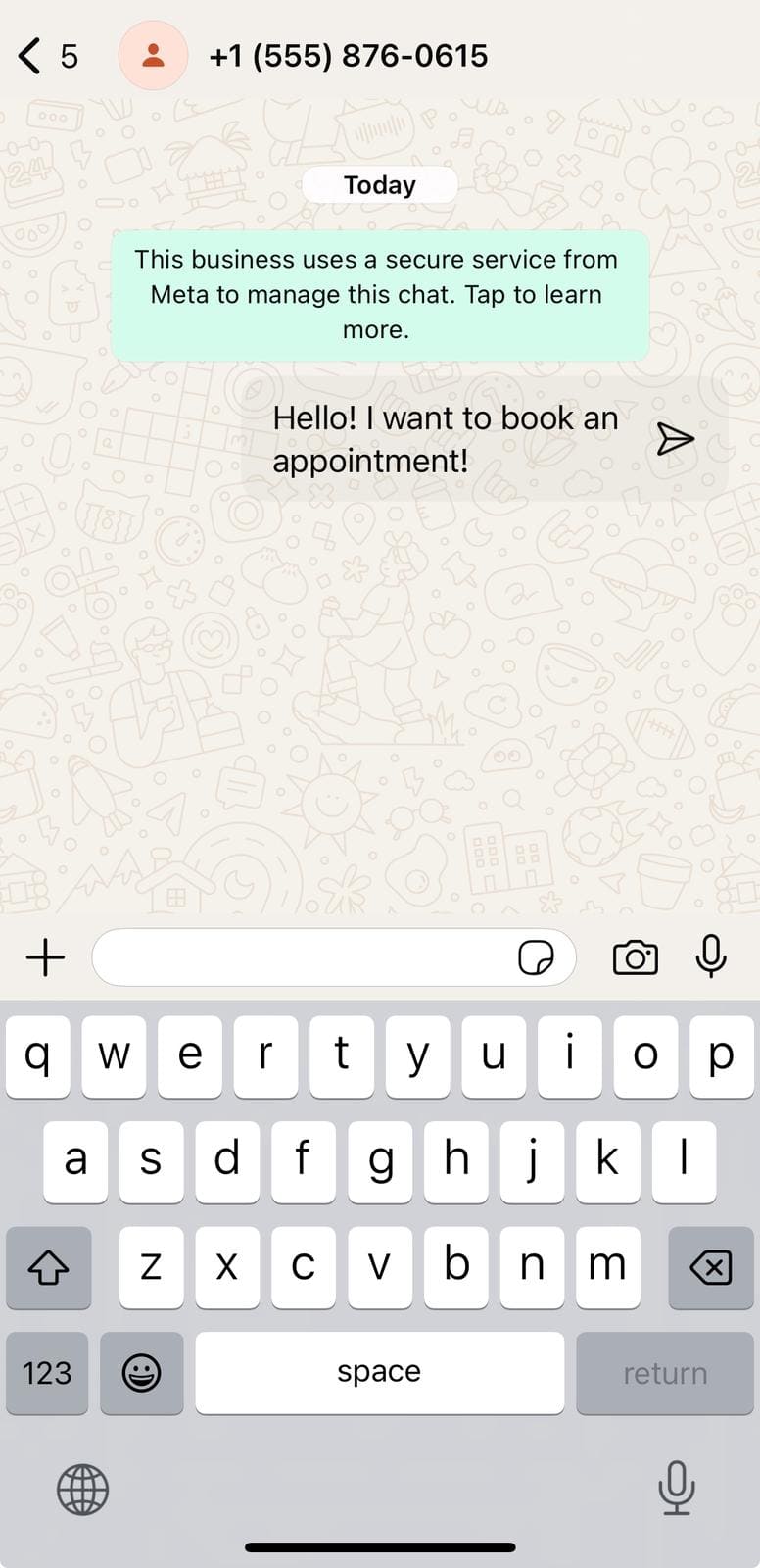
    A conversation starter is added automatically so your customers can start the conversation easily
    • The client selects their preferred time slot and confirms
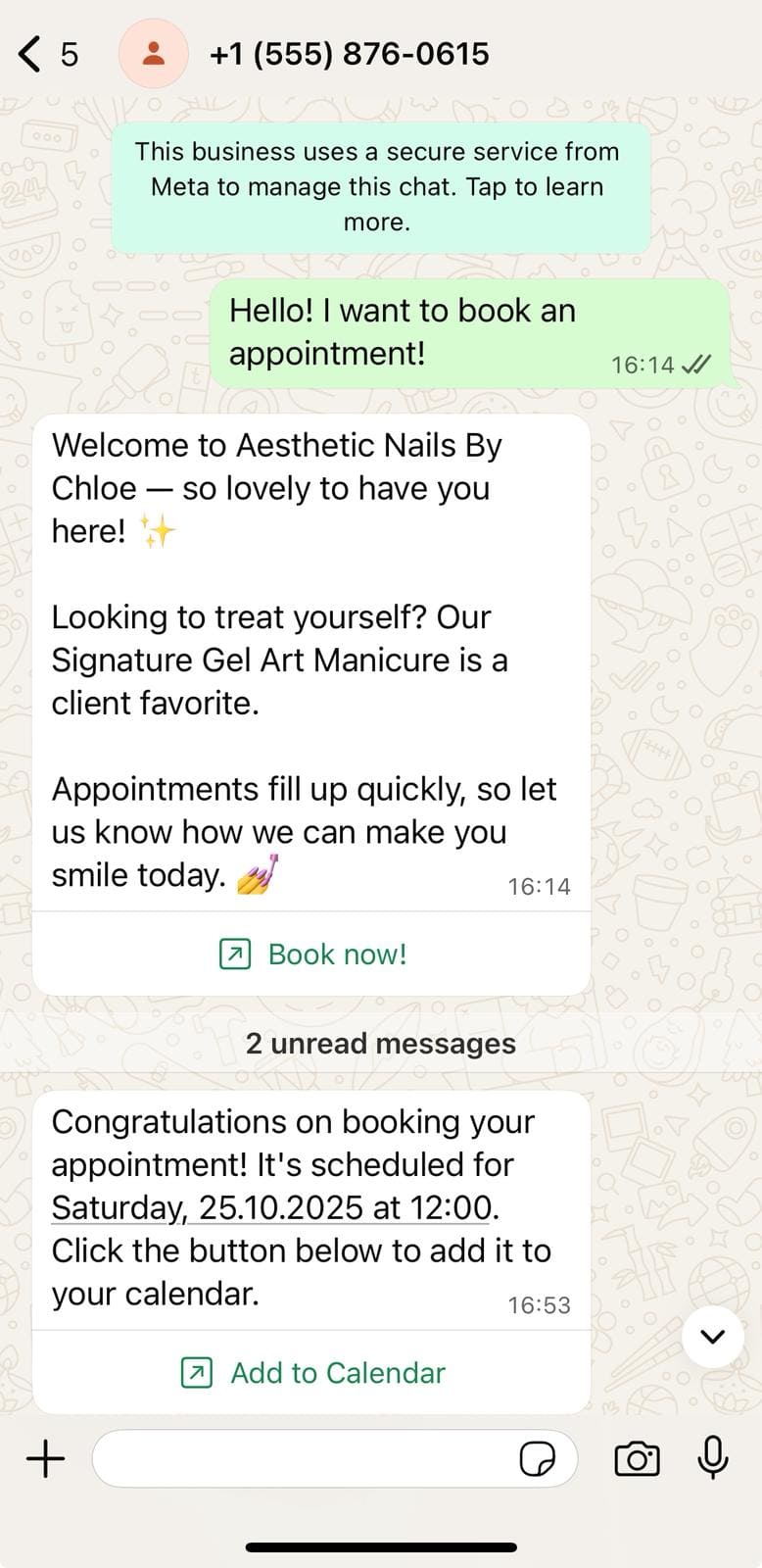
    A confirmation message has been sent to the user according to the description of the confirmation message you set

    Step 9: Rescheduling an Appointment

    One client wanted to change their appointment. Instead of me having to jump in, here’s what happened:

    They clicked on the reschedule button in the confirmation message. The system then showed the client a calendar with the available slots. They picked a new time, and everything was updated.

    No messages were required. No back-and-forth. It just worked.


    Step 10: How the Chat Looks From My Side

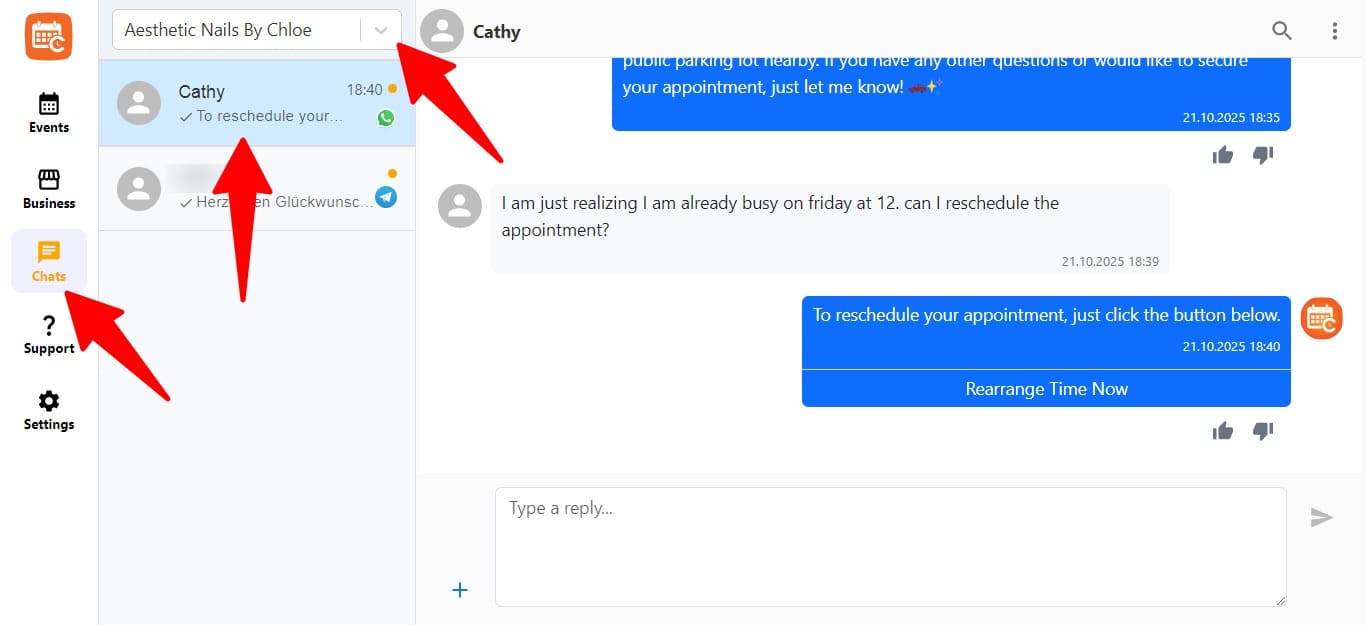
    When I log into CalendarApp, I can go to the chat section and select a customer. Inside that view, I can:

    • See the full conversation
    • View customer contact details
    • Know which business profile the chat belongs to
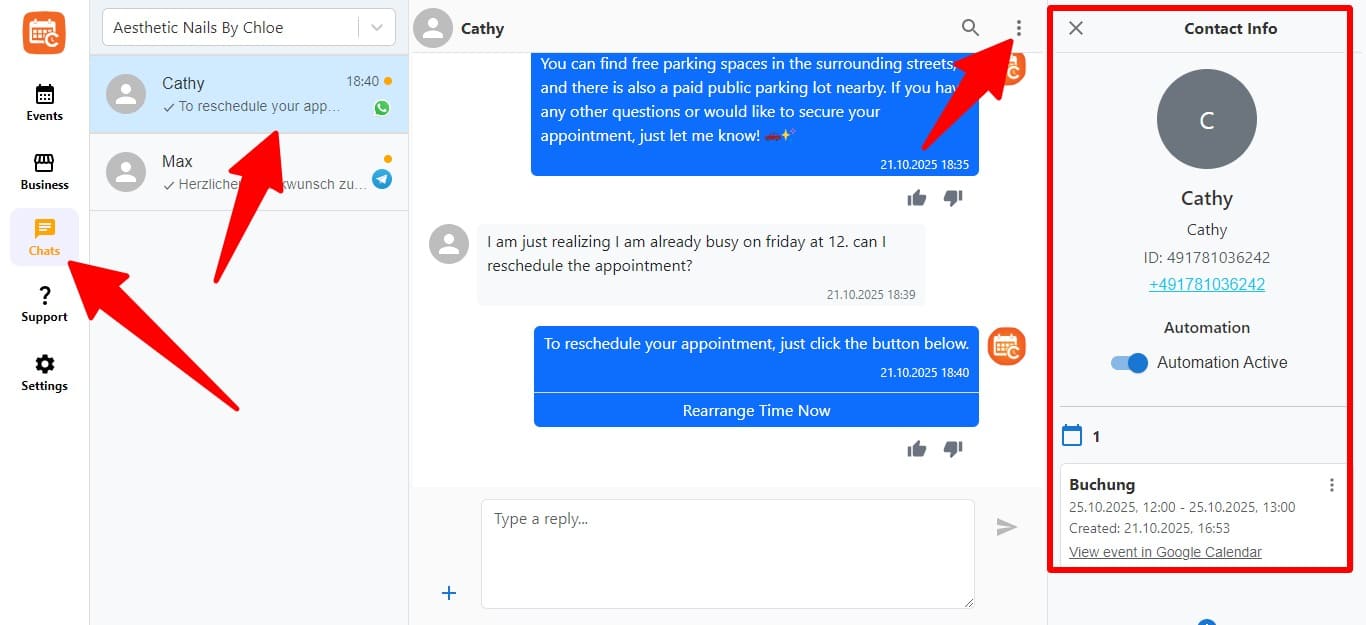
    Navigate to chats select the chat click the menu to view contact information
    Select chats select your business and the contact you want to chat with

    This helps me stay in control and take over manually if needed.


    Step 11: What Shows Up in My Google Calendar

    Once a booking is made, it appears in my connected Google Calendar.

    There are two calendars:

    • One for appointments
    • One for opening hours

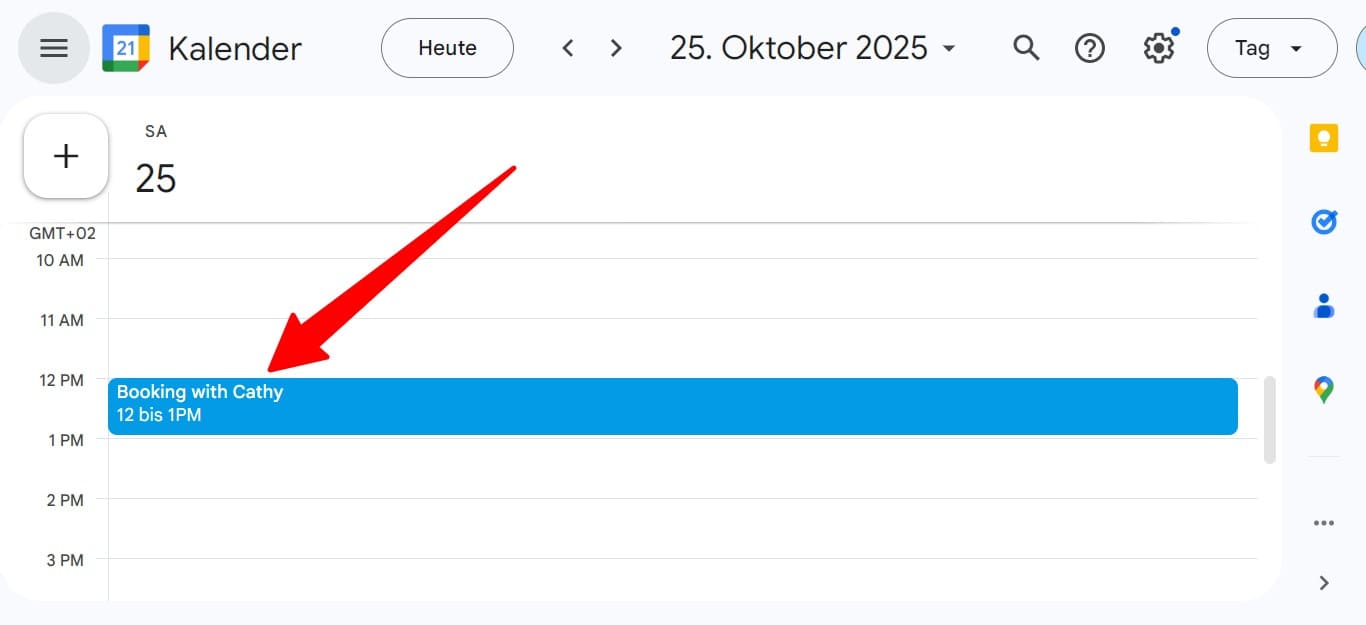
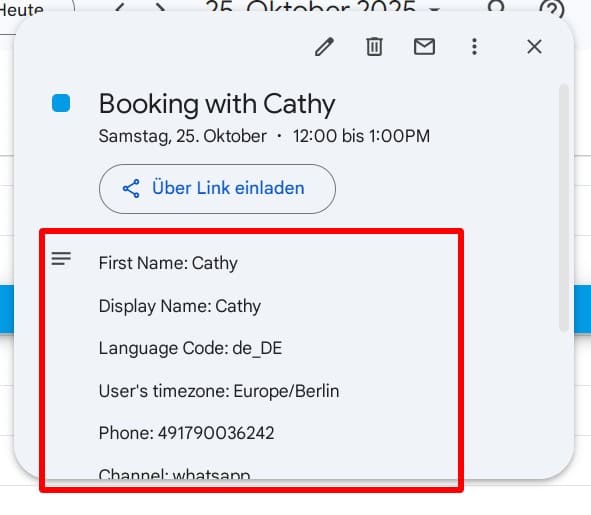
    The appointment calendar shows:

    • Client name
    • Time and service
    • Notes and details
    View your booking in your google calendar
    View more information about your customer in your google calendar event

    The opening hours calendar visually blocks off when I’m available. Together, this setup ensures no double bookings, no scheduling conflicts, and full control.


    My Real Results

    After using CalendarApp, here’s what I saw:

    • 3X more bookings
    • 95 percent of messages handled automatically
    • Over 40 hours saved per month
    • 20 percent more rebookings

    Clients loved the speed and I had peace of mind.


    What You Can Learn From This

    If you run a nail studio or any appointment-based business, this setup is a game changer.

    • You’ll stop losing bookings to slow replies
    • You won’t be tied to your phone all day
    • You’ll still sound like you—because your AI speaks in your tone
    • Your calendar stays updated without any extra work

    Final Thoughts

    I hope this detailed step-by-step guide helps you feel confident to set this up yourself. Every part of this system is made to support people like us—busy, creative professionals who want to grow without burning out.

    You’ve seen how it works. You’ve seen the screenshots. Now go try it.

    — Chloe
  • Start the conversation and book your first appointment with the CalendarApp

    How to Get Started with the CalendarApp in 3 Simple Steps

    If you’re new to the CalendarApp, this guide walks you through the essential steps to get started: create your business, train the AI assistant to sound like you, and set up events clients can book. All from one place.

    Interface showing the first step to create a new CalendarApp business

    Step 1: Create Your CalendarApp Business

    Head to Business section and click +Add New Business.

    • Choose a name: This is just for you. Clients won’t see it.
    • Select a channel: Telegram, WhatsApp, Instagram, Messenger.
    User selecting a messaging channel to connect with CalendarApp

    Connect Telegram

    1. Create a Telegram bot via BotFather
    2. Copy the token
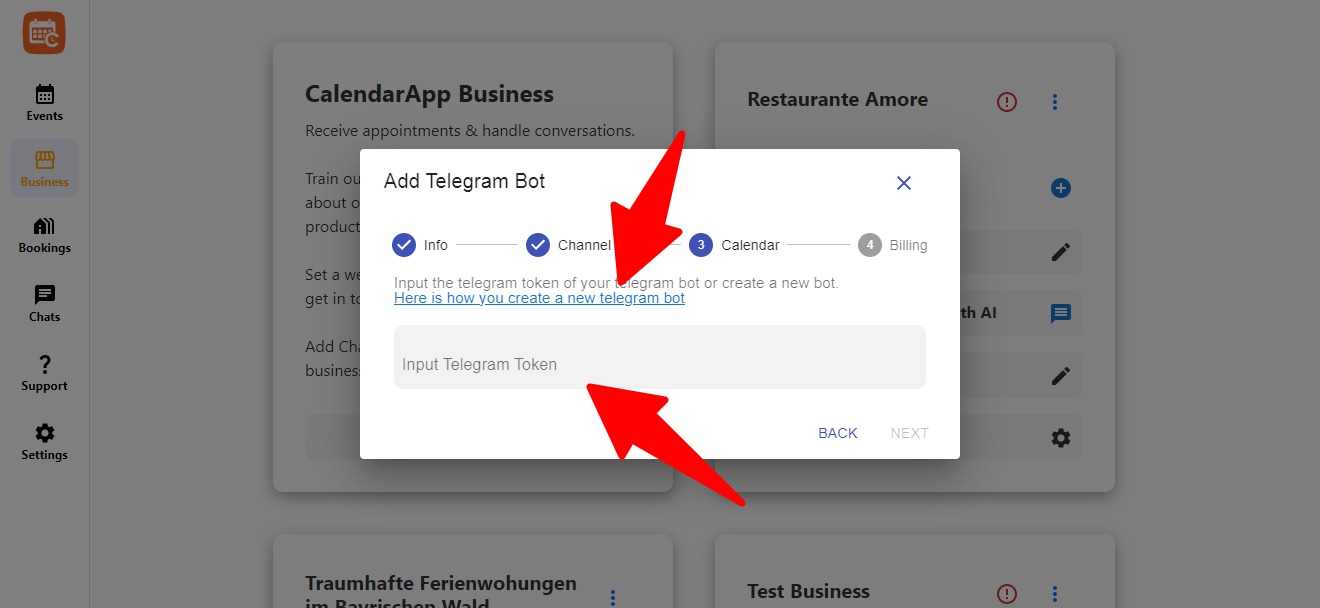
    3. Paste it into the required field
    4. Click “Next”
    Field for entering Telegram bot token during setup

    Connect WhatsApp

    You have two options:

    1. Use a phone number with WhatsApp Business App that has been active for a while (at least 1 month with proper conversations)
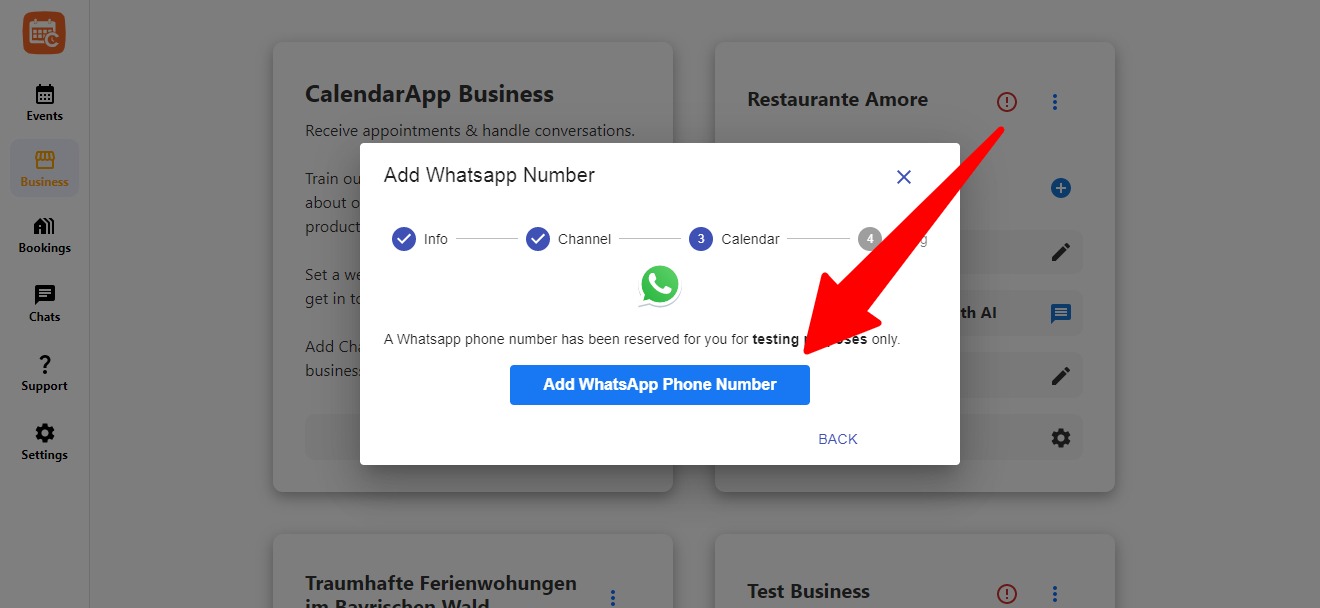
    2. Or request a new number via WhatsApp Cloud. You may use a dedicated CalendarApp number only for testing

    Note: A brand-new number won’t work unless it’s used on the WhatsApp Business App beforehand.

    Instructions for connecting a WhatsApp number using the WhatsApp Business App

    Connect Instagram

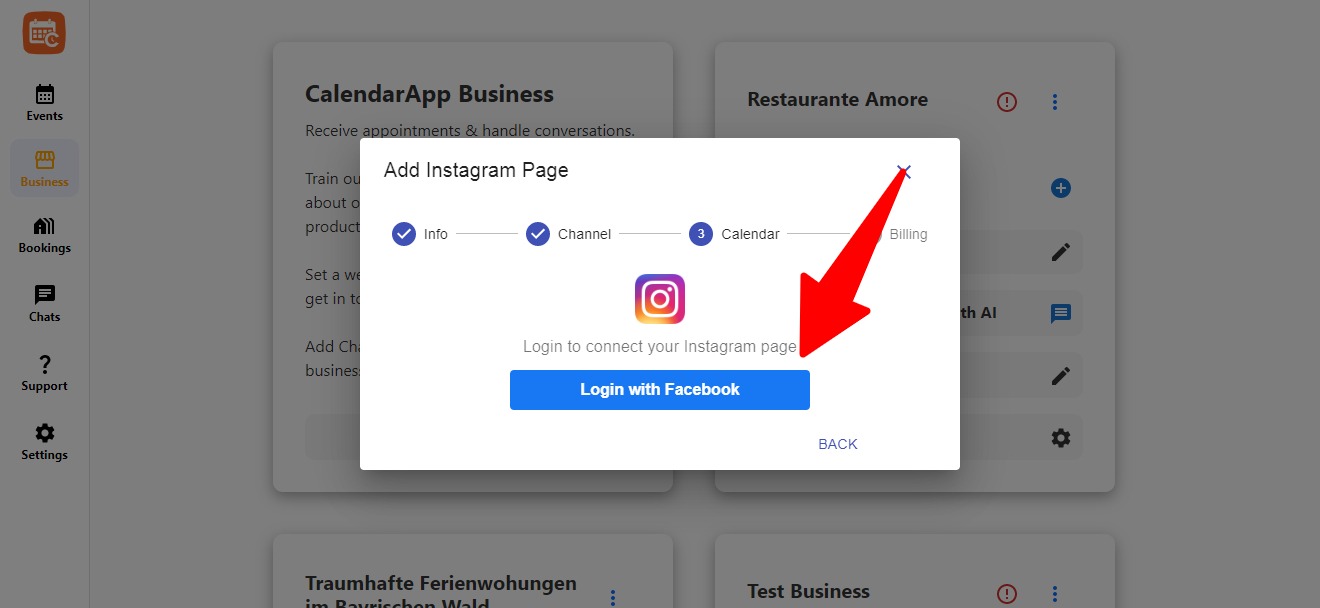
    Click Login with Facebook and choose your Instagram business page.

    1. You must be an admin of the Facebook page
    2. Allow the necessary permissions
    3. Select your business profile
    Prompt to log in with Facebook to connect an Instagram page

    Connect Google or Outlook Calendar

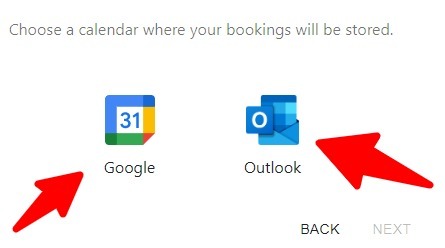
    Choose a calendar provider:

    • Google Calendar
    • Outlook

    You’ll be redirected to authenticate. Grant permission to manage your availability.

    Connect Google or Outlook calendar to your CalendarApp Business

    Start Free or Activate a Subscription

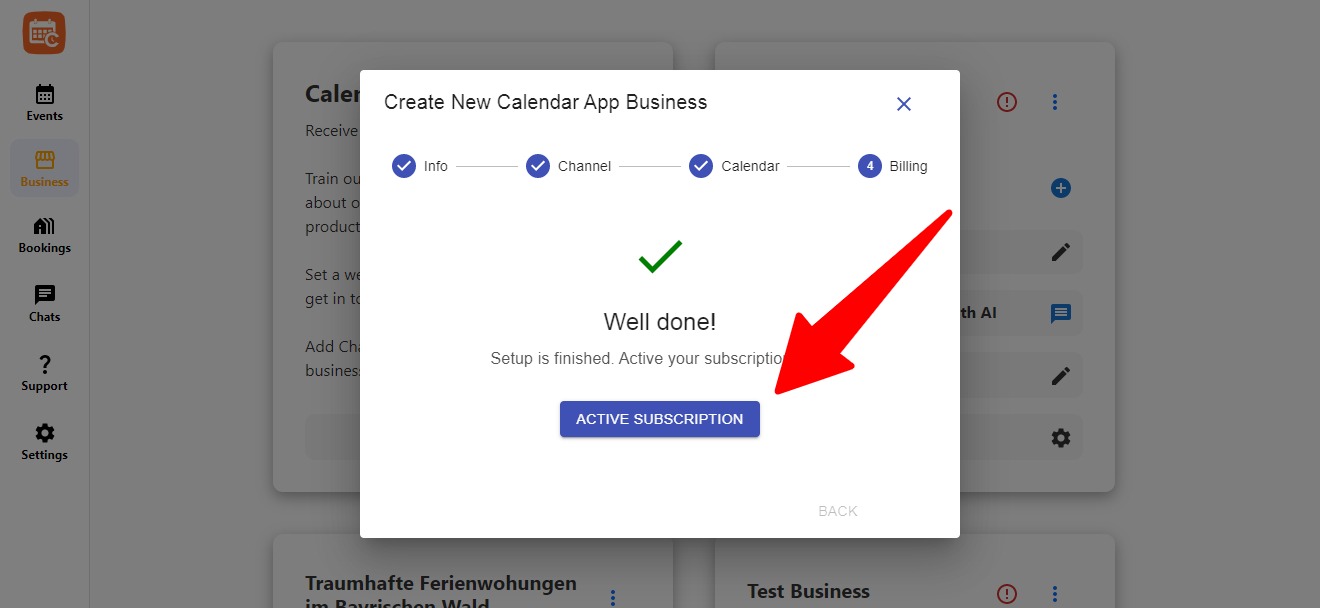
    New users get a 14-day free trial. To continue or activate more businesses, click “Activate Subscription.”

    Confirmation screen after successfully activating a subscription

    Step 2: Train Your AI to Know Your Business

    CalendarApp’s AI learns about your business and adopts your brand voice to reply to customer messages. It makes scheduling personal.

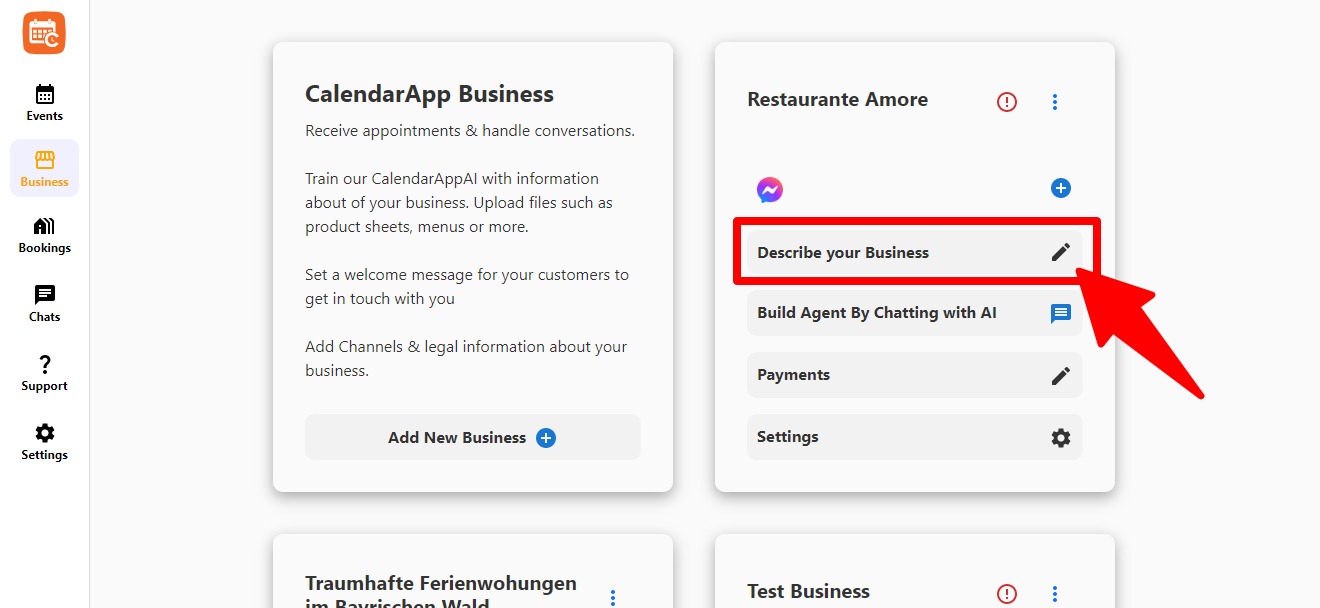
    To begin, go to your business and click “Describe Your Business”.

    Edit option to describe your business and train the AI

    Here you can edit details like:

    • Business Identity & Purpose
    • Basic Information (address, phone, email)
    • Services and Packages
    • Frequently Asked Questions
    • and much more
    Form interface for editing business information in CalendarApp

    Or Just Chat With the AI

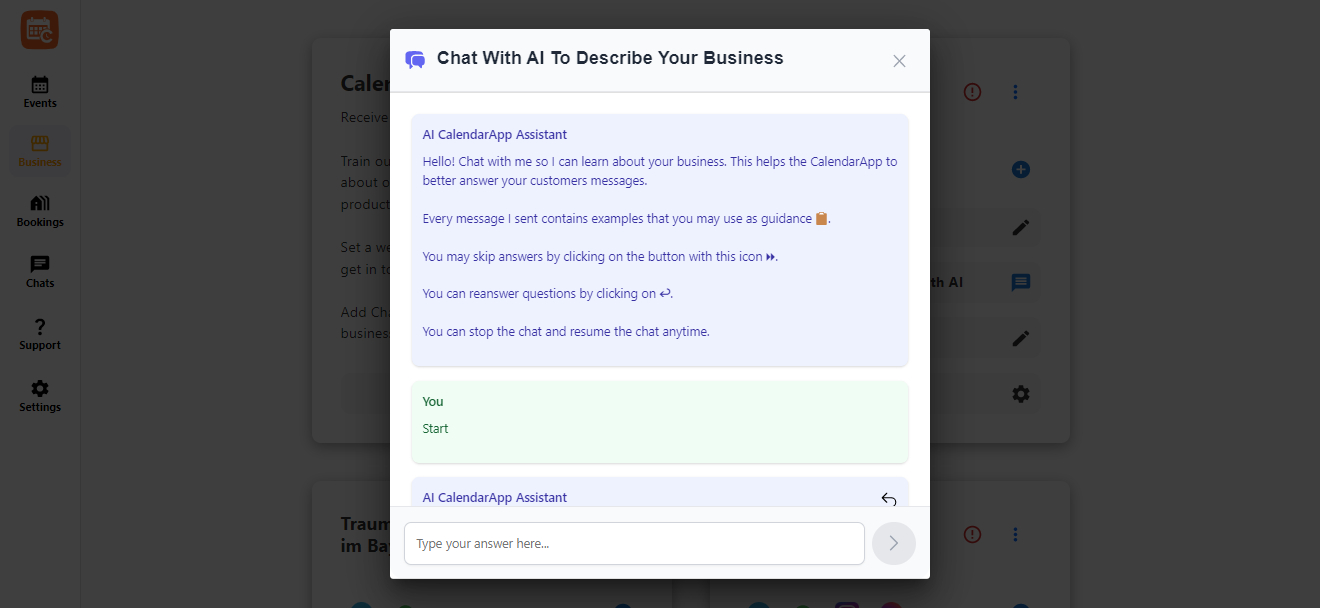
    Use the “Chat With AI” button to provide all this info in a friendly conversation. The AI automatically fills the right fields.

    Chat interface used to train the CalendarApp AI assistant
    • You can skip questions and return later
    • You can re-answer anything
    • You can fine-tune details any time

    Step 3: Create & Edit Events

    Each CalendarApp Business can have multiple events. One for each service you offer (e.g. pedicure, consultation,…).

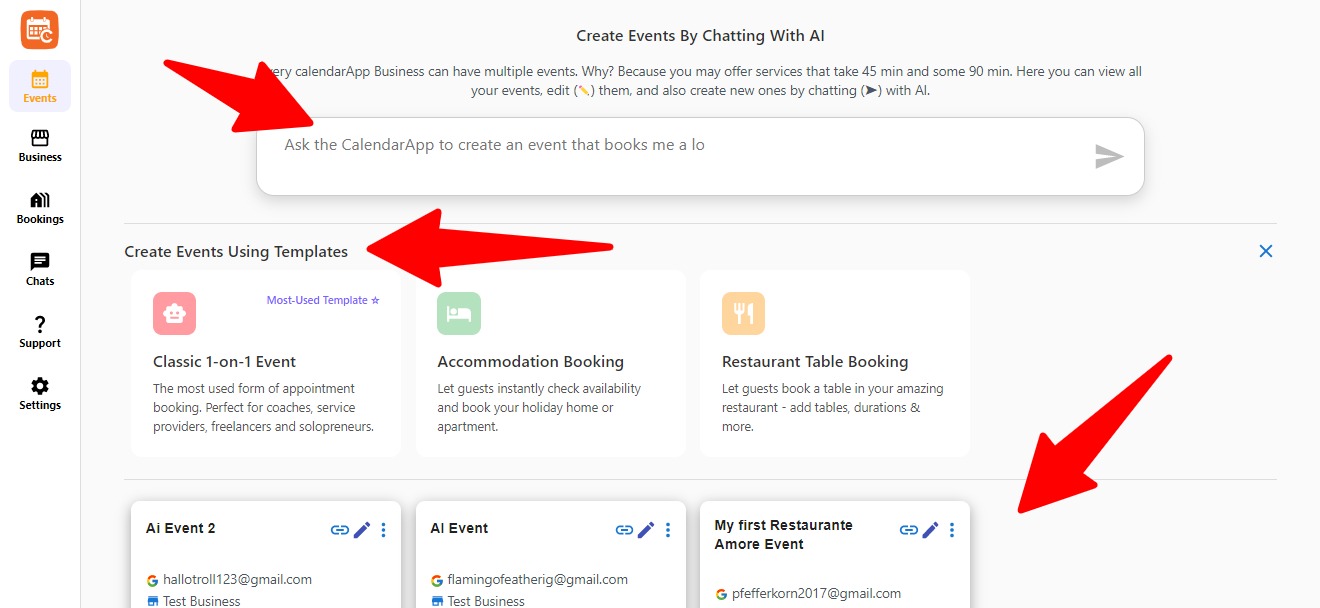
    Go to the Events tab and choose how to create between these 2 options:

    • Use AI Chat to build a new event from scratch
    • Pick a Template: Classic 1-on-1 Event, Accommodation Booking or Restaurant Table Booking
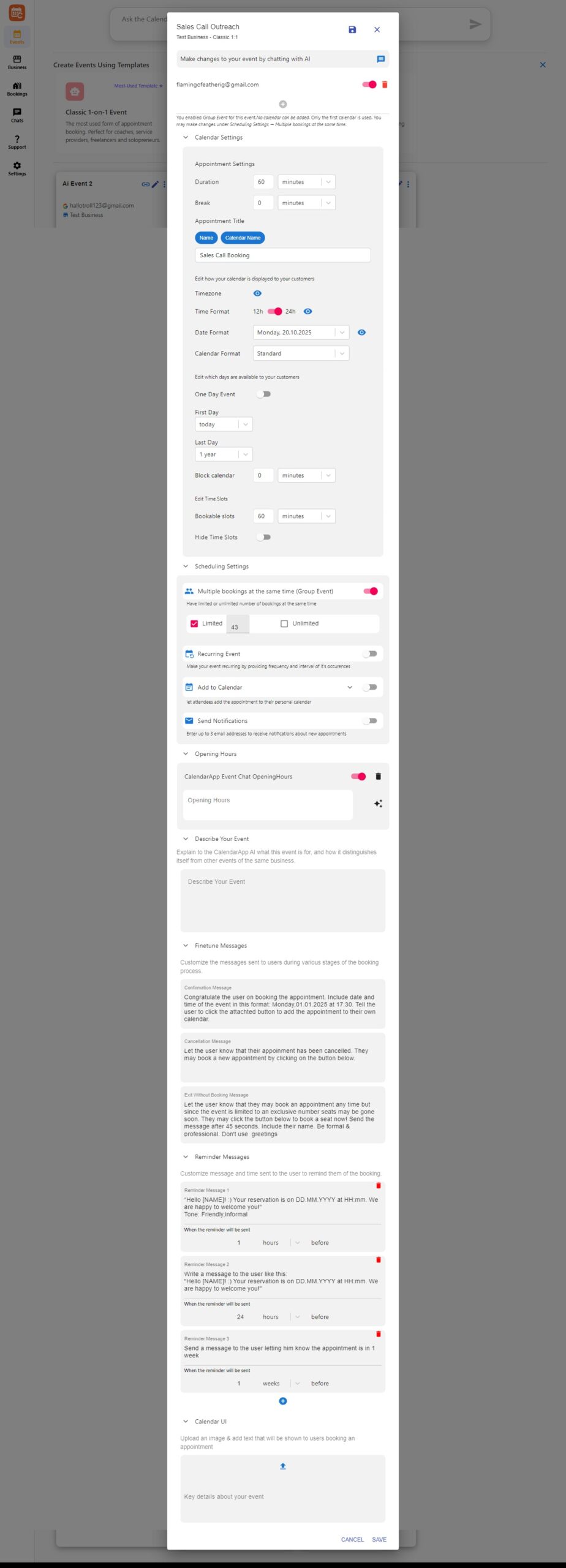
    Event creation screen showing available templates in CalendarApp

    Customize Your Event

    Complete view of editable event settings inside CalendarApp

    Here’s what you can change:

    • Event Name & Duration
    • Booking Availability (time slots, limits, recurring)
    • Confirmation & Reminder Messages
    • UI & Booking Page Image

    You can even enable:

    • Group Bookings
    • Blocked last-minute appointments
    • Custom messages if a user exits without booking
    • and many other settings

    And of course, you can update everything later – via form or simply by chatting with the AI.


    Pricing & Subscriptions

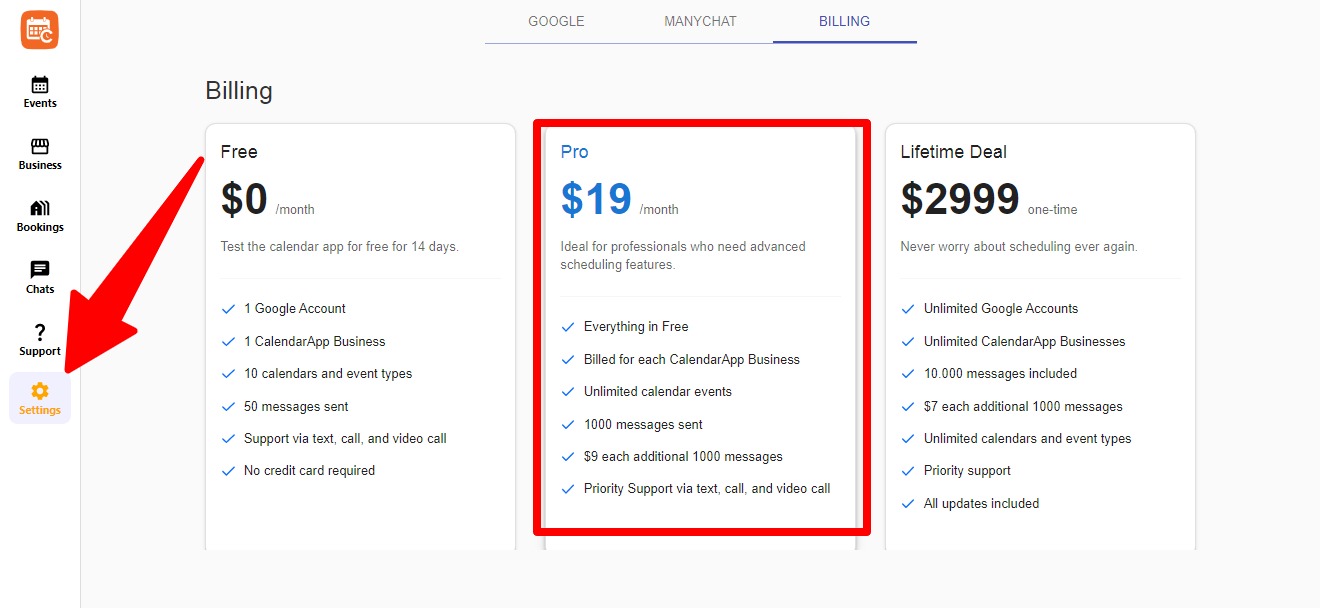
    Access billing under the Settings menu. All plans include support via chat, call, and video.

    User selecting the Pro subscription plan in billing settings

    Plans

    • Free: 14-day trial, 1 business, 50 messages
    • Pro ($19/month): 1 business, 1000 messages, priority support
    • Lifetime ($2999): All features, one-time payment

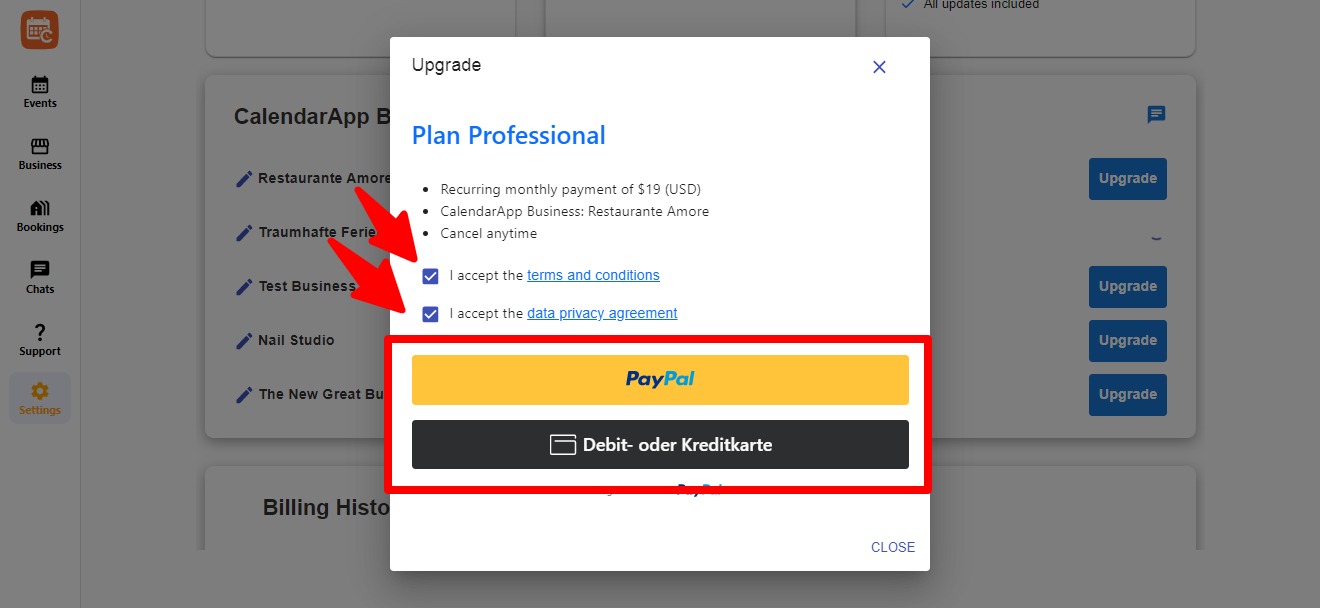
    You can upgrade any business individually using PayPal or credit card.

    PayPal checkout screen to activate CalendarApp subscription

    Need help? Just click the message icon on the right to reach support.


  • Start a Conversation with the CalendarApp

    This is the moment everything comes together! Your CalendarApp assistant is fully set up and is now ready to answer questions, guide guests, and handle bookings. We encourage you to try it out yourself and experience the smart assistance first-hand!

    Table of Contents

    Overview

    Here’s a quick recap of what you have achieved so far:

    • Created your business name
    • Connected your preferred messaging channels (WhatsApp, Telegram, Instagram, or Messenger)
    • Connected your calendar (Google or Outlook)
    • Trained the AI to know your business
    • Created at least one event

    With all these pieces in place, CalendarApp is now ready to assist you!

    How to Start

    To start a conversation with your assistant, simply message it through any of your connected channels:

    • WhatsApp: Send a message to your connected number.
    • Instagram: Message your business page directly through Instagram.
    • Messenger: Use the Messenger button on your Facebook page.
    • Telegram: Open your bot and send a message.

    Conversation Tips

    Your assistant is capable of handling FAQs, booking appointments, and providing availability information. Here are some tips for a smooth conversation:

    • Responses are instant and based on your training.
    • Use your natural tone, just like you would when talking to a real guest.

    Try These Questions

    Here are some realistic questions you can test with your assistant:

    • Hi, are you available tomorrow at 3pm?
    • How much does a haircut cost?
    • Can I reschedule my appointment?
    • Do you have anything open next week?
    • Where is your studio located?

    What Happens Next

    Here’s what to expect when you start a conversation:

    • Your assistant will reply promptly.
    • You will receive a booking link or direct slot suggestion.
    • A confirmation and calendar entry will be created automatically.
    • Feel free to test this process end-to-end!
    • Try sending different message types to explore all functionalities.

    FAQ

    Here are some frequently asked questions:

    • What if the assistant doesn’t respond? Check your connection and channel setup.
    • Can I change the answers later? Yes, you can always return to training.
    • Can I see bookings in CalendarApp? Absolutely, you can check them in your Dashboard.

    Next Step

    If you have any questions or want to refine your assistant, we’re here to help. Reach out to us at info@calendar-app.de anytime and we’ll be happy to support your success.

  • Create Your First CalendarApp Event

    Your first event is the core of CalendarApp: a clear offer with the right duration, rules, and a shareable link. In a few minutes, you’ll go from blank page to a bookable experience customers trust.

    last updated: October 17, 2025

    Laptop showing an event setup form with title, duration, and price fields

    Table of Contents


    Prerequisites

    • Business Name is set (Step 1/5).
    • At least one channel is connected (Step 2/5).
    • Calendar is connected and tested (Step 3/5).
    • AI profile basics are saved (Step 4/5) for consistent replies.

    Create the event: basics

    1. Go to Events → New Event.
    2. Enter Title (clear outcome + service), Duration (e.g., 45m), and optional Price.
    3. Choose Location (at your address or online) and add access notes if needed.
    4. Select the Destination calendar for bookings (recommended: “CalendarApp Bookings”).
    5. Click Save to unlock availability and publishing options.
    Creating a new event: title, duration, price and calendar selection

    Availability & rules

    Rules prevent double-booking and keep your day sane. Start simple; you can refine later.

    1. Set Weekly availability (days/hours the event can be booked).
    2. Add Lead time (e.g., no bookings within 2h) and Buffer (e.g., 10m cleanup).
    3. Choose Max daily capacity (optional) and whether overlapping bookings are allowed.
    4. Enable Rescheduling window (e.g., allowed until 24h before start).

    Details, description & media

    Customers convert when they understand the outcome, what’s included, and what to bring.

    • Short description: one paragraph explaining the result (“Fresh gel refill with color of your choice”).
    • What’s included: list 3–5 bullets (e.g., consultation, prep, aftercare tips).
    • What to bring/know: parking, dress, online meeting link, arrival time.
    • Images or short video: add 1–3 visuals showing the outcome.
    Event details page with bullets for what's included and a hero image

    Confirmations & reminders

    1. Set your confirmation message (tone from your AI profile).
    2. Choose reminders (e.g., 24h and 2h before).
    3. Decide on follow-ups (e.g., “How was your appointment?” with a review link).

    Publish & share your link

    1. Toggle Publish to make the event live.
    2. Copy the Booking link.
    3. Add it to Instagram bio, WhatsApp quick replies, Telegram /about, website CTA, and email signature.
    4. Send yourself a test booking from a connected channel and confirm the event lands on your calendar.

    Title & description templates

    Beauty / Wellness

    Title: “Classic Manicure – 45m”

    Description: “Shape, cuticle care, polish of your choice, and hydration. Perfect for a neat everyday look.”

    Coaching

    Title: “Intro Strategy Session – 30m”

    Description: “Quick audit + next steps tailored to your goal. Online via video, link provided on booking.”

    Hospitality / Tours

    Title: “House Viewing – 30m”

    Description: “Private viewing with Q&A. Address and parking tips included in confirmation.”

    Fitness

    Title: “Intro Pilates – 45m”

    Description: “Foundations session focused on posture and breath. Bring a towel and water.”

    Video: Create & Publish in Under 3 Minutes

    https://www.youtube.com/watch?v=ysz5S6PUM-U

    Troubleshooting

    • No times showing: confirm weekly availability and that your destination calendar is connected; check time zone.
    • Double-booking risk: include all relevant calendars as availability sources in Step 3/5.
    • Customers not receiving confirmations: verify the connected channel and ensure reminders are enabled.
    • Event not on calendar: re-run a test and confirm the destination calendar selection.

    FAQ

    • Can I duplicate events? Yes—use “Duplicate” to reuse structure for new services.
    • Group classes supported? If enabled, set capacity >1 and show remaining spots.
    • Can customers reschedule? Yes—within your rescheduling window; the calendar updates automatically.
    • Can I take deposits? If enabled in your plan, add a deposit amount and policy to reduce no-shows.

    At a Glance (Checklist)

    • Create: title, duration, price, location, destination calendar.
    • Rules: weekly hours, lead time, buffer, capacity, rescheduling.
    • Details: description, what’s included, access notes, images/video.
    • Publish & share: copy link to bio, website, quick replies; run a full test booking.
  • Train the CalendarApp AI to Know Your Business And Sound Like You

    Last updated: October 18, 2025

    The CalendarApp Assistant is your 24/7 digital helper. But before it can speak for you, it needs to learn how you work, how you sound, and what makes your business unique. That’s where AI training comes in.

    This training happens in a guided conversation, one question at a time. You’ll see smart examples and can reply with your own details. You can skip any question, go back to change answers, or pause and finish later. You can also redefine anything at any time, even months from now. It’s an ongoing process designed to evolve with your business.

    Table of Contents


    How It Works

    When you start AI training, the CalendarApp Assistant becomes your onboarding partner. It will guide you through a structured set of questions and adjust how it responds to clients based on your input.

    You can skip questions by clicking the ⏩ button. You can re-answer by selecting ↩️ and finish training later using the skip menu in the top right corner. There’s no pressure to get everything perfect the first time. Your answers can evolve at any time as your business grows.

    The more detailed your answers, the smarter and more natural your assistant becomes.

    Customer Messaging Best Practice

    Q1: Describe Your Business

    This question helps define what your business does and who it serves. The AI uses this description to understand your niche, your tone, and what kind of questions your customers are likely to ask.

    “We run a yoga studio for busy professionals, offering flexible class times and expert instructors. Our differentiator is small class sizes for personalized attention.”

    Yoga Studio

    “We’re a boutique nail studio focused on natural-looking gel finishes, hygiene standards, and guaranteed neat results.”

    Nail Studio

    “We operate a car dealership specializing in electric vehicles and trade-ins. Customers value our transparent pricing and fast financing.”

    Car Dealership

    “We help property owners find reliable tenants and buyers. Our agents handle listings, visits, and negotiations.”

    Real Estate Agency

    “We’re a professional barber shop offering precision haircuts, beard styling, and grooming services for men who value quality and time.”

    Barber Shop

    Q2: Basic Business Information

    This question defines how the AI introduces your business and provides essential contact details to customers. The more details you add, the more natural replies will sound.

    “Name: Flow Yoga Studio. Address: 123 Main Street. Phone: 555-9876. Email: hello@flowyoga.com. Website: flowyoga.com. Hours: Mon–Fri 8–18h, Sat 10–14h.”

    Yoga Studio

    “Name: City Auto Hub. Address: 45 Central Avenue. Phone: 555-8899. Website: cityautohub.com. Hours: Mon–Sat 9–19h. Parking available in front.”

    Car Dealership

    Q3: Services, Add-ons & Constraints

    This question trains the AI to describe what you offer and what rules apply to your bookings. Be specific and list all your services, including durations and prices.

    “Service: Beginner Yoga (45m, €20). Add-on: Mat rental (+€3). Constraint: Arrive 10m early.”

    Yoga Studio

    “Service: Haircut (30m, €35). Service: Beard trim (15m, €15). Constraint: No-shows charged 50%.”

    Barber Shop

    “Service: Test drive booking (45m, free). Add-on: EV consultation (30m). Constraint: Driving license required.”

    Car Dealership

    Q4: Common Customer Questions & Answers

    These pairs allow the AI to give instant, accurate responses to frequently asked questions.

    “Q: What are your opening hours? A: We’re open Mon–Fri 9–17, Sat 10–14.”

    Yoga Studio

    “Q: Do you sell used cars? A: Yes, we offer certified pre-owned electric vehicles with warranty.”

    Car Dealership

    Q5: Voice, Vocabulary & Emoji Rules

    This defines how your assistant sounds and which tone it uses when chatting with customers.

    “Voice: friendly and clear. Vocabulary: say ‘clients’, not ‘customers’. Emoji: 😊 or 👍 only, max one per message.”

    Nail Studio

    “Voice: warm and confident. Avoid slang. Keep responses short, professional, and welcoming.”

    Real Estate Agency

    Q6: What the AI Should Never Do

    This protects your brand by preventing the AI from saying or doing things you wouldn’t approve of.

    “Never use sarcasm, avoid slang, don’t promise outcomes or discounts.”

    Yoga Studio

    “Never discuss pricing changes or promotions not yet approved by management.”

    Car Dealership

    Q7: Welcome Message

    This is the first impression customers get when they start a chat. Keep it warm and on-brand.

    “Hello and welcome to Flow Yoga! How can we help you find your next class?”

    Yoga Studio

    “Welcome to City Auto Hub! Looking to schedule a test drive or learn about our EV lineup?”

    Car Dealership

    Q8: When the AI Doesn’t Understand

    This defines how your AI handles uncertainty or vague questions gracefully.

    “I’m not completely sure about that—could you rephrase or share a bit more detail?”

    Yoga Studio

    “Sorry, I might have misunderstood. Could you clarify what service you’re asking about?”

    Barber Shop

    Q9: When Information Is Missing

    Helps your assistant sound helpful when information isn’t available.

    “I don’t have that info yet, but I’ll check and follow up shortly.”

    Real Estate Agency

    Q10: Human-Only Topics

    Specify what subjects your AI should hand over to you or your team.

    “Custom contracts, legal matters, large group bookings, or refund requests → handled by humans.”

    Yoga Studio

    “Financing, trade-in valuations, and corporate partnerships → forwarded to staff.”

    Car Dealership

    Q11: Delays, Complaints & Misunderstandings

    Ensure empathy in every difficult situation.

    “Thanks for telling us—I’m sorry for the inconvenience. A team member will follow up.”

    Nail Studio

    “I hear you and I’m on it. A colleague will take over shortly.”

    Car Dealership

    Q12: Booking CTA Wording

    These call-to-action phrases guide users to book faster.

    “Book your class” · “See available times” · “Reserve a spot”

    Yoga Studio

    “Schedule a test drive” · “Book consultation” · “Check availability”

    Car Dealership

    Q13: Style to Use vs. Avoid

    Define language patterns that fit your brand tone and those that don’t.

    “If you’d like to try beautiful extensions, I’d be delighted to help you achieve your dream nails. Feel free to book an appointment.”

    Nail Studio

    Avoid: “Pamper yourself with luxurious beauty.”

    Nail Studio


    Next Step

    If you have any questions or want to refine your setup, feel free to reach out to us. We’re happy to help shape your perfect assistant, guide you through custom setups, or provide expert feedback on how to align the AI with your business needs. We care deeply about your success and are here to support your journey every step of the way.

    Email us anytime at info@calendar-app.de.

    Continue your setup: Create Your First Event →

  • Connect Your Calendar

    Connect Your Calendar — Google Calendar and Outlook Calendar

    Last updated: October 17, 2025

    Connect the calendar you already use so CalendarApp can understand your schedule, place new bookings for you, and keep everything in sync. Your existing appointments remain exactly as they are. From now on, new bookings created by CalendarApp will be saved to the calendar you select during the connect flow.

    Table of Contents

    Prerequisites

    Have a Google account or a Microsoft account ready. If you need one, create a Google account or create a Microsoft account before you start.

    Connect Google Calendar

    Why Google Calendar

    Your appointments live there. It is simple to use, widely adopted across the internet, fast, and reliable. Connecting it gives CalendarApp a clear view of your schedule and a trusted place to save new bookings.

    How to connect

    1. On the connect screen, select Google and click Next to authorize your calendar.
    2. In the pop-up window, choose the Google account to connect and continue.
    3. Review the permissions and click Continue.
    4. You will be redirected back to CalendarApp automatically. That’s it.
    CalendarApp connect screen showing Google selected and Next highlighted
    Start by selecting Google, then click Next.
    Google consent screen highlighting requested permissions and the Continue button for CalendarApp
    Review the requested access and click Continue.

    Connect Outlook Calendar

    Why Outlook Calendar

    Your appointments are already there, and Outlook is dependable and business ready. Connecting it lets CalendarApp read your schedule and place new bookings without changing how you work today.

    How to connect

    1. In CalendarApp, choose Outlook Calendar and click Connect.
    2. Sign in with your Microsoft account in the pop-up window.
    3. Grant the requested permissions so CalendarApp can read calendars and create events.
    4. You will be redirected back to CalendarApp automatically.
    Outlook consent window indicating how to grant CalendarApp access to calendars
    Outlook consent. Enable CalendarApp to read calendars and add events.

    Troubleshooting

    • Permissions not granted or revoked — return to your Google Account or Microsoft account settings to re-grant access, then reconnect in CalendarApp.
    • Wrong account appears — if several accounts are signed in, choose the correct one in the consent window or sign out of others and try again.
    • Time zone mismatch — confirm your time zone in CalendarApp and in your connected calendar so booked times match.
    • Pop-up blocked — allow pop-ups for your browser session and try again, or use a private window.

    FAQ

    • Can I remove Google Calendar or Outlook Calendar later Yes. You can disconnect a calendar at any time and connect a different one whenever you need.
    • Can I add additional calendars Yes. You can connect more calendars later to reflect how you schedule across work, personal, and shared calendars.
    • Can I use multiple calendars in one Google account Yes. Depending on your plan, you can manage up to 250 calendars inside one Google account.

    Next Step

    Train the AI to Know Your Business and Sound Like You

    If you have any questions, do not hesitate to reach out. We are always happy to help and we care about your success. Email us at info@calendar-app.de.

  • Connect Channels to the CalendarApp

    Connect Channels (Telegram, Instagram/Messenger, WhatsApp)

    Connecting your business channels to CalendarApp lets you receive bookings directly via Telegram, Instagram/Messenger, or WhatsApp. CalendarApp will reply automatically, confirm appointments, and help manage your bookings—no manual effort needed.
    Last updated: October 17, 2025

    Table of Contents

    Prerequisites

    • Active Telegram account
    • Instagram Professional account (linked to a Facebook Page)
    • WhatsApp Business phone number (ready to verify)
    • Be logged into the relevant Telegram, Facebook/Meta, and WhatsApp accounts
    • Two-factor authentication (2FA) is recommended for all platforms

    Telegram

    Connecting Telegram allows customers to book appointments through your Telegram bot. CalendarApp will automate booking replies and confirmations.

    How to Connect Telegram

    1. Open the Telegram app and search for BotFather.
    2. Start a chat and send /newbot.
    3. Set your bot’s name and unique username when prompted.
    4. Copy the API token provided by BotFather.
    5. Go to Settings → Channels → Telegram in CalendarApp.
    6. Click Connect.
    7. Paste your Telegram API token and click Save.
    8. Send a test message to your new bot to confirm the connection.
    Telegram bot setup in CalendarApp dashboard
    Connect your Telegram bot in CalendarApp to automate booking replies.

    Instagram/Messenger

    Connect Instagram and Messenger to let customers book appointments via DM. CalendarApp handles replies and confirmations directly within Instagram or Facebook Messenger.

    How to Connect Instagram/Messenger

    1. In CalendarApp, go to Settings → Channels → Instagram/Messenger.
    2. Click Connect.
    3. A Facebook/Meta dialog opens. Continue as prompted.
    4. Select your Instagram Professional account and/or Facebook Page.
    5. Grant all requested permissions for messaging and business access.
    6. Send yourself a quick DM to test the connection.
    Instagram permission dialog to grant messaging access
    Grant permissions to allow CalendarApp to automate booking replies on Instagram and Messenger.

    WhatsApp

    Connect WhatsApp to let customers book by sending a WhatsApp message. CalendarApp will reply and confirm bookings automatically.

    How to Connect WhatsApp

    1. In CalendarApp, go to Settings → Channels → WhatsApp.
    2. Click Connect.
    3. A Meta/WhatsApp window opens. Sign in with your Facebook/Meta account.
    4. Accept the WhatsApp Business/Cloud API terms.
    5. Select or create a WhatsApp Business Account (WABA).
    6. Pick or verify your WhatsApp Business phone number.
    7. Set your business display name.
    8. Finish the on-screen steps. You’ll return to CalendarApp when done.
    9. Send yourself a test message on WhatsApp to confirm the setup.
    WhatsApp Business onboarding screen in CalendarApp
    Follow the WhatsApp Business onboarding steps to connect your channel with CalendarApp—no technical setup needed.

    Security & Permissions

    • If your Telegram bot token is ever leaked, use BotFather to generate a new token and update it in CalendarApp.
    • Review Meta (Facebook/Instagram) permissions at least once a year to ensure only required access is granted.
    • Enable two-factor authentication (2FA) on all your accounts to keep your channels secure.

    Troubleshooting

    • Instagram/Messenger: If bookings don’t come through, check that all messaging permissions were granted in the Meta dialog.
    • Telegram: If your bot isn’t responding, double-check the username and API token.
    • WhatsApp: If your phone number is already linked elsewhere, you’ll need to remove it or use a different verified business number.
    • Time zone mismatch: If booking times seem off, confirm your CalendarApp and device time zones match.

    FAQ

    • Can I connect more than one channel?
      Yes, you can connect Telegram, Instagram/Messenger, and WhatsApp all at once. CalendarApp will automate booking replies for each channel.
    • Can I change my Telegram bot token or WhatsApp number later?
      Absolutely—just update your token or number in the respective CalendarApp channel settings.
    • Do I need a Facebook Page to connect Instagram?
      Yes, your Instagram Professional account must be linked to a Facebook Page for Meta’s messaging integration to work.
    • Can I use a dedicated WhatsApp business number?
      Yes, using a separate WhatsApp Business number is recommended for managing customer bookings.

    Next Step

    Your business channels are now ready to receive and automate booking requests! Next, connect your calendar to sync appointments: Connect your calendar with Google Calendar or Outlook.

    If you have any questions, reach out via email at info@calendar-app.de.

  • CalendarApp Business Name

    Welcome to Step 1 of the CalendarApp ‘Get Started’ Series! Setting up your CalendarApp Business Name is the first and most essential step to creating a professional, unified presence for your automated bookings and messages. Let’s get started!


    Table of Contents

    1. What Is a CalendarApp Business Name?
    2. Why It Matters
    3. How to Create Your Business Name
    4. Tips for Choosing a Great Name
    5. Image Examples
    6. Video Walkthrough
    7. Common Questions (FAQ)
    8. At a Glance (Checklist)
    9. Next Step: Connect Channels

    What Is a CalendarApp Business Name?

    Your CalendarApp Business Name is the official name that identifies your business, brand, or organization within CalendarApp. Think of it as your digital business card—it appears in automated booking confirmations, reminders, and across all connected channels (like email, SMS, or WhatsApp). Setting up your business profile with a clear, recognizable name ensures that clients and customers always know who they’re communicating with.


    Why It Matters

    • Connects Channels: Your business name links all communication channels under a single, unified identity.
    • Consistent Branding: Every automated message, calendar invite, or booking confirmation will carry your brand name, creating a seamless experience.
    • Personalized Automated Replies: Automated messages use your business name for a personal touch, increasing customer trust and recognition.
    • Professionalism: A clear, consistent name builds credibility and sets expectations.

    How to Create Your Business Name

    1. Log In to CalendarApp
      Go to calendar-app.de and sign in with your account credentials.
    2. Access the Business Profile Settings
      Click on your profile icon or the menu in the top-right corner.
      Select Settings → Business Profile.
    3. Enter Your Business Name
      Locate the Business Name field.
      Type in your desired business or brand name (e.g., “Sunrise Yoga Studio” or “Smith Consulting Group”).
    4. Save Your Changes
      Double-check your spelling and branding.
      Click the Save button to update your business profile.
    5. Check Your Branding
      Preview how your business name appears in automated messages or booking confirmations.

    Tip: You can always update your business name later, but keeping it consistent from the start is best for your branding and SEO.


    Tips for Choosing a Great Name

    • Clarity is Key: Use a name that clients will immediately recognize.
    • Uniqueness: Stand out from competitors with a distinctive brand name.
    • Match Your Social Media: Align your business name with your website, social media profiles, and Google My Business listing for better SEO and discoverability.
    • Keep It Professional: Avoid slang or abbreviations unless they’re part of your established brand.
    • SEO Friendly: Include keywords if appropriate (e.g., “Miller Event Planning” instead of just “Miller”).

    Image Examples

    Screenshot of CalendarApp Business Profile settings page
    Example: Where to enter your Business Name in CalendarApp settings.
    Preview of automated booking message showing business name
    Caption: How your Business Name appears in automated messages.

    Video Walkthrough

    https://www.youtube.com/embed/your-demo-video-id

    Watch this quick video to see the process step-by-step!


    Common Questions (FAQ)

    • Can I change my business name later?
      Yes! You can update your Business Name anytime in the Business Profile settings. Changes will reflect across all automated messages and connected channels.
    • Will my Business Name sync with connected platforms (like Google Calendar or WhatsApp)?
      Your CalendarApp Business Name appears in CalendarApp-generated messages and bookings. For external platforms, you may need to update your name separately for full branding alignment.
    • What if I manage multiple businesses?
      You can create separate profiles or workspaces for each business, each with its own unique name.

    At a Glance (Checklist)

    • ✔ Log in to CalendarApp
    • ✔ Go to Settings → Business Profile
    • ✔ Enter a clear, unique business name
    • ✔ Save changes
    • ✔ Preview your business name in automated messages

    Next Step: Connect Channels

    Ready to connect your calendar app branding across all your communication channels?
    Click below to move to the next tutorial in our ‘Get Started’ series!

    Need more help? Visit our Help Center or contact support for personalized guidance!

  • Automate DM Booking: How to Turn Instagram Messages into Confirmed Appointments

    Automate DM Booking: Turn Instagram Conversations into Confirmed Appointments

    When clients DM you, the clock starts ticking. With a simple flow to Automate DM booking, you can capture demand in the moment—no back-and-forth, no missed messages, just smooth scheduling straight from Instagram.

    Phone showing Instagram DMs converting into bookings

    At a Glance

    • Reply instantly with a friendly message and a booking option
    • Offer real-time availability inside the DM flow
    • Send a confirmation with reminders—automatically

    Why Automate DM Booking on Instagram?

    The moment someone writes to you is when intent peaks. Automate DM booking meets that intent with instant answers and a clear path to reserve a slot—reducing drop-off and lifting conversion from DM to confirmed appointment.

    “Speed is the difference between ‘I’ll think about it’ and ‘I’m booked.’”

    Customer Messaging Best Practice
    Clean calendar interface with clear available times

    Video: DM to Booking—See the Flow

    https://www.youtube.com/watch?v=dQw4w9WgXcQ

    Step-by-Step: Build Your DM Booking Flow

    1) Craft your first reply. Keep it warm and action-oriented. Example: “Great to hear from you! Tap below to see live availability and book in seconds.” Mention your service and expected duration.

    2) Offer real-time availability. Link to a booking widget or send inline options. The key is zero friction—people should choose a time without leaving the conversation.

    3) Confirm + remind automatically. Once a slot is chosen, send a confirmation message and an automatic reminder so no one forgets.

    Hands on phone confirming a booking via DM

    Message Templates You Can Paste

    First response: “Thanks for your message! I can help you book right here. Tap to pick a time that suits you—confirmation in seconds.”

    Follow-up (if no action): “Just checking in—do any of these times work? You can also view more options in the booking link.”

    Confirmation: “You’re all set! I’ve sent a confirmation and reminder. If you need to reschedule, use the same link.”


    Best Practices to Maximize Conversions

    • Keep choices minimal: Offer 3–5 timeslots to reduce decision fatigue.
    • Mirror your brand voice: Friendly, clear, and concise.
    • Short path to done: The fewer taps to book, the better.
    • Always visible CTA: Make the “Book now” action easy to find at any time.

    With these steps, you’ll truly Automate DM booking—turning casual DMs into reliable revenue, while freeing up your time.

    Next: Deploy in Minutes

    Activate your DM flow, share your booking link in your bio and quick replies, and test once from a personal account. Iterate weekly on your first reply and availability rules.

  • Basic Guide: Setting Up Your First Calendar

    Basic Guide: Setting Up Your First Calendar

    In a few minutes, you can create a calendar that’s easy to manage and simple for clients to book. This guide focuses on clarity and speed.

    Minimal desk setup with calendar on screen

    What You’ll Do

    • Create a calendar
    • Set availability
    • Preview the booking link

    Tips

    Keep time slots consistent and avoid micro-increments. A clean schedule is easier to fill.

    Close-up of planner with scheduled slots

    Next Step

    Copy your booking link and share it in your bio or messages.