
Why the CalendarApp needs access to Your Google Calendar
CalendarApp is a highly advanced and user-friendly scheduling and event management app that allows users to manage their schedules and events from one convenient location. One of its key features is the ability to integrate with Google Calendar, giving users the ability to synchronize their events and appointments with their Google Calendar.
If you don’t have an account get started for free now!
However, in order to integrate with Google Calendar, the CalendarApp needs access to a user’s Google Calendar account. This may cause some users to be concerned about the security and privacy of their personal information. In this article, we will explain why the CalendarApp needs access to your Google Calendar and how you can revoke these permissions at any time if you so choose.
Table of Contents
1. Why CalendarApp Needs Access to Your Google Calendar
The CalendarApp needs access to your Google Calendar in order to properly integrate with it and synchronize your events and appointments. This integration allows to keep track of your schedule in real-time. Furthermore it ensures that you never miss an appointment or important event.
Additionally, the CalendarApp uses the information it collects from your Google Calendar to provide you with personalized recommendations and reminders. Making it easier to manage your schedule and stay on top of your appointments.
2. How to grant the CalendarApp access to Your Google Account
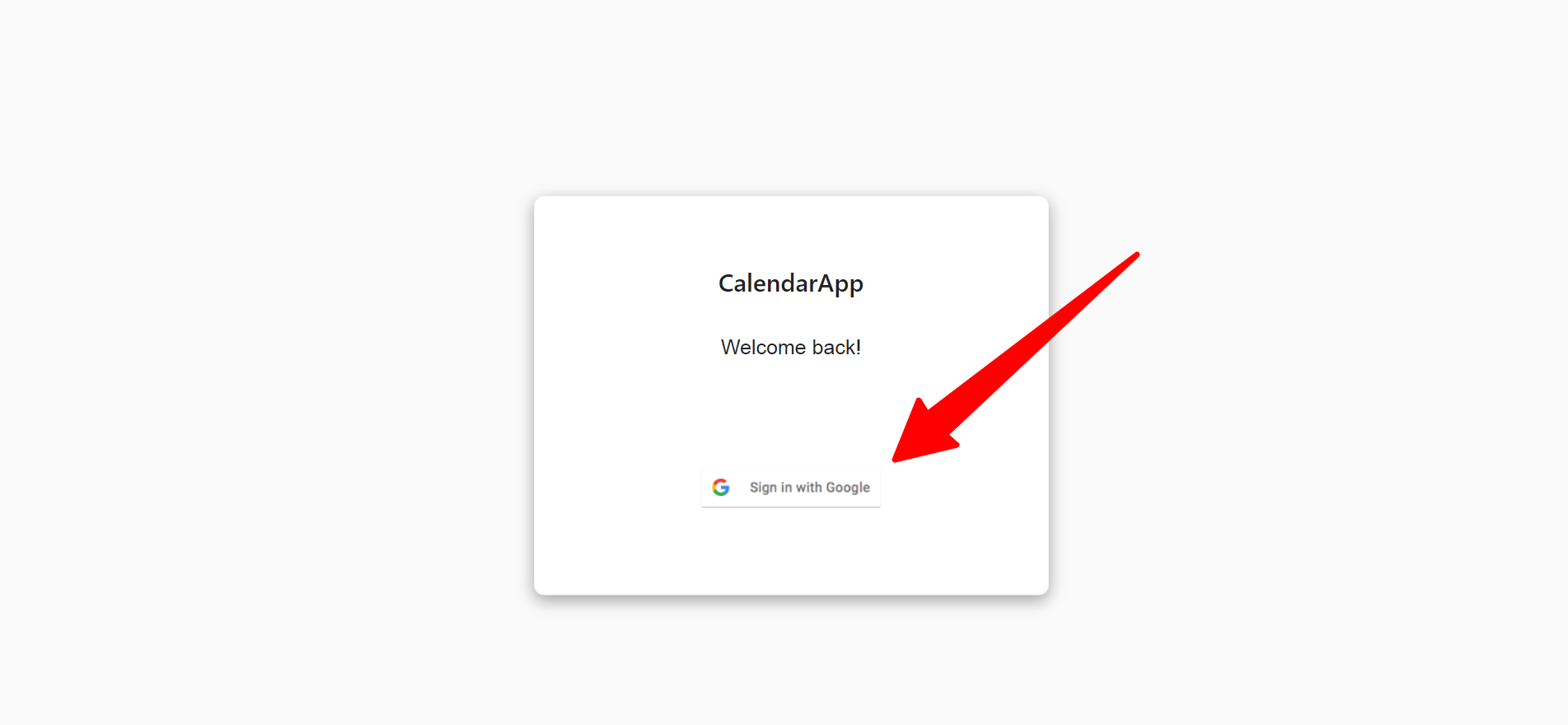
To grant the CalendarApp access to your Google Calendar click on Sign in with Google and select your Google Account.
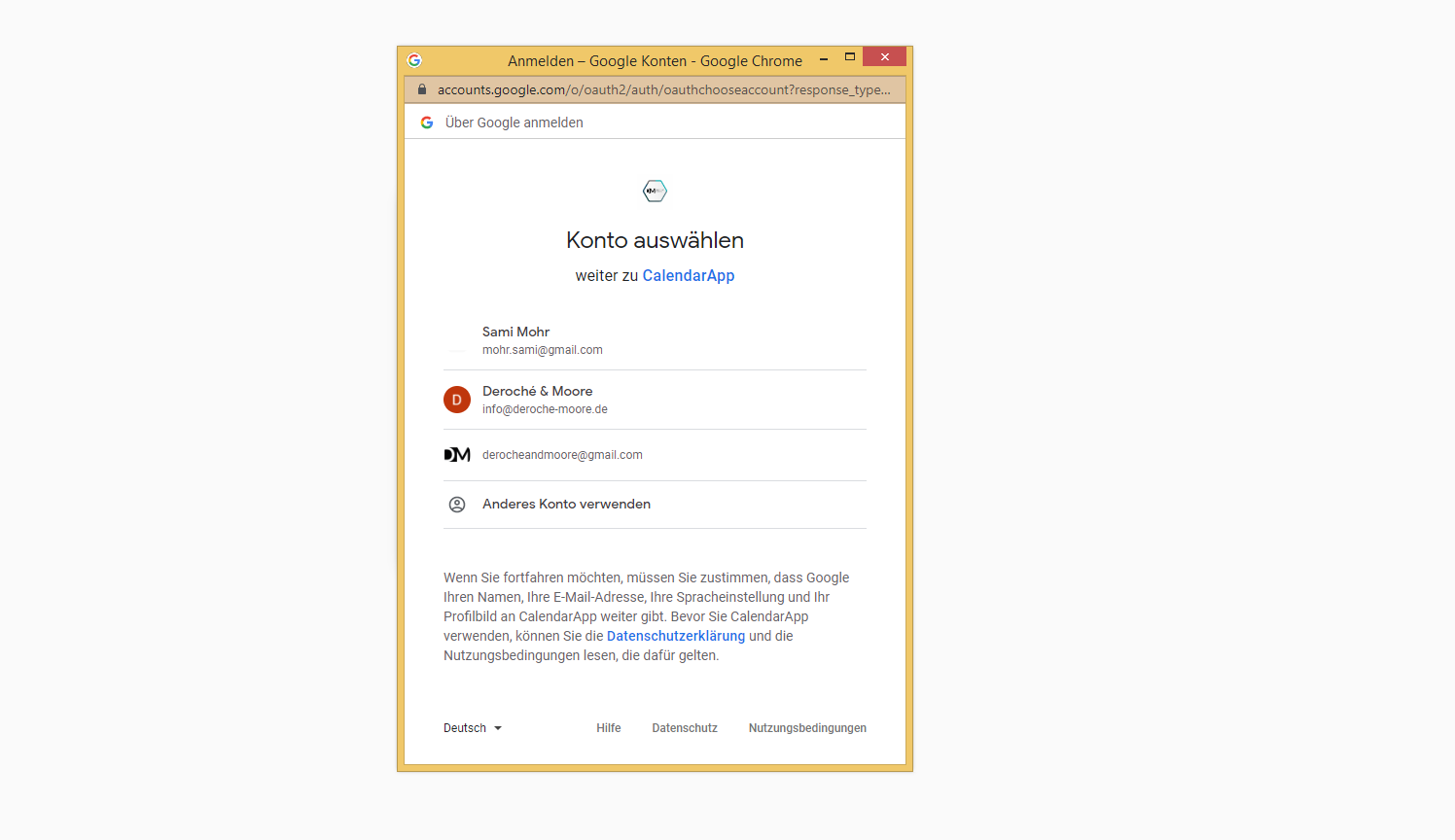
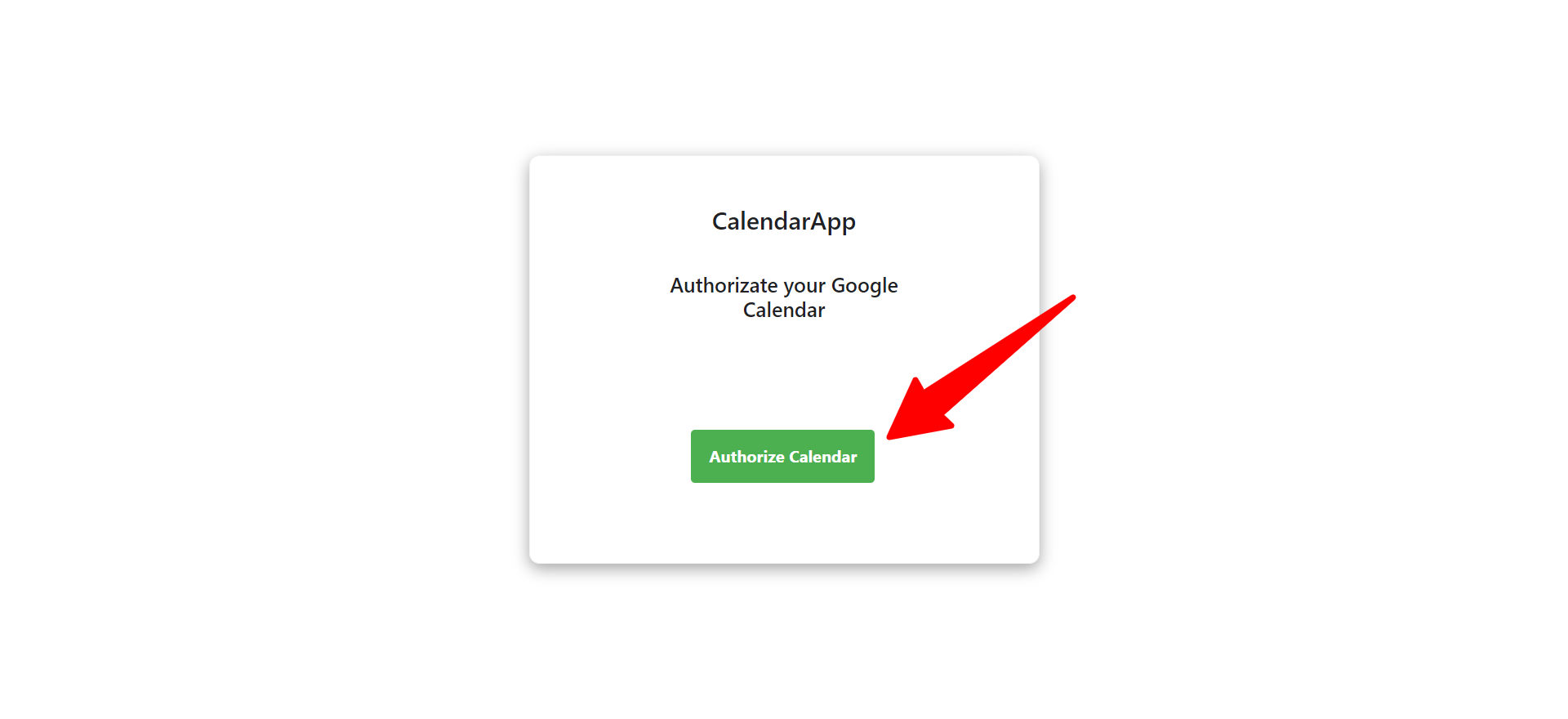
To connect your Google Calendar with the CalendarApp click on Authorize Calendar and select the same Google Account again.
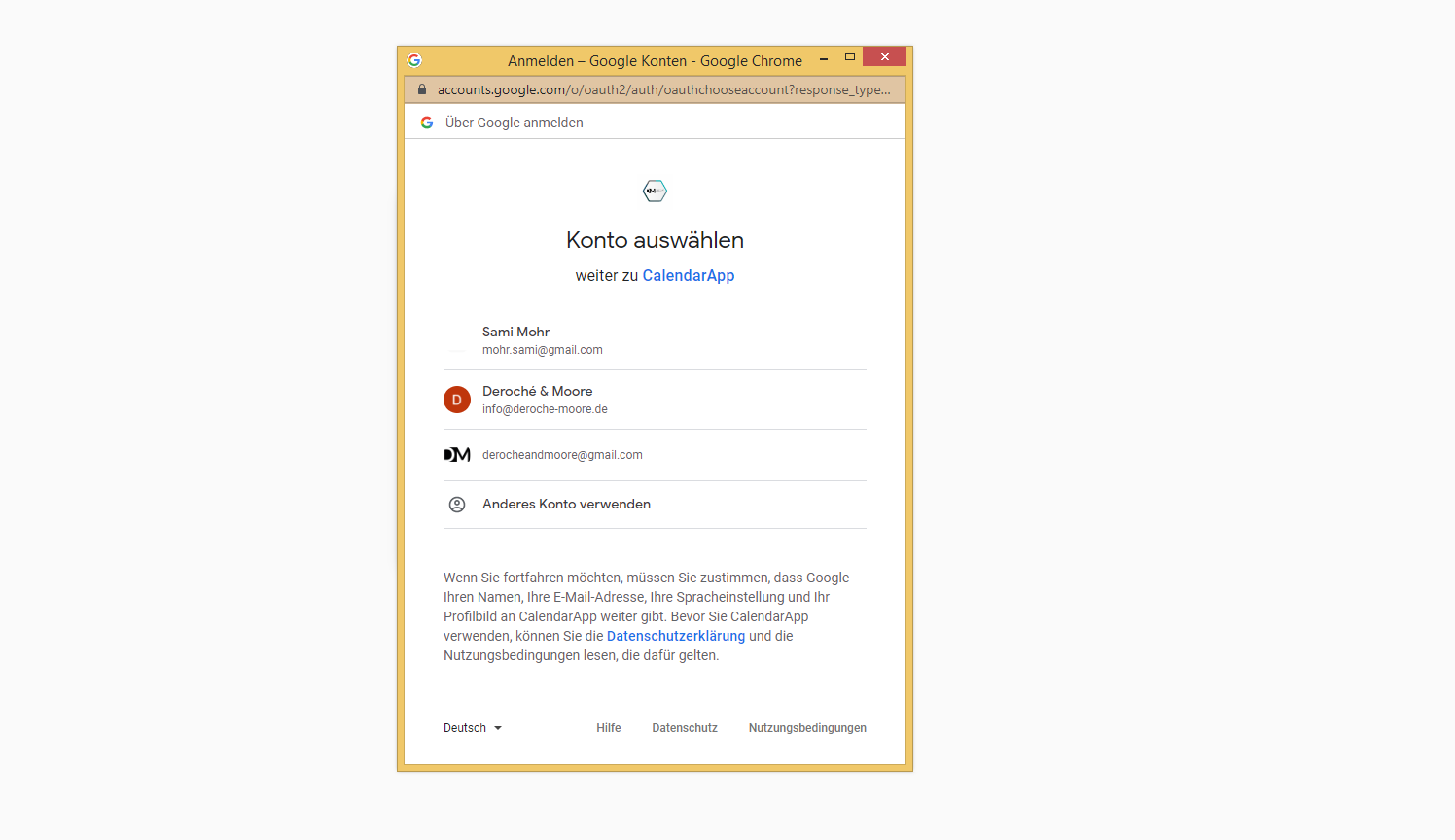
Finally click on Continue.
3. How to revoke the CalendarApp’s permissions
If you have granted the CalendarApp access to your Google Calendar but have changed your mind and wish to revoke these permissions, it is a simple process. To revoke CalendarApp’s access to your Google Calendar, follow these steps:
- Log into your Google Account
- Go to the “Security” section of your Google Account settings
- Scroll down to the “Third-party apps with account access” section
- Find CalendarApp in the list of apps with access to your account
- Click on “Revoke access” to revoke CalendarApp’s access to your Google Calendar
It’s that simple! Revoking the CalendarApp’s access to your Google Calendar will immediately stop the app from being able to access and synchronize your schedule and appointments.
In conclusion, access to your Google Calendar is needed in order to provide you with a seamless scheduling and event management experience.
However, if you are concerned about the security and privacy of your personal information, you can easily revoke CalendarApp’s access to your Google Calendar at any time. By following the simple steps outlined above, you can ensure that your personal information is always kept secure and private.
If you have any questions submit a support ticket or send us an email.