
Sharing a Google Calendar

As a small business owner, you want to make sure your customers can easily book appointments with you. That’s where the CalendarApp comes in. The CalendarApp allows your customers to book appointments with you on social media. The conversaion is 100% automated and the appointments are automatically added to your Google Calendar. But what if you need to share your calendar with other people? In this article, we’ll answer some common questions and provide step-by-step instructions on sharing a Google Calendar.
If you don’t have a CalendarApp account yet sign up for free!
Table of Contents
1. How to Make a Collaborative Google Calendar
- Go to calendar.google.com and sign in to your account.
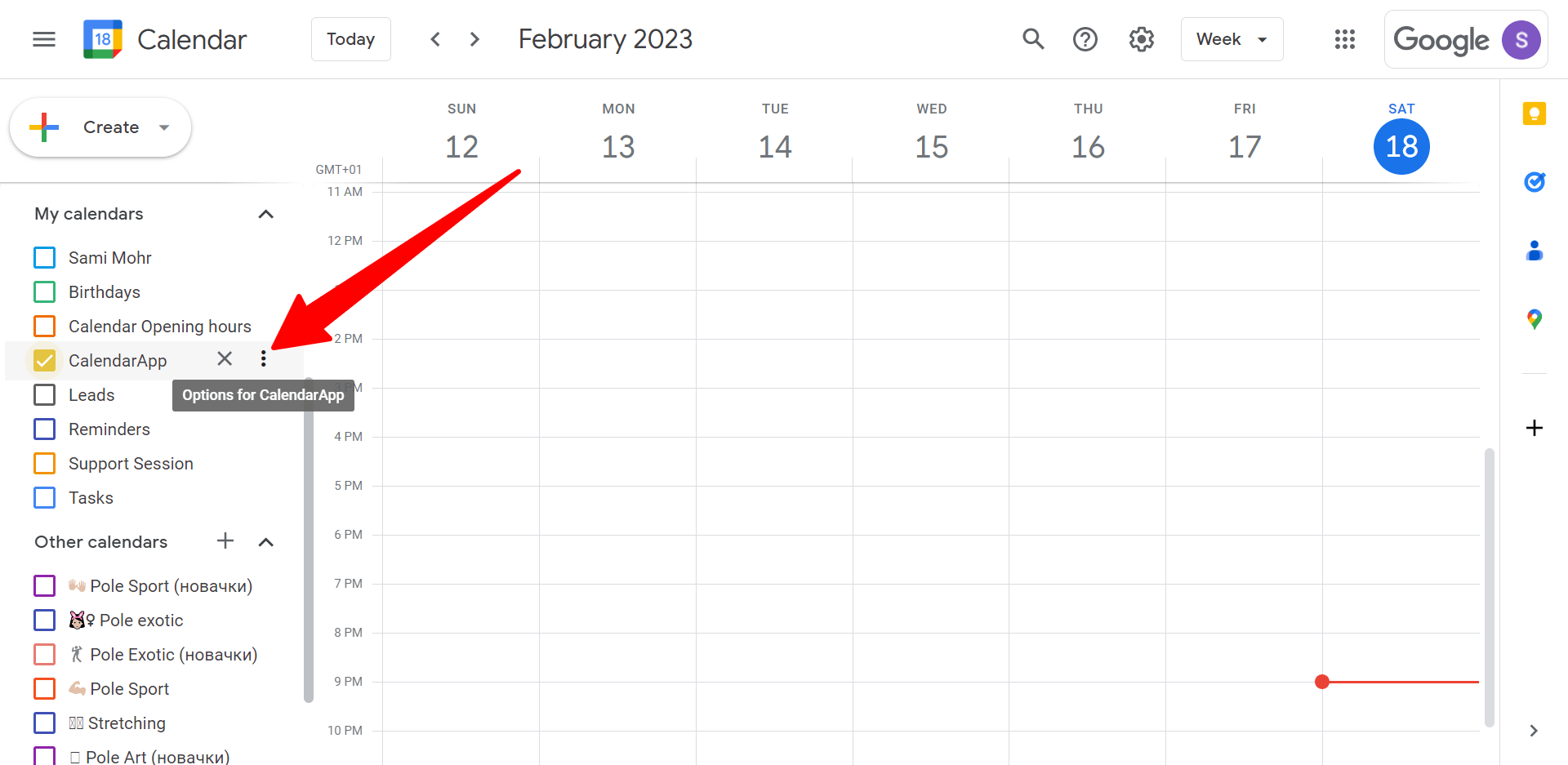
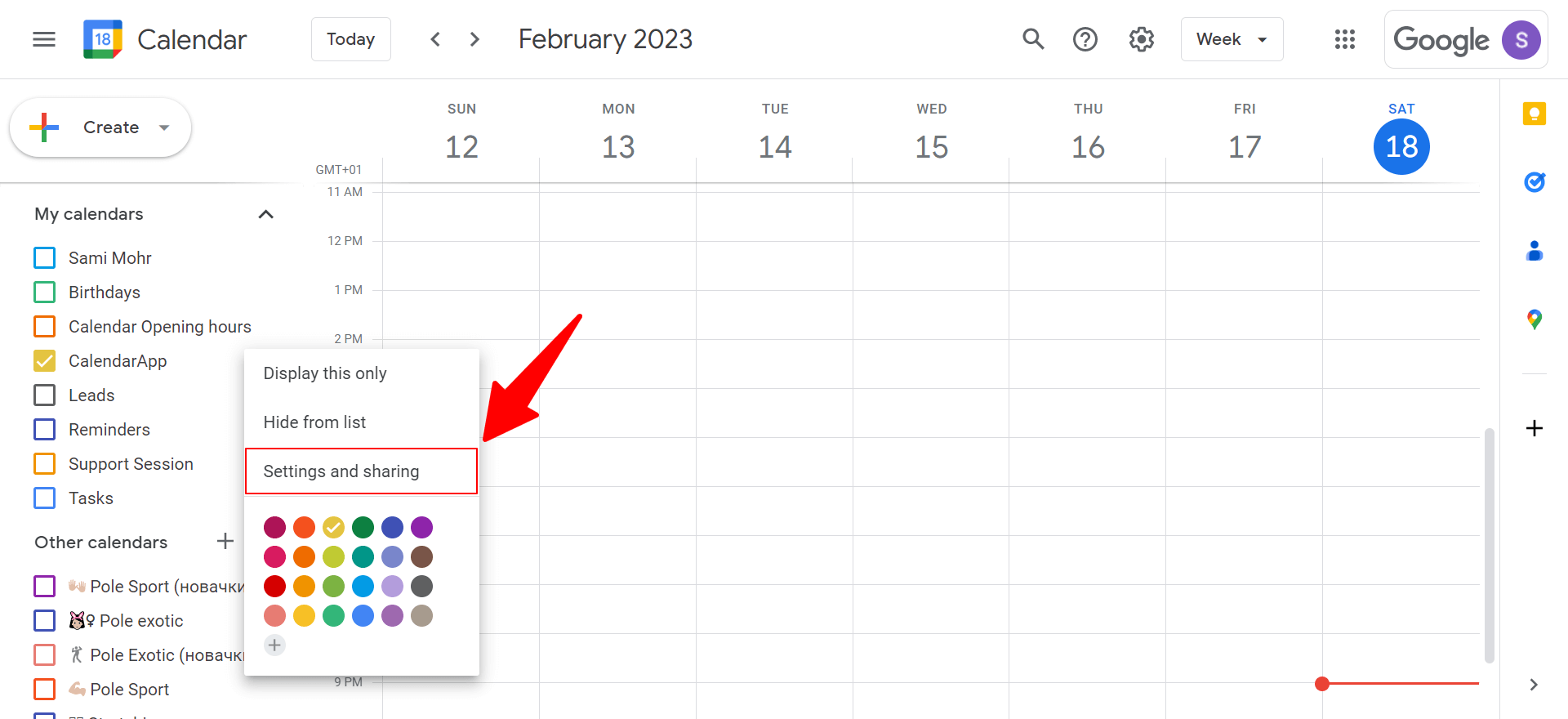
- In the left-hand menu, click the three dots next to your calendar’s name and select “Settings and sharing.”
3. Click on Share with specific people or groups section
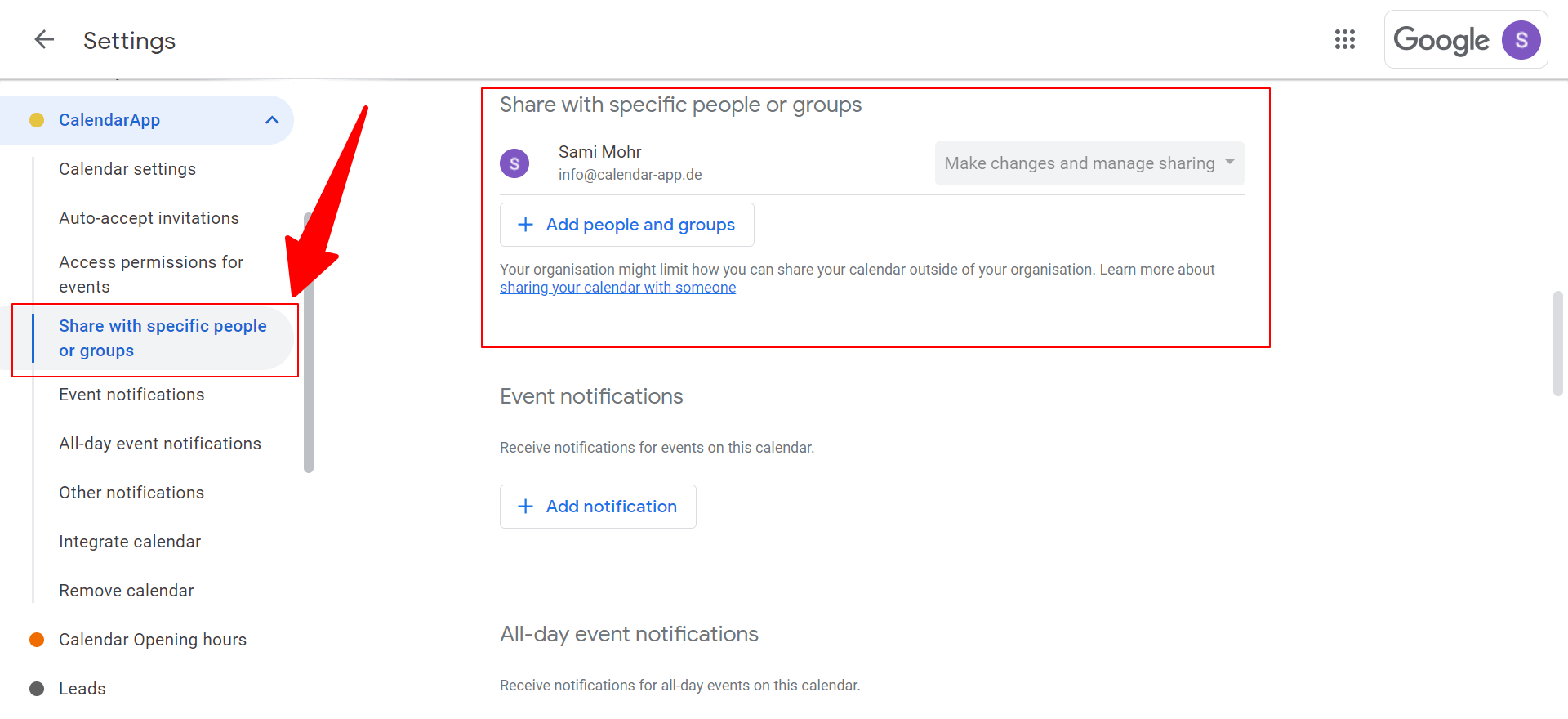
4. click + Add people and groups
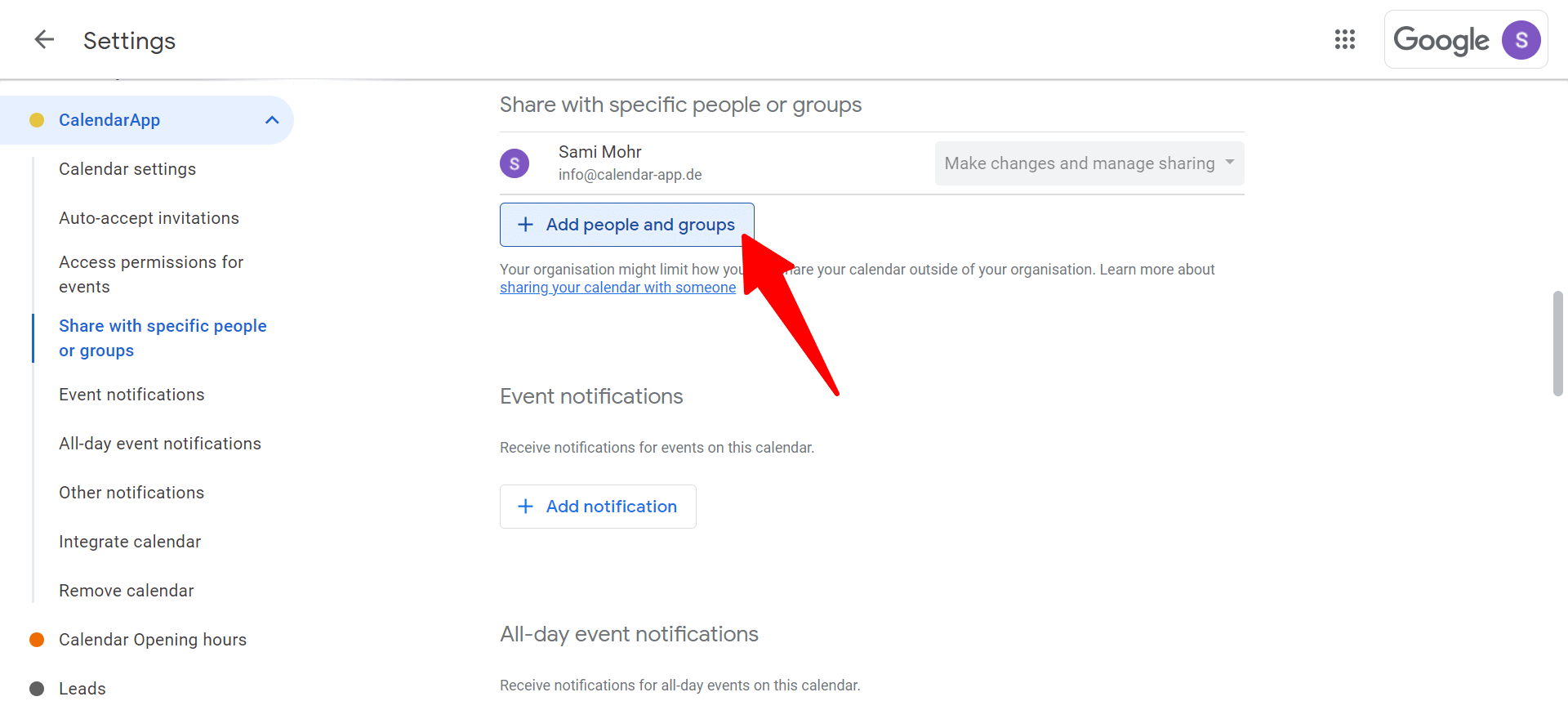
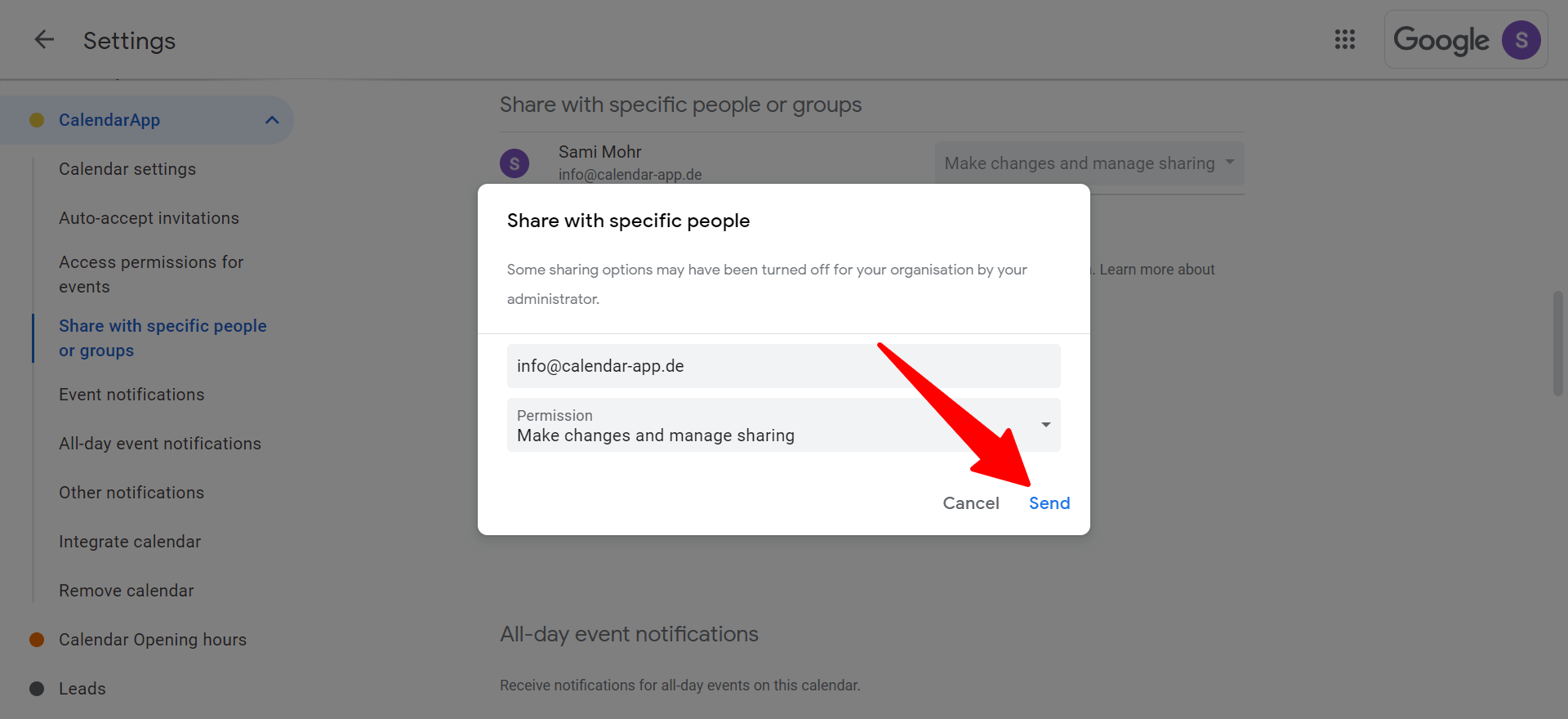
5. Enter the email addresses of the people you want to share your calendar with.

6. Select the level of permissions you want to give them: Make changes and manage sharing or See all event details.

7. Click Send to send the invitation.
8. The person you shared the Google Calendar with receives an email. When clicking on Add Calendar the calendar will be shared successfully.

2. How to Create a Shared Calendar for Multiple Users
- Go to calendar.google.com and sign in to your account.
- In the left-hand menu, click the three dots next to your calendar’s name and select “Settings and sharing.”
- Scroll down to the “Integrate calendar” section and click the “Get the shared link” button.
- Copy the link and share it with the people you want to give access to your calendar.
- They can add the shared calendar to their own Google Calendar by clicking the “+” button in the “Other calendars” section and selecting “From URL.”
3. Can You Share a Google Calendar with Family?
Yes, you can share a Google Calendar with anyone who has a Google account. Follow the steps above to add their email address to the “Share with specific people” section and choose their level of permissions.
- Go to the Google Calendar website and sign in to your account.
- In the left-hand menu, click the three dots next to your calendar’s name and select “Settings and sharing.”
- Scroll down to the “Share with specific people” section and click “Add people.”
- Enter the email addresses of the people you want to share your calendar with.
- Select the level of permissions you want to give them: “Make changes and manage sharing” or “See all event details.”
- Click “Send” to send the invitation.
4. How to Let Others Edit A Shared Google Calendar
Yes, you can share a Google Calendar with anyone who has a Google account. Follow the steps above to add their email address to the “Share with specific people” section and choose their level of permissions.
- Go to the Google Calendar website and sign in to your account.
- In the left-hand menu, click the three dots next to your calendar’s name and select “Settings and sharing.”
- Scroll down to the “Share with specific people” section and click “Add people.”
- Enter the email addresses of the people you want to share your calendar with.
- Select the level of permissions you want to give them: “Make changes and manage sharing” or “See all event details.”
- Click “Send” to send the invitation.
5. How to Make a Calendar That Anyone Can Edit
Creating a calendar that anyone can edit can be useful in many situations, such as planning a group project, organizing a family schedule, or scheduling appointments with clients. Google Calendar is a popular choice for creating and sharing calendars, and it offers a range of customizable sharing options.
- Follow steps 1 and 2 above to access the “Settings and sharing” page.
- Scroll down to the “Access permissions” section and click “Make available to public.”
- Choose the level of permissions you want to give to the public: “See only free/busy (hide details)” or “See all event details.”
- Click “Save” to save your changes.
6. Can Anyone Edit a Shared Calendar?
Only the people you’ve given permission to can edit a shared calendar. If you want to allow anyone to edit the calendar, follow the steps above to make the calendar available to the public.
7. How to Allow Someone to Manage Your Calendar After Sharing a Google Calendar?
If you’re looking to share the responsibility of managing your Google Calendar with someone else, it’s a straightforward process that can save you time and improve collaboration. By allowing others to manage your calendar, you can delegate tasks, schedule appointments, and stay on top of upcoming events without having to manage everything yourself.
Follow step 1-3 above to access the “Settings and sharing” page. Then, in the “Share with specific people” section, give the person “Make changes and manage sharing” permissions.
8. What is the Difference Between a Shared Calendar and a Group Calendar?
A shared calendar is a calendar that you share with specific people, while a group calendar is a calendar that is shared among members of a group. To create a group calendar, go to the Google Groups website and create a group. Then, create a new calendar and share it with the group’s email address.
9. What is the Easiest Shareable Calendar?
A shared calendar is a calendar that you share with specific people, while a group calendar is a calendar that is shared among members of a group. To create a group calendar, go to the Google Groups website and create a group. Then, create a new calendar and share it with the group’s email address.
10. Can Multiple People Edit a Shared Calendar?
Yes, you can give multiple people permission to edit a shared calendar. Just follow the steps above to add their email addresses to the “Share with specific people” section and choose their
11. Can I use a shared Calendar for my opening hours?
Yes, you can also use a shared Google Calendar for opening hours.
If you have any questions watch our video tutorial or submit a support ticket.