
How to set Opening Hours to your CalendarApp Events
Most likely you are not available 24/7 for your customer. That’s why almost every business has opening hours. To make sure your customers cannot schedule an appointment with the CalendarApp that falls outside your available working hours you can apply opening hours. The CalendarApp supports four different kinds to set your business hours.
If you don’t have a CalendarApp account yet sign up for free!
Table of Contents
1. No Opening Hours
It might be rare but not unlikely that you run a business that is open 24/7. Let’s say you run a 7 Eleven store in New York city offering deliveries. In this case you don’t need to take any further actions. In your CalendarApp calendar all available time slots are presented to your customers to choose from.
2. Set Opening Hours in a calendar
More likely you do have opening hours. In order to apply business hours to the CalendarApp you have to create events in your Google Calendars at those times you are not available at. Let’s imagine you are a solo entrepreneur who offers 1:1 consulting sessions using the CalendarApp. Your availability is a typical 9-5 on weekdays.
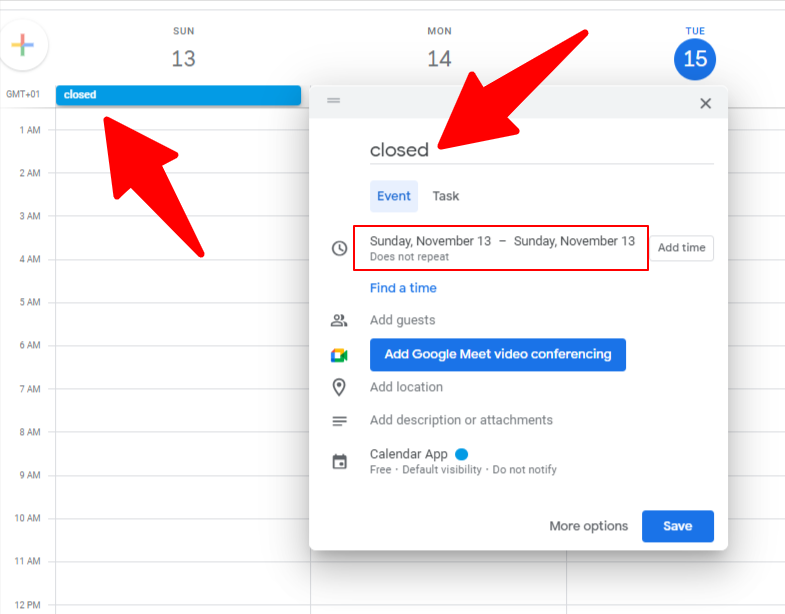
Appointments that your customers schedule with you will show up in the same calendar.
3. Use one calendar to apply opening hours to all calendars
You have just applied opening hours to the calendar you schedule your appointments in. Even though this solution works fine it might not be the best solution in some cases.
For example, saving your appointments and opening hours in the same calendar could irritate you. If you kept everything separate you could toggle your working hours off if you don’t need to view them.
Another disadvantage is the amount of work you have to do in case you have multiple calendars with the same opening hours. For instance, if you own a restaurant and use the CalendarApp to book tables you have to apply the same opening hours to each table. Since the average restaurant has more than 15 tables this will take forever.
Luckily you can use one calendar to apply business hours to all other calendars used in your CalendarApp event.
To apply opening hours:
Open the use case settings of your CalendarApp event
To make sure no tables can be booked during 12AM and 11AM:
4. Combination of No.2 and No.3
In some cases using option 3 or option 4 might not be very helpful. Especially, if you have some days which apply to all calendars and some days with different opening hours. Let’s assume you work in sales and your sales team contains a total of 5 people. While all of you might not work on Sunday, team member 1 starts his shift earlier than team member 5.
If you have any questions watch our video tutorial or submit a support ticket.