

The Easy Steps To Create a Google Calendar
Creating a new Google Calendar is a very simple process. However, when you start using the Google Calendar everything might be a bit overwhelming. But no worries! We got you!
In this article we will give you a short introduction into the Google Calendars you have by default and how you can create up to 250 additional Google Calendars. Here is everything you need to know on how to create your first calendars.
If you are business that wants to utilize the Google Calendar for booking appointments automatically then you must explore the CalendarApp. Sign up for a free account and start your 14 day trail.
Table of Contents
In order to create a new Google Calendar you must have a Google Account. If you don’t have one create a Google Account here. If you are starting out with the Google Calendar learn the Google Calendar Basics.
1. Your Default Google Calendars
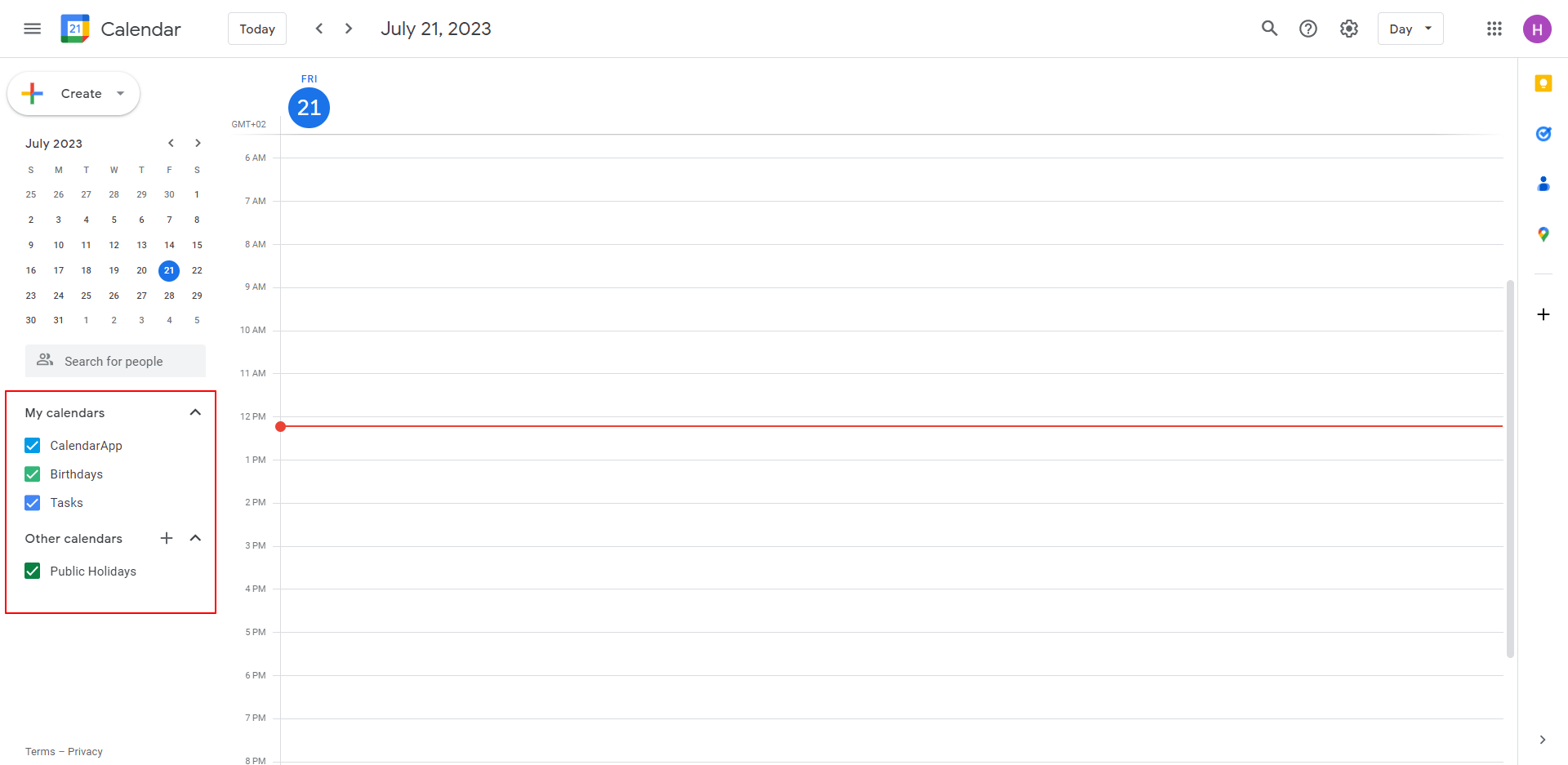
With every Google Account there are 3 default Google Calendars:
- The primary Calendar (your email address)
- a Public Holiday Calendar
- a Birthday Calendar
- a Calendar for your tasks
2. Create A New Google Calendar
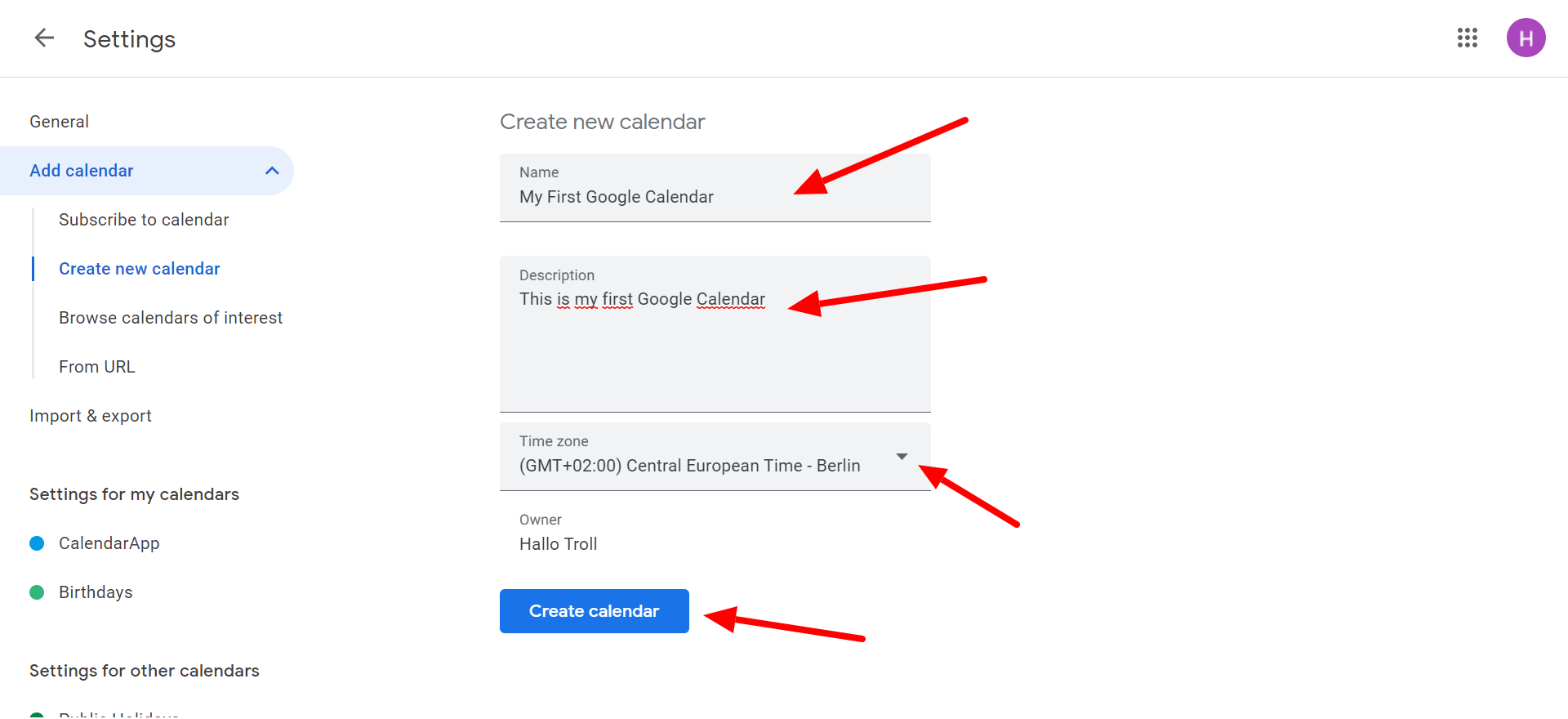
To create a new Google Calendar:
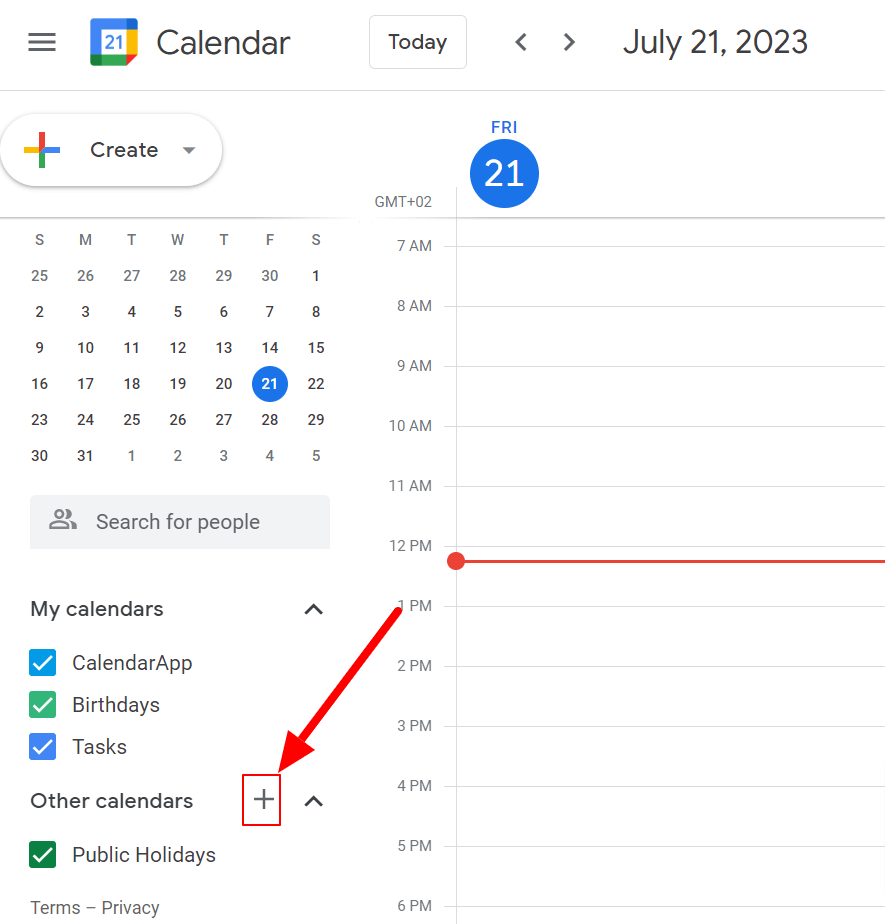
- Click on the plus icon next to Other Calendars
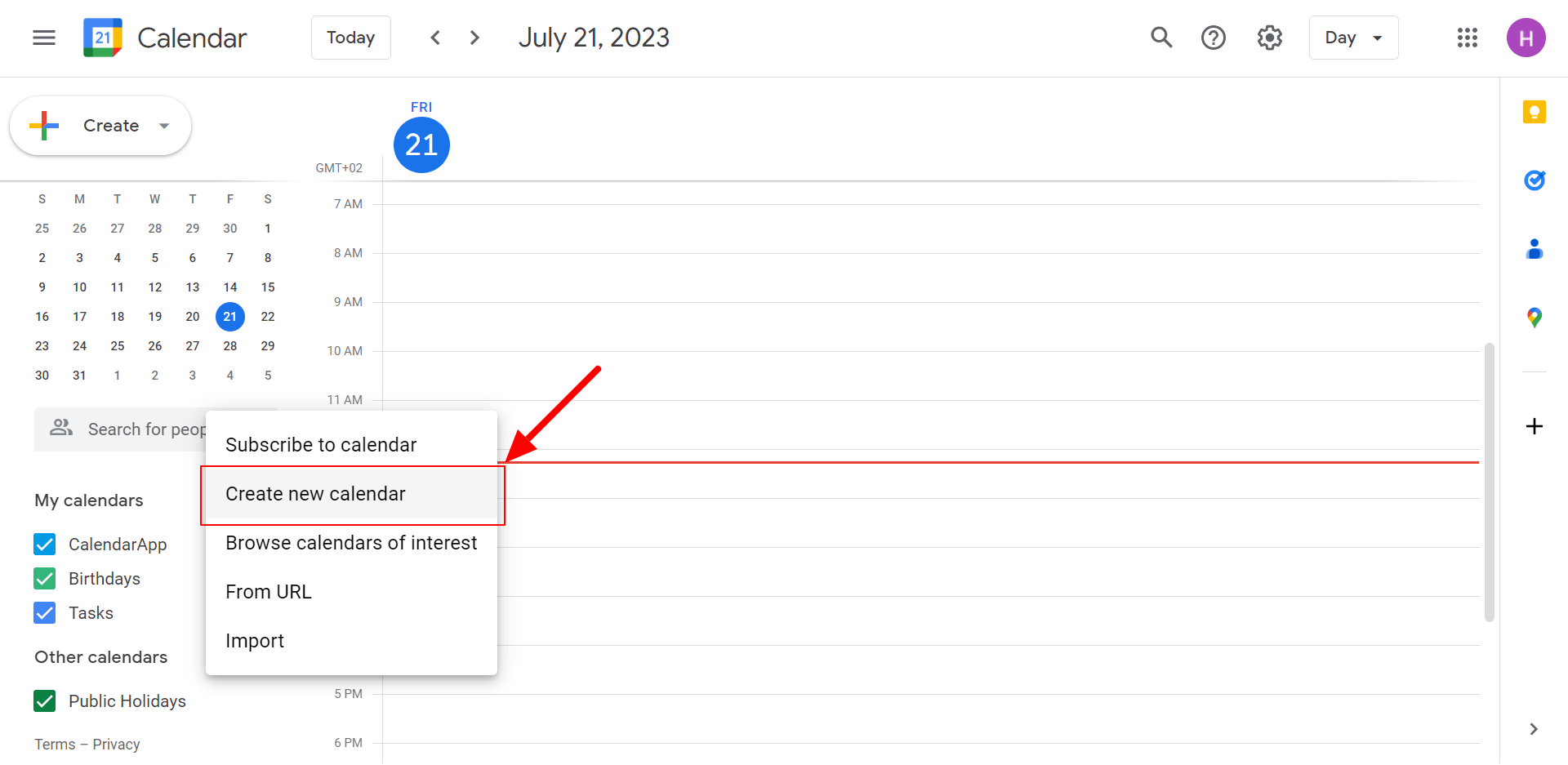
- Select Create New Calendar
- Input a name. For istance, My First Google Calendar
- Add a description if needed
- Select a different time zone is necessary
- Click on Create Calendar
Well done! You have created your first Google Calendar!
3. Create Calendar With the CalendarApp
Now that you are familiar with creating a calendar you can start utilizing the Google Calendar to your needs. However, if you are running a restaurant for instance and you have quite a few tables creating every calendar manually is quite some work. To automate this process use the CalendarApp.
The CalendarApp offers various Template Events for you to choose from. With a click of a button calendars are created for you.
In order to adjust the template you are able to create calendars in bulk. For instance if your restaurant has 20 tables those calendars can be created with 3 simple clicks. Learn to create an automated booking solution so guests can find a table at your restaurant.
If you have any questions on how to create a Google Calendar do not hestitate to submit a support ticket.
Other CalendarApp users also found these articles helpful
Template
How to set Opening Hours to your CalendarApp Events Most likely you are not available 24/7 for your customer. That’s
STOP using Calendly Manychat Integration in 2023
STOP using Calendly Manychat Integration in 2023 Stop Using Calendly Manychat Integration in 2023: A Better Solution for Scheduling Appointments
CalendarApp access to Google Calendar
Why the CalendarApp needs access to Your Google Calendar CalendarApp is a highly advanced and user-friendly scheduling and event management
How To Change Google Calendar Color
How to Change The Google Calendar Color Change the color of your Google Calendar to stay organized and on top of

Restaurant – Find a Table
Find a table for your Restaurant with the CalendarApp The CalendarApp is the best tool to make your guests find