
Restaurant – Find a Table

Find a table for your Restaurant with the CalendarApp

to find a table use the Restaurant Event Template

The CalendarApp is the best tool to make your guests find and book a table for your restaurant. No other scheduling tool offers your customers such a unique and easy reservation experience. Get more guests and increase your revenue 100% automated with the CalendarApp. 

Watch a 3 minute demo video and see how the CalendarApp will help you automate your business and increase your renenue.

If you don’t have a CalendarApp account yet sign up for free!

Table of Contents

In this post you will learn how you:

  • Create a restaurant event on Calendar-app.de 
  • Add new or existing calendars of your Google Calendar 
  • Set opening hours 
  • Turn calendars in table by applying a maximum number of guests
  • Set additional settings such as a reservation limit and a tap to call button 
  • Schedule your first reservation by finding a table

1. Create a new CalendarApp Event

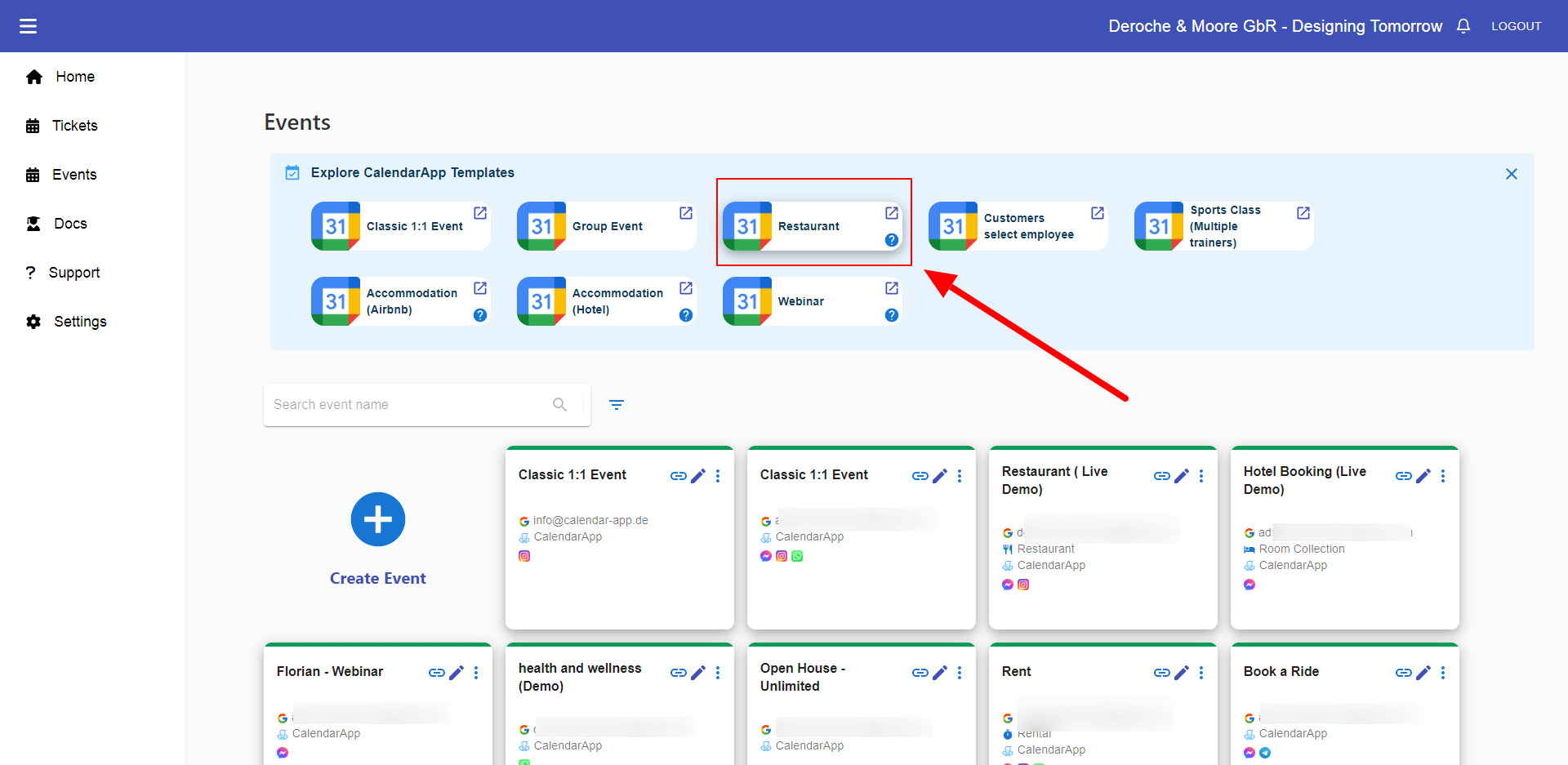
On your CalendarApp dashboard navigate to Events and create a new Restaurant event from the availble CalendarApp Event Templates.

Select the Restaurant CalendarApp Event Template

In case you have connected multiple Google Account or multiple Manychat Pages select correct account and page. Learn how to manage your clients’ Google Accounts

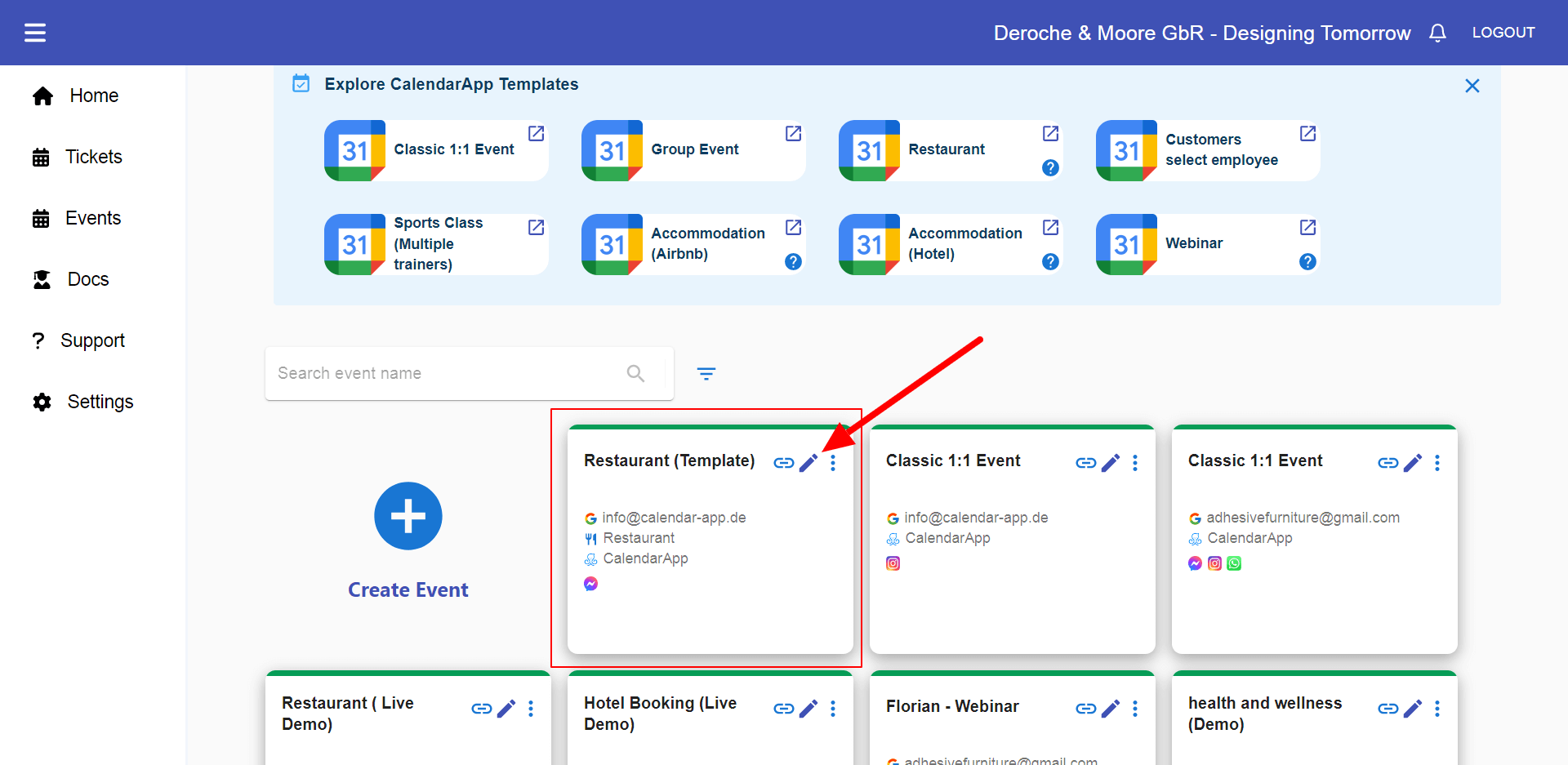
After your new Restaurant Event is created you will find it next to your other events. Click the pencil icon to start adjusting the template to your restaurant.

Click the Edit Icon to edit the Restaurant Template

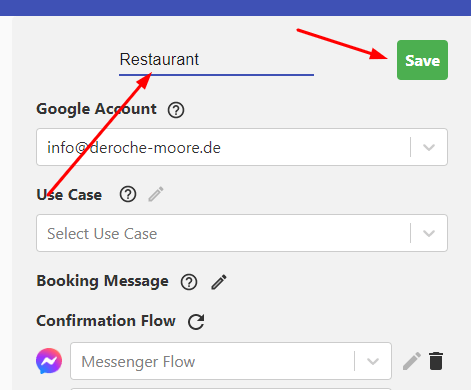
Start by renaming your event to e.g. Restaurant and click Save.

Rename your event to restaurant or find a table and click save

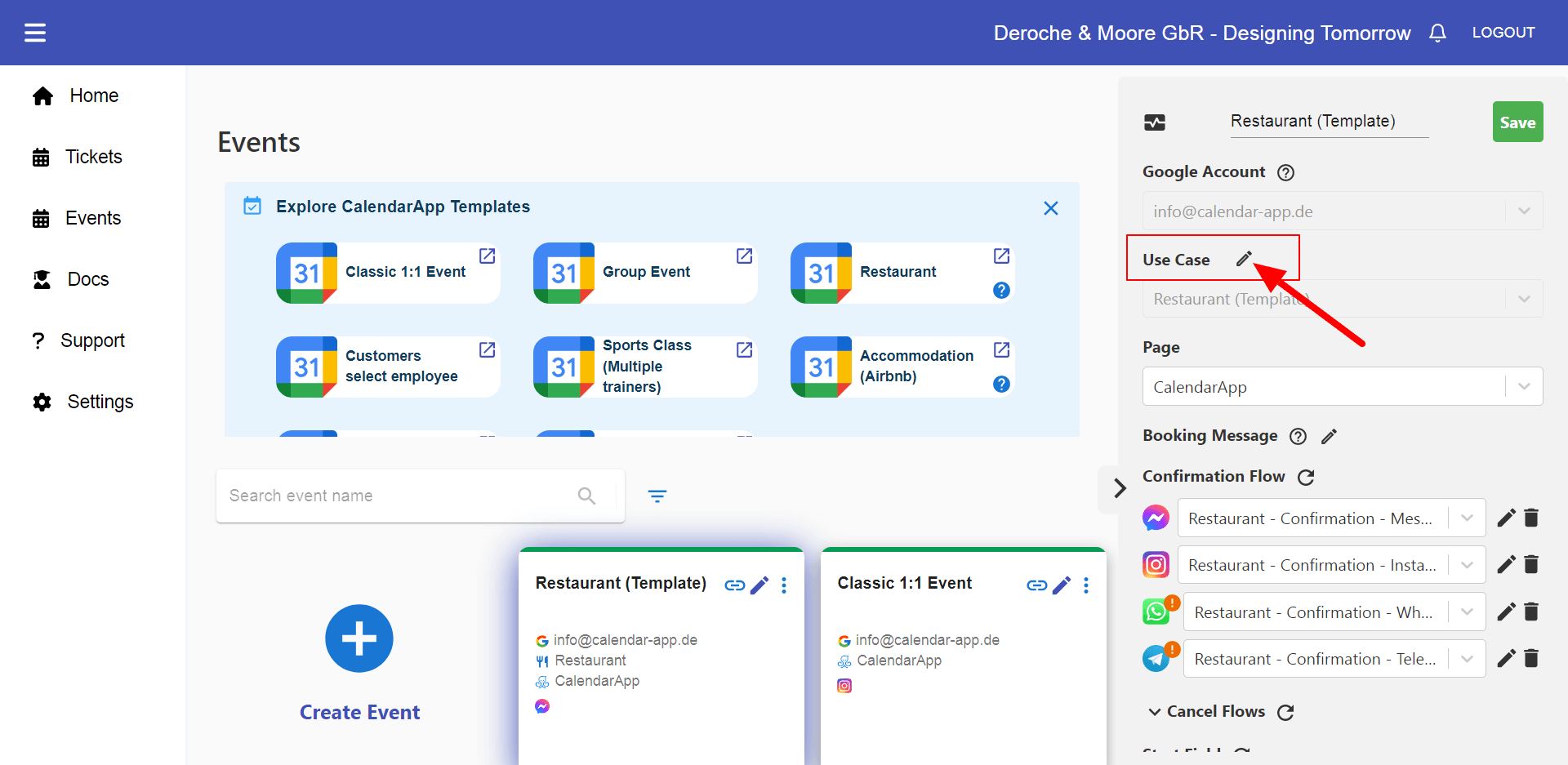
Next click on the pencil icon next to Use Case.

2. Edit the use case settings

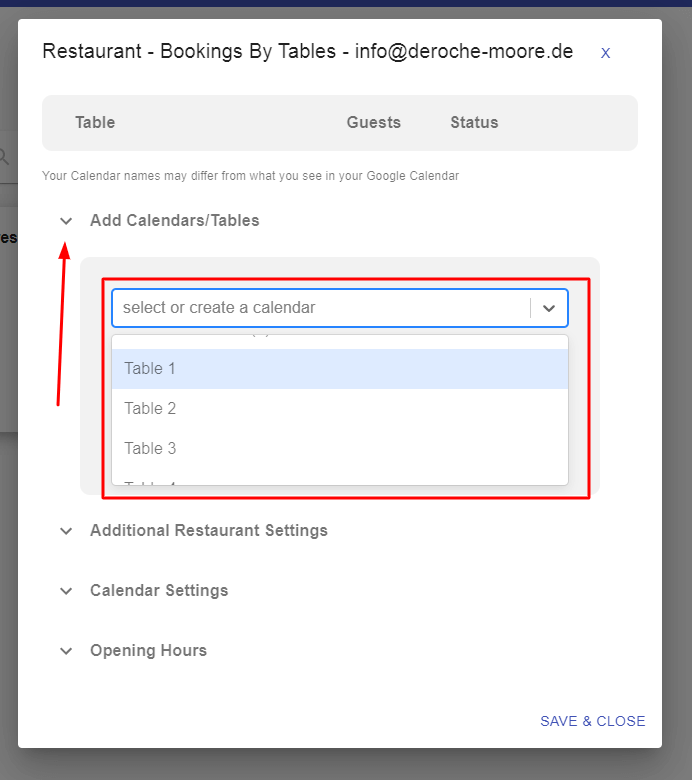
A dialog will open asking you to configure your restaurant settings. To start add calendars by clicking the downfacing arrow next to add calendars/tables. There you can either search for your a) already existing calendars or b) create new calendars. Using this option to create new calendars is great if you want to create each calendar one by one.

Find a table or create new tables and calendars
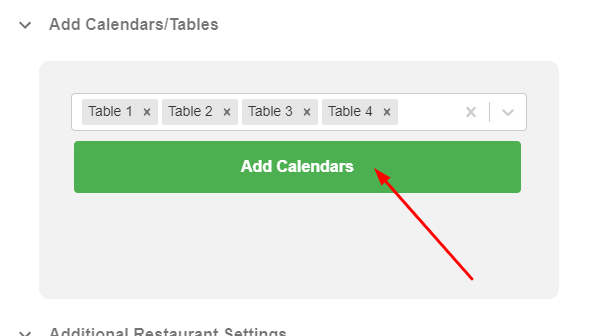
Once you have selected your calendars click on add calendars
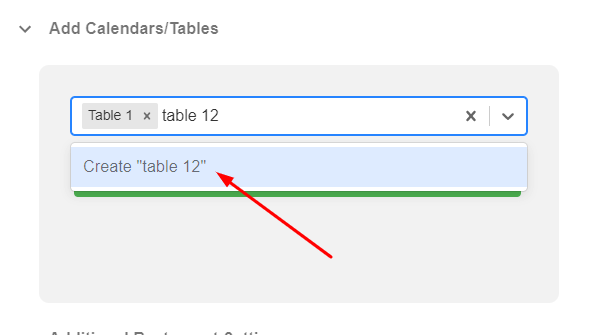
In case you can't find a table an option to create such a calendar is being displayed

In case you want to create multiple calendars at the same time use the option bulk create calendars instead. 

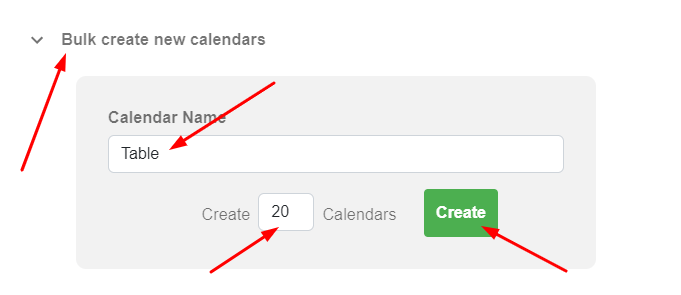
Click the downfacing arrow next to Bulk create calendars. Choose a name for your table or simply choose “Table”. Type the number of calendars you want to create, e.g. 20. Click on Create.

To bulk create calendars select a name for your calendars and the amount you want to create

The CalendarApp will automatically create your amount of calendars for you. In this case 20. This may take a while. By default the CalendarApp will add an increasing number to your calendars such as “table 1”, “table 2”,… 

Keep in mind: due to Google Calendar limits creating more than 60 calendars in a short period of time might put your calendar in read only mode. 

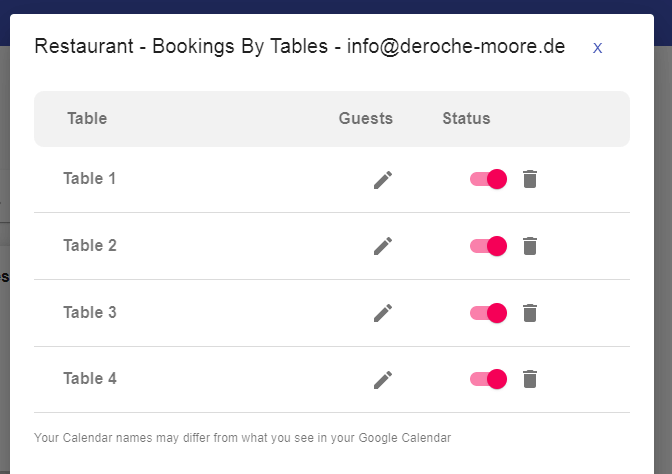
All your calendars will be added to the calendar list.

your added calendars will show up in your calendar list so you find tables more easily

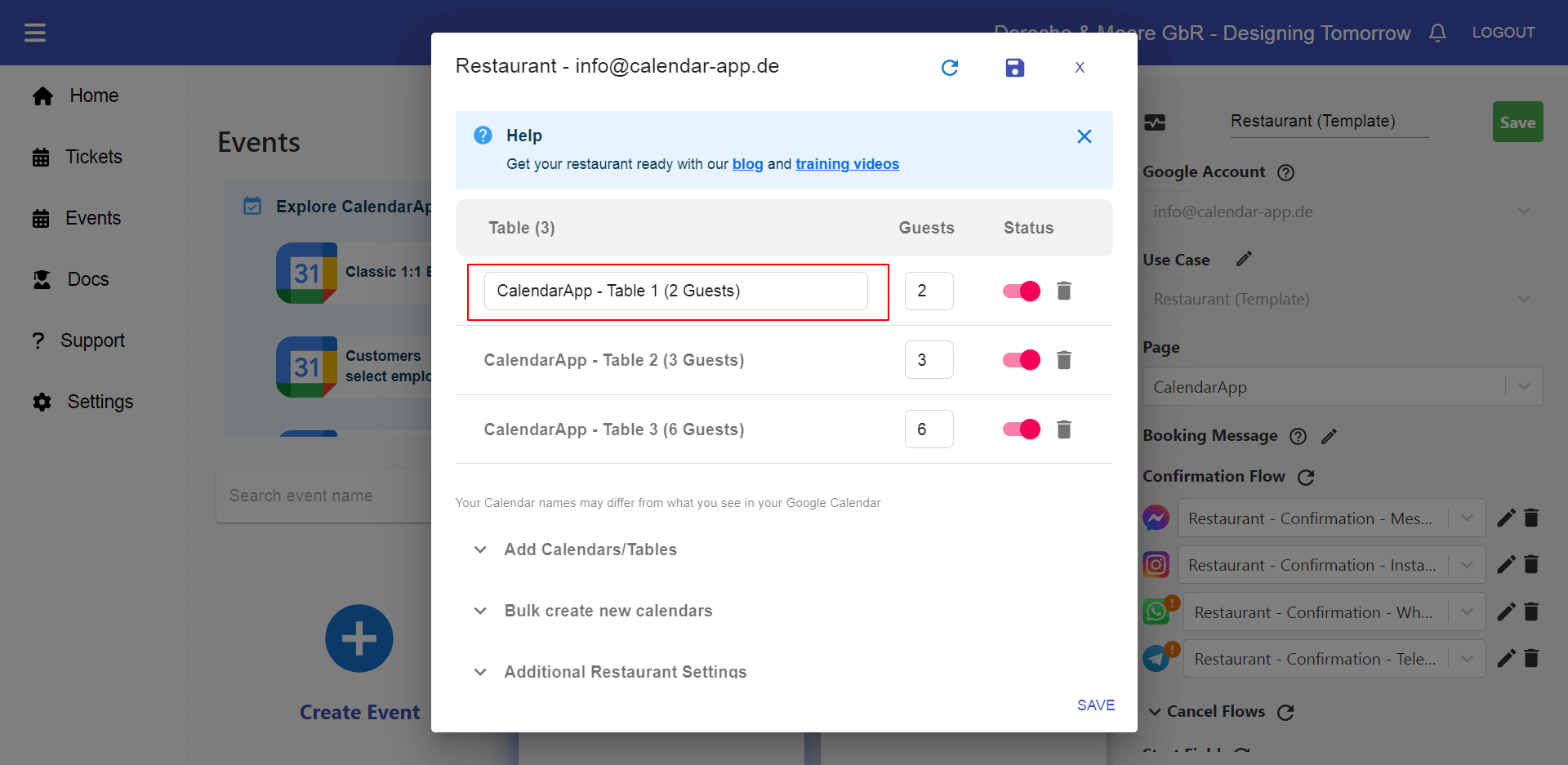
You can edit the name of your calendar/table by click on it and inputting the new name.

Edit the Name of your CalendarApp Restaurant Tables and Calendars

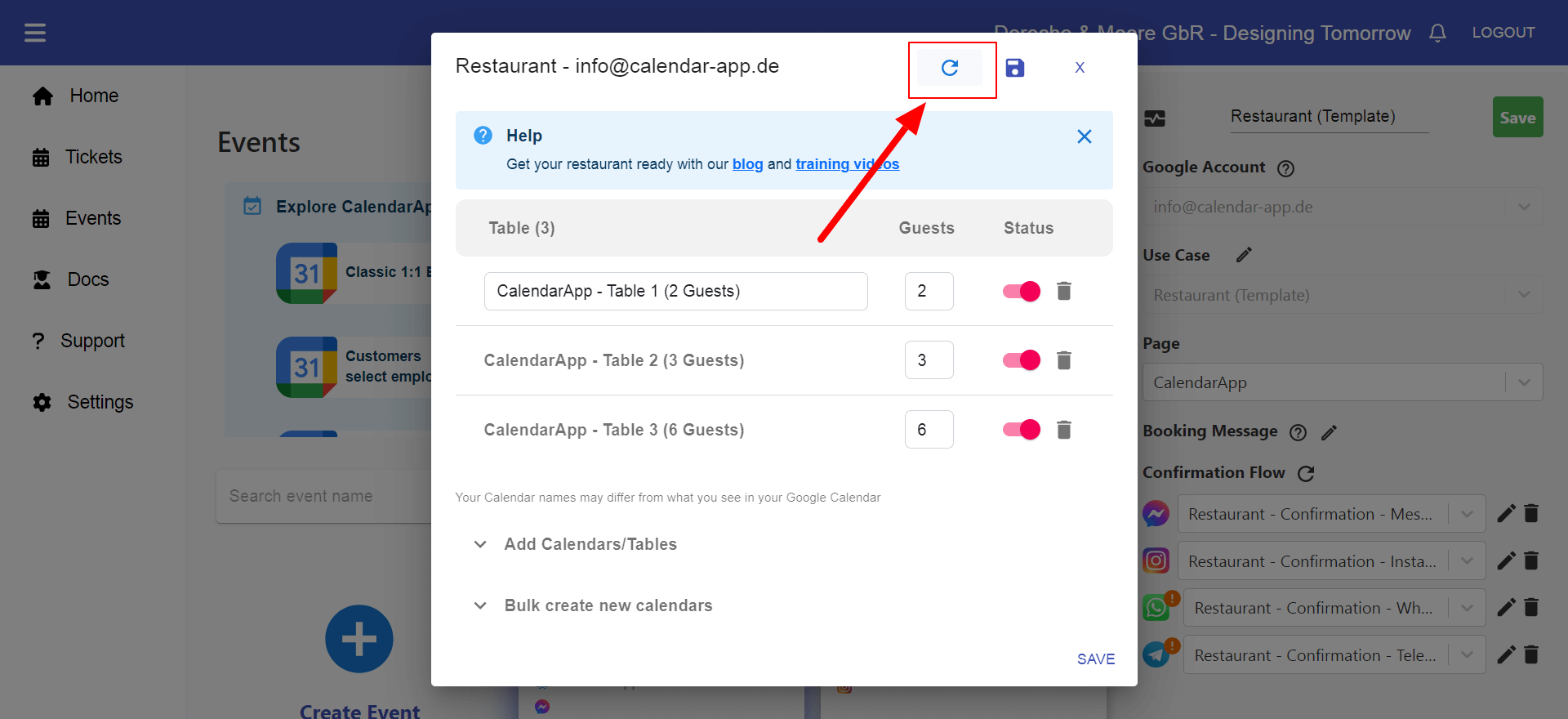
Click the refresh icon in the top right corner so the calendar names in your Google Calendar also get updated.

Click the refresh icon to update the google calendar names

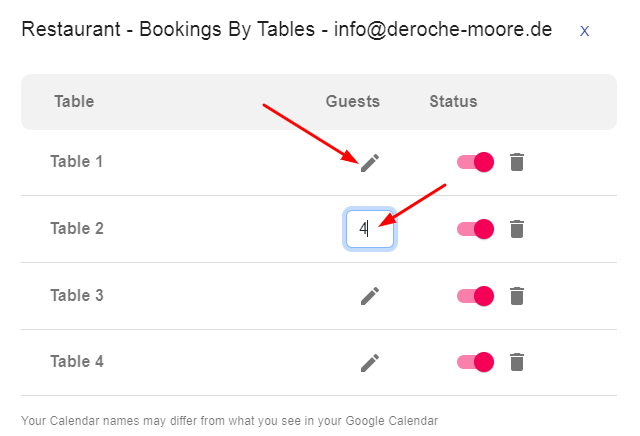
Next, select the maximum number of guests that can fit on each table by filling the number in the according input field.

Click the pencil icon next to the table and select how many people can fit at it

Congratulations! You have successfully created your first CalendarApp Restaurant Event.

Technically, your guests can start to find and book a table. However, we are going to add a few more options to enhance the customer experience.

3. Additional Restaurant Settings to find a table

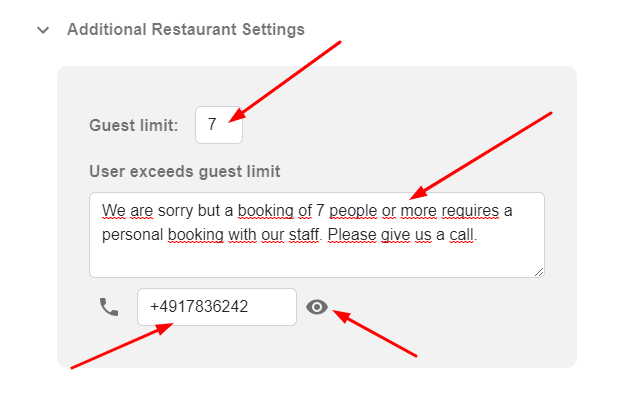
Even though receiving and handling booking automatically is awesome you may want to limit the number of guests that can book a table at the same time. For instance, if you receive a request of 7 or more guests you want to prepare your kitchen or increase your staff for that day. In any case instead of an automated confirmation you want your guest to call in and do the booking by phone. 

The CalendarApp gives you this level of flexibility. Only handle larger bookings manually and automate the rest. 

To set a limit of guests that can book automatically:

  • Click the downfacing arrow to view the options 
  • Choose a guest limit,e.g. 7 
  • Type a short message which indicates to the guest that you want to have him or her call in. For instance: We are sorry but a booking of 7 or more people requires a consultation with our staff. Please give us a call. 
  • Optionally, you can add a phone number that can be tapped to start a call with you. Make sure you use the correct international phone number format. Starting with a + followed by your country code.
Set additional restaurant settings to avoid bookings that are too large to handle spontaneously

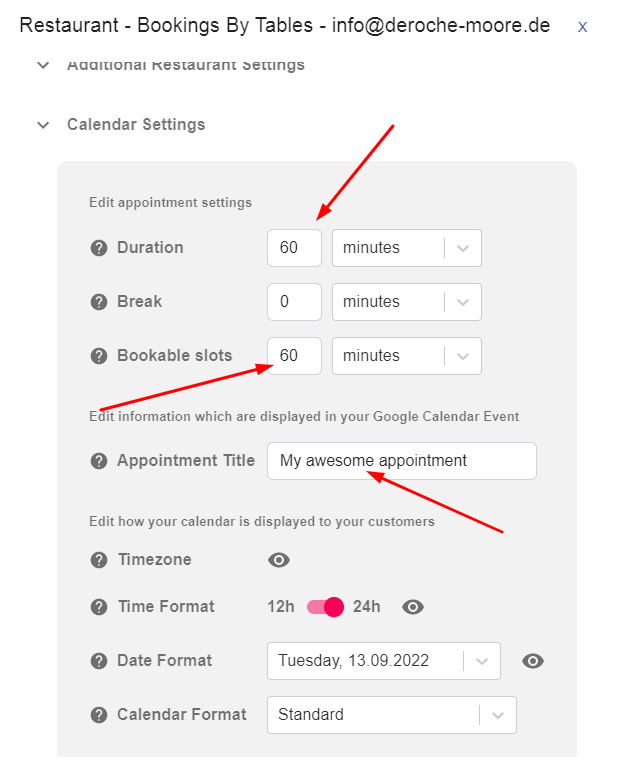
4. Calendar Settings

Under Calendar Settings you set your general calendar settings. Such as the duration guests generally book the appointment for, an appointment title and if you want to block the calendar for a certain time so you don’t get booking on short notice.

Adjust your calendar settings to your personal needs
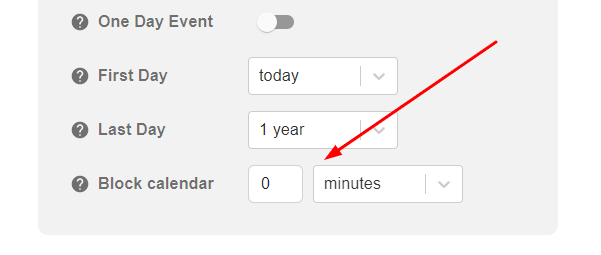
You can also block your calendar for a certain time from now to not receive bookings on short notice


Remember: if your guests usually stay longer during dinner than during lunch time you can create separate calendarApp events allowing specific scheduling times only. 

You can learn more about those additional calendar settings in our blog post: Additional Calendar Settings

5. Set Opening Hours to find vacant tables only


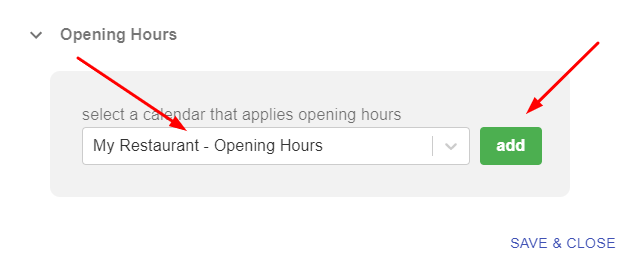
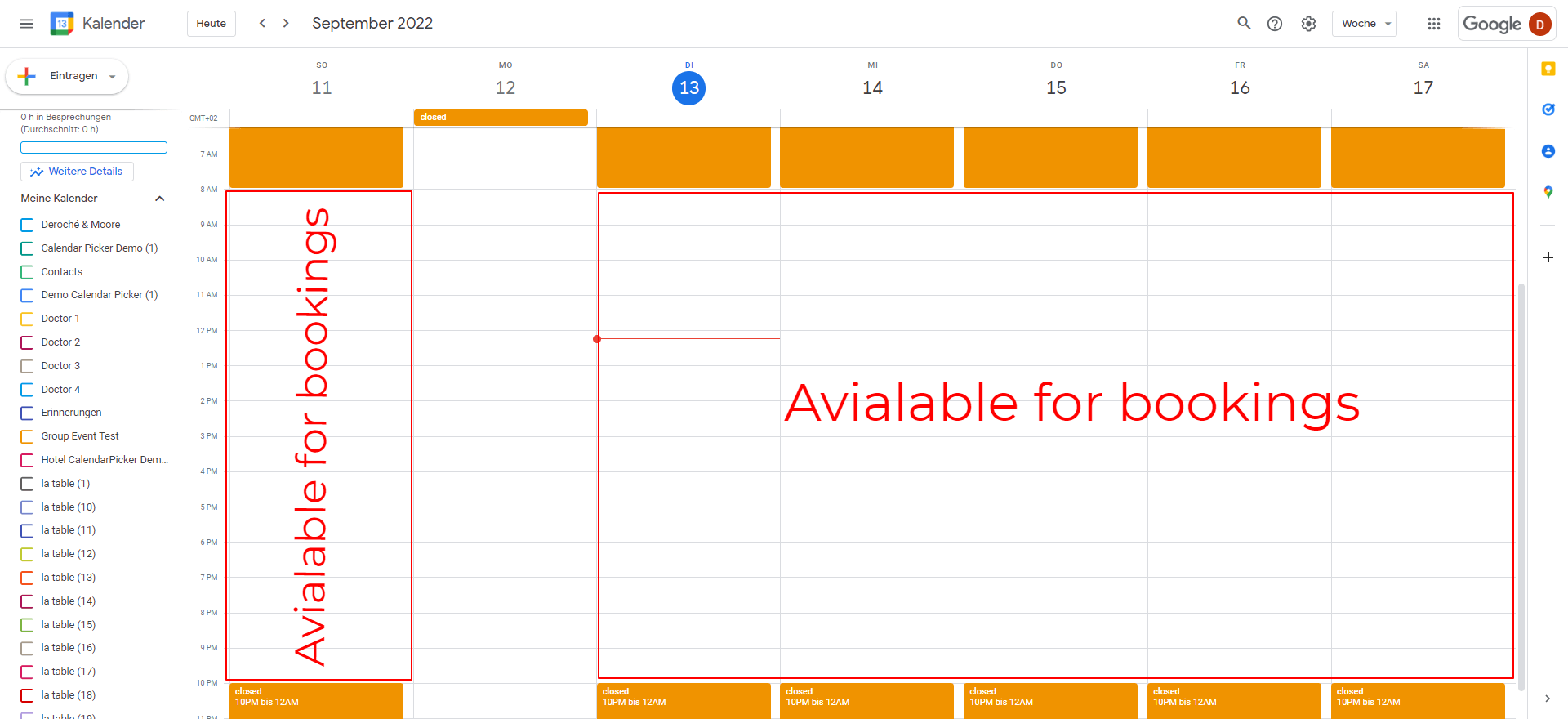
Last, we set the opening hours for your restaurant. So, your guest can only find a table that is vacant. To do so, add another google calendar that has events at times when you are not available.

Add a calendar that functions as your opening hours

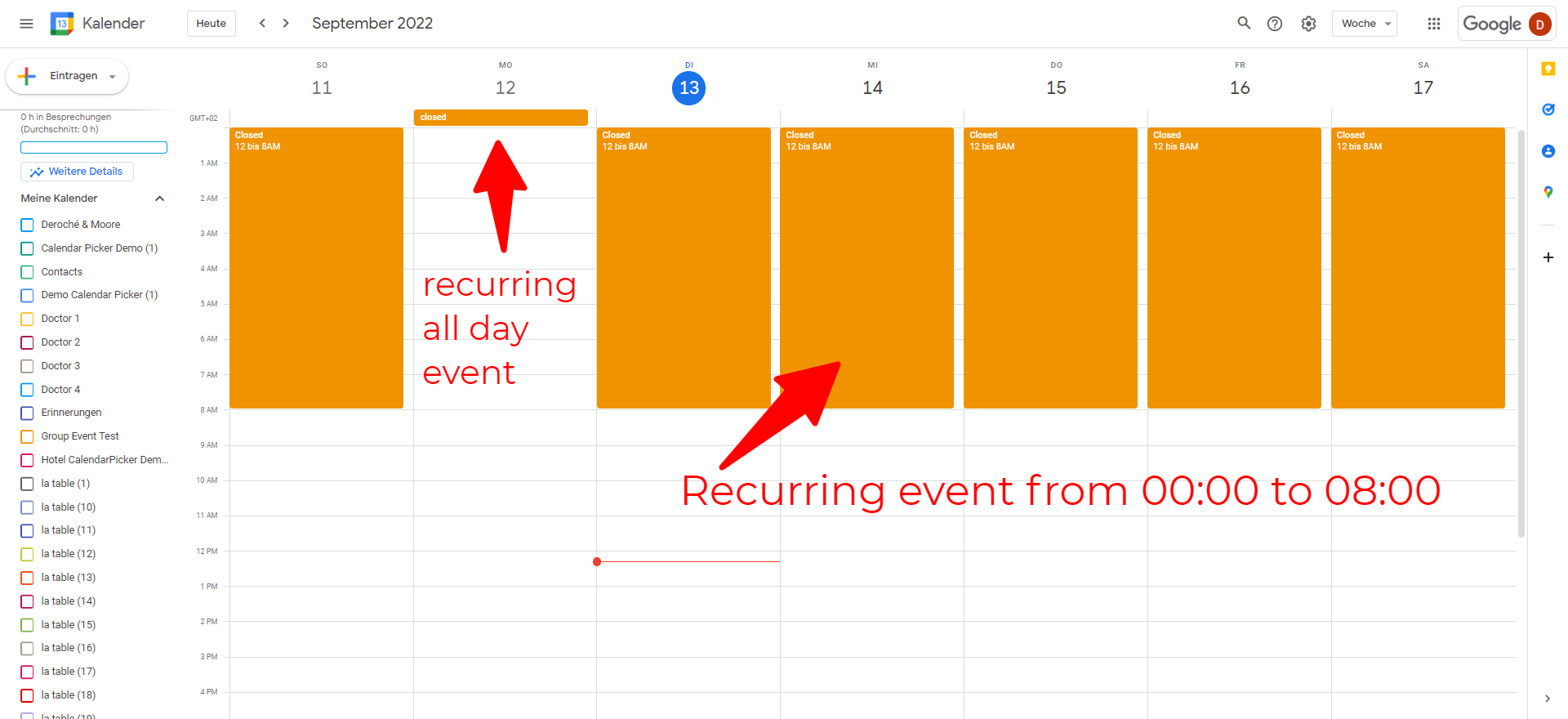
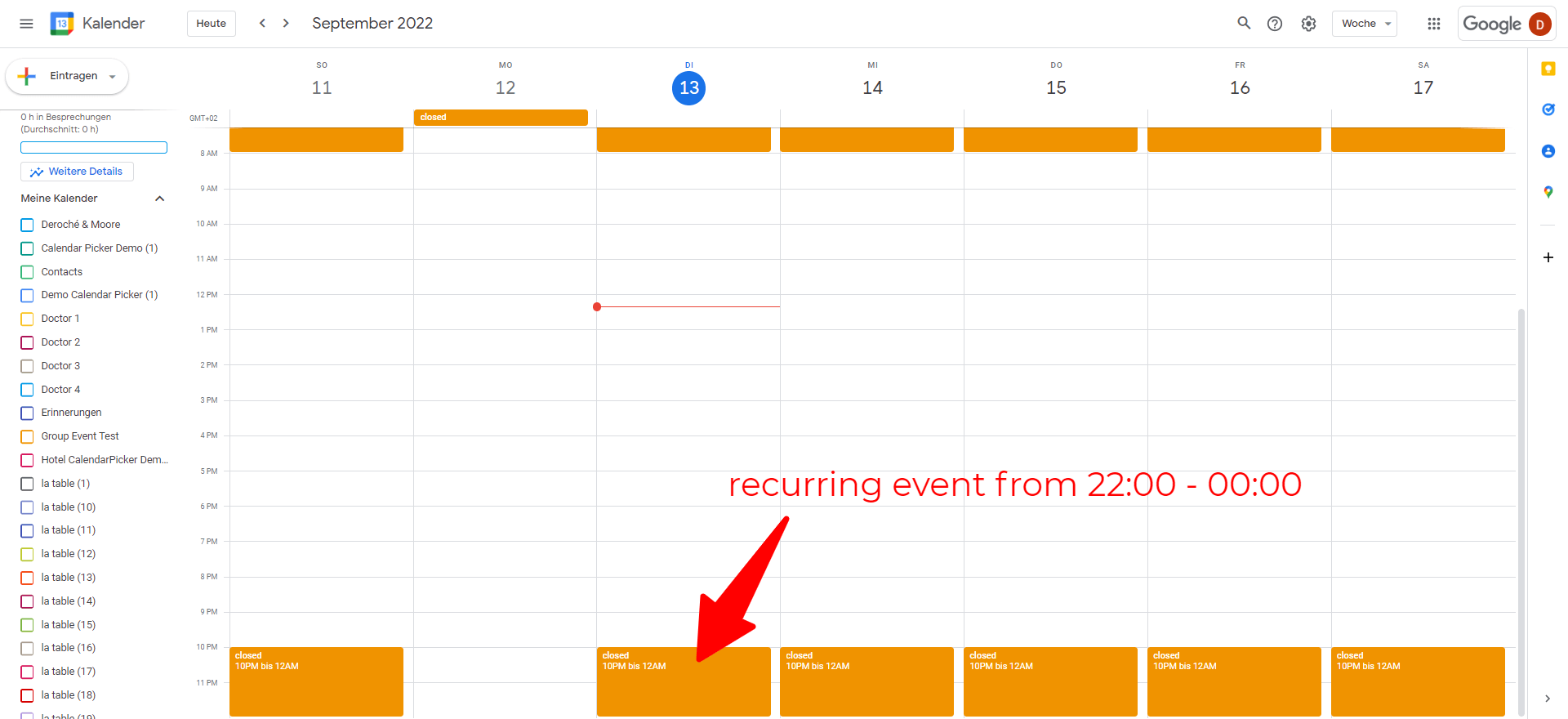
For instance, if your restaurant is open from 8AM to 10PM create two events. The first event takes place from 12AM to 8AM. The second from 10PM to 12AM.

opening hours - create a recurring event from 12AM until 8 AM on weekdays apart from monday which is closed the entire day
opening hours - create a recurring event from 10PM until 12 AM on weekdays apart from monday which is closed the entire day


To better understand opening hours take a look at our full guide on opening hours or watch the video on how to create 9 to 5 opening hours.

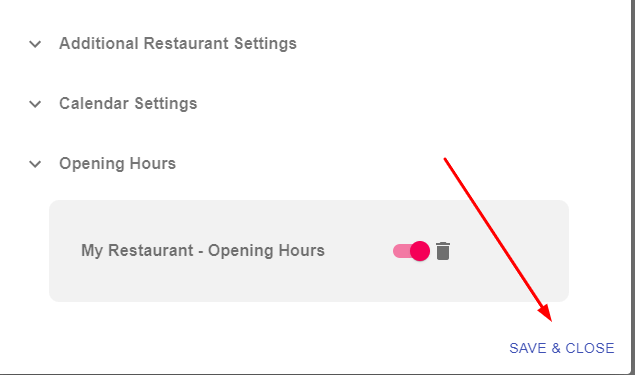
Save your settings by clicking on Save.

Click Save and close to save your changes

Aweseome! You have successfully configured the restaurant use case settings. Now, let’s finish the general CalendarApp settings to receive your first booking.

6. Edit the find a table Booking Message

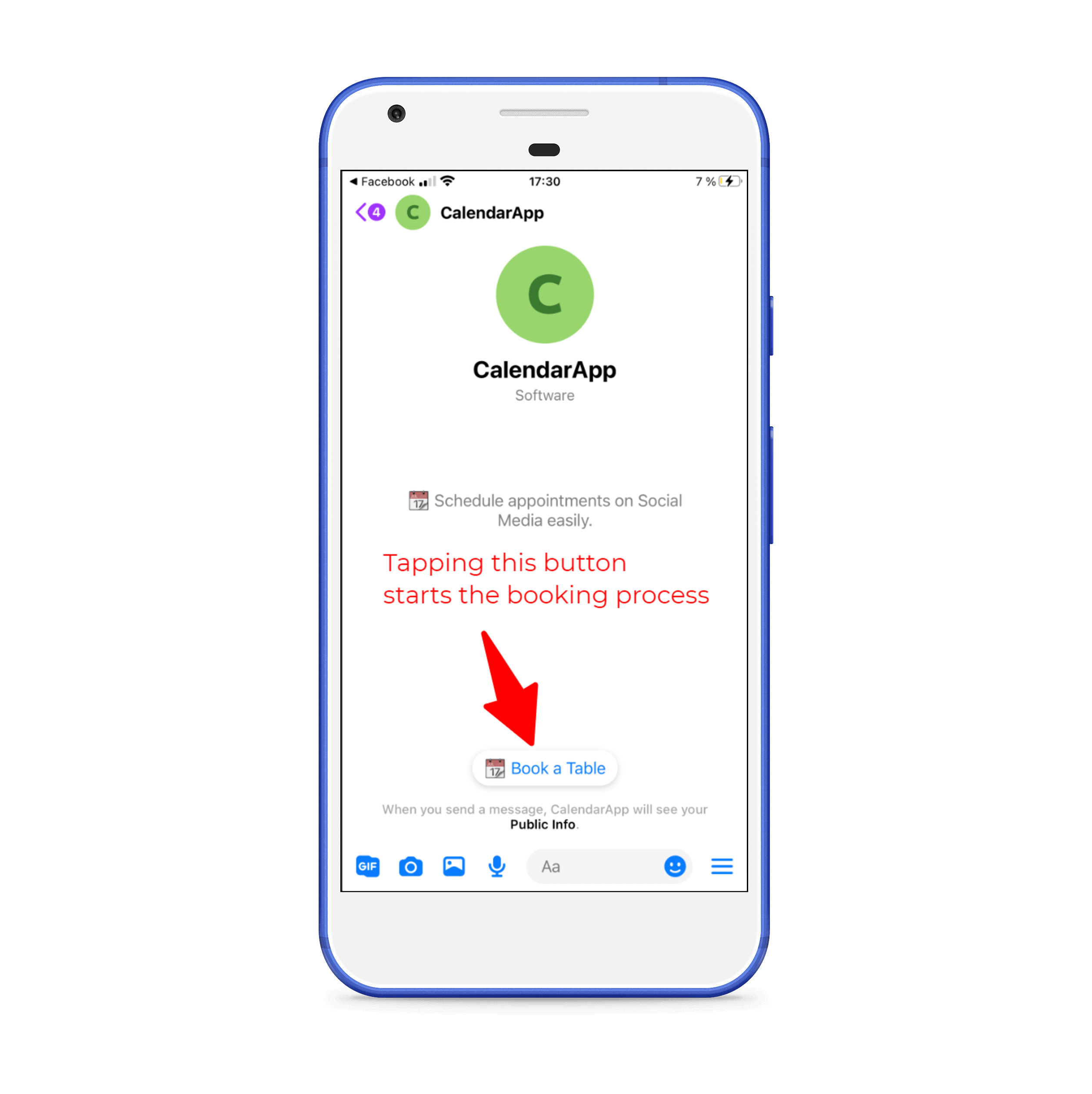
In most cases your booking process starts by a guest starting a chat with you using a conversation starter. Tapping on 📆 Book a Table will prompt the user with a message to open the calendar by tapping the button.
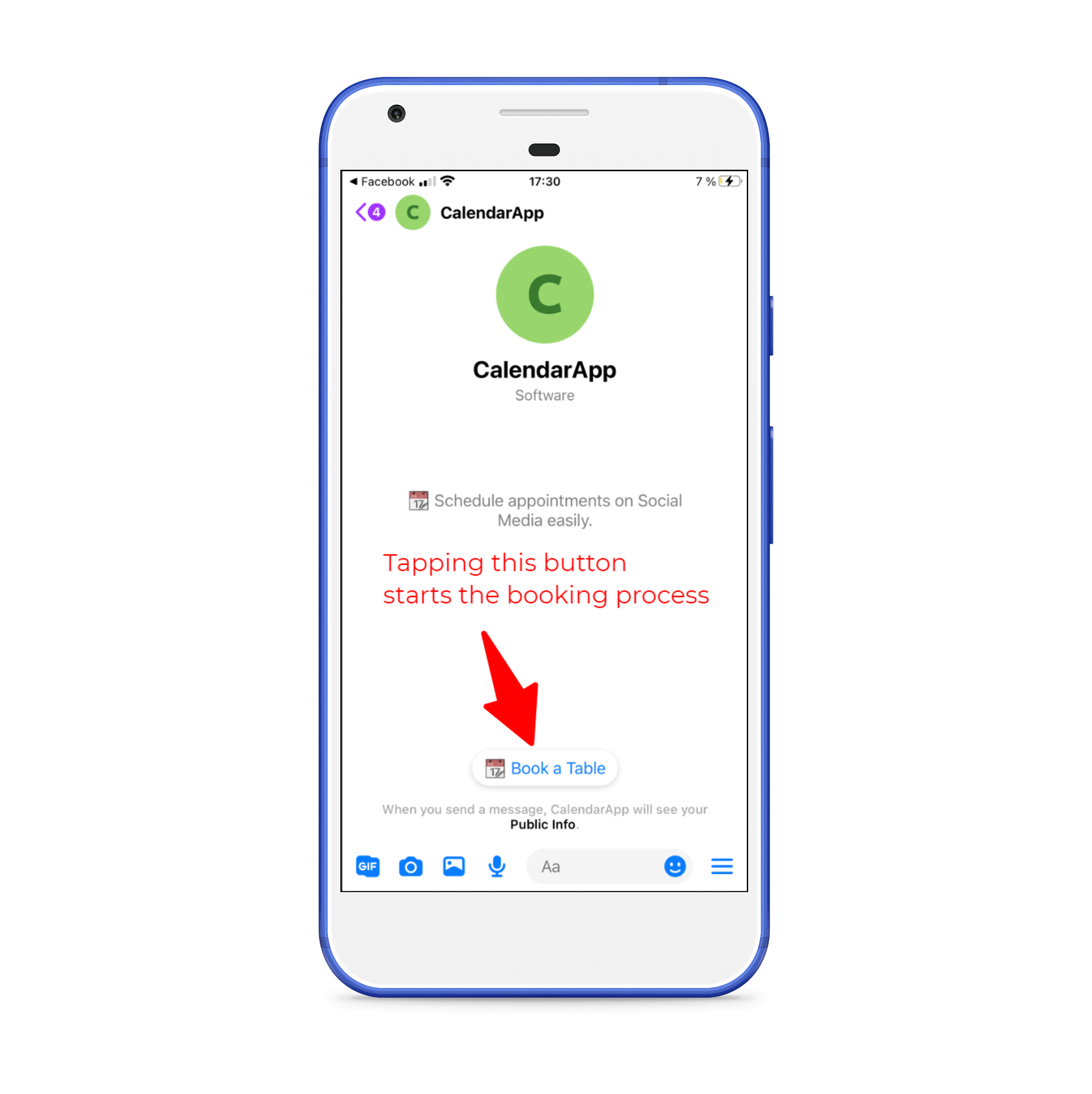
phone preview - tapping this button starts the booking process to find a table
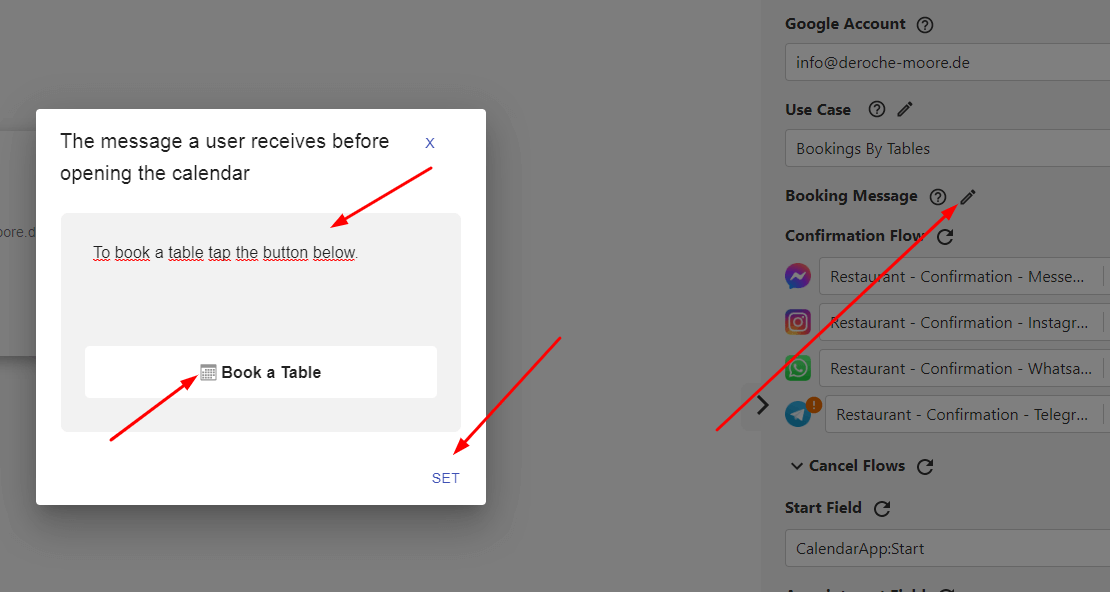
tapping this button will open a calendar to find a table

To edit the text of the message and the button click the pencil icon  next to Booking Message

Change your booking message into something meaningful.png

Save your changes by clicking SET.

7. Select a confirmation Flow for your desired channel

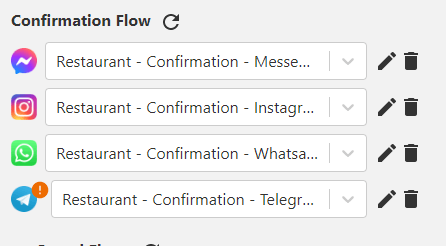
After a user has selected the date and time you want to send a confirmation flow to the user. You build those confirmation flows entirely in Manychat. Every channel needs a separate confirmation flow indicated by the channel’s logo. 

To increase your workflow you can use our free manychat template specifically designed for your restaurant. Get free Manychat Template.

To select a confirmation flow for messenger click on the downfacing arrow to open the list. The list contains all flows of your (pre-)selected Manychat page.

Set your confirmation flows for your desired channels so tables can be found on all channels

Click on the refresh symbol if you have just added a new flow that doesn’t show up in the dropdown.

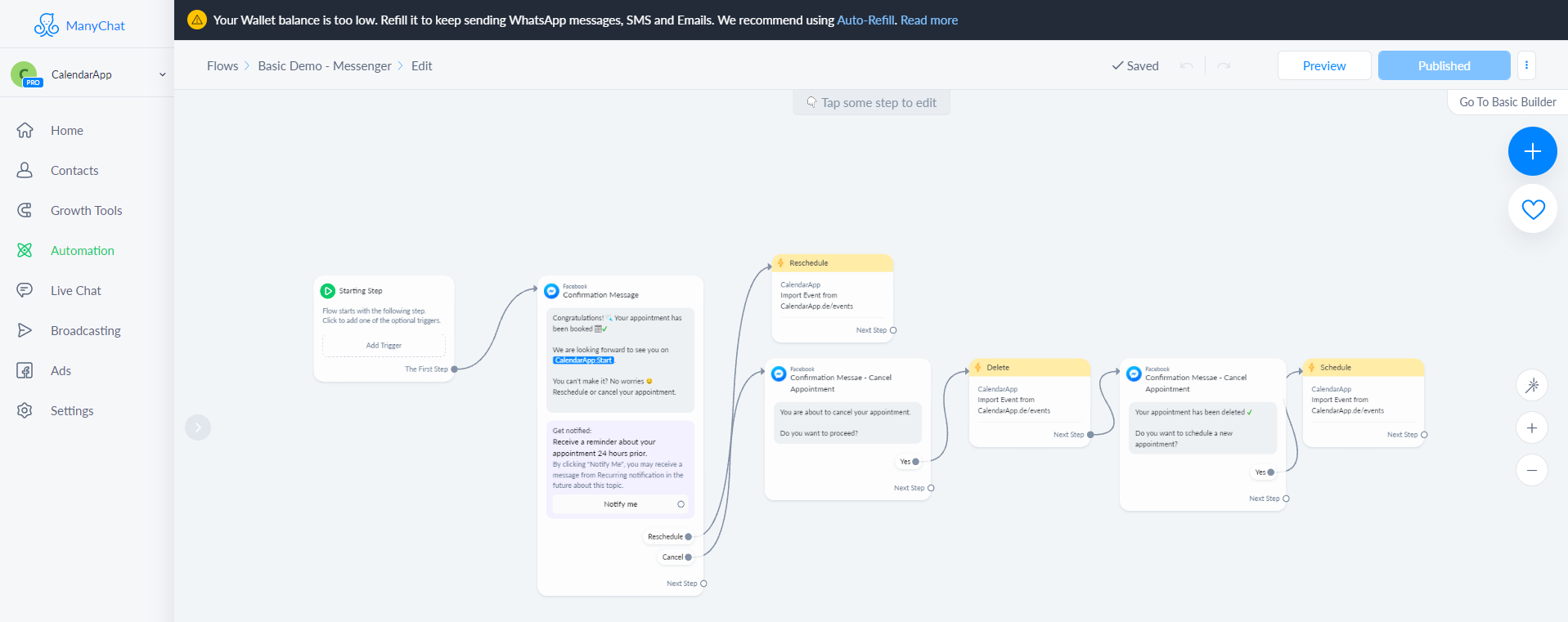
If you want to make any changes to your flow click on the pencil symbol . Your flow will open in a new tab in editing mode.

Open the find a table flow in editing mode

Repeat the same steps for every channel you want to use. Currently, Messenger, Instagram, Whatsapp, Telegram and Google Messages are supported. 

There are a small additional settings necessary when finding tables using Whatsapp and Telegram. 

For a betting understanding of the confirmation and cancel flows view the guide for confirmation flows.

Repeat the same steps for every channel you want to use. Currently, Messenger, Instagram, Whatsapp, Telegram and Google Messages are supported. 

There are a small additional settings necessary when finding tables using Whatsapp and Telegram. 

For a betting understanding of the confirmation and cancel flows view the guide for confirmation flows.

8. Set (Manychat) Fields


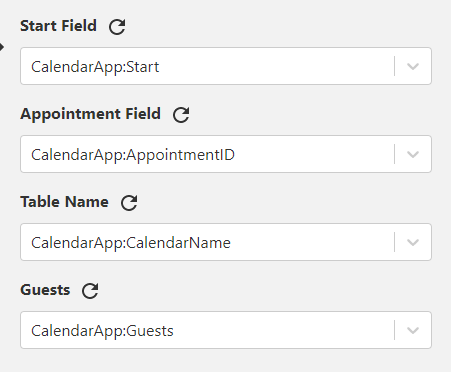
Important scheduling data like start date or number of guests is stored in Manychat fields. If you installed the free template you will see that all fields are already set with according custom fields. So you don’t need to worry about anything. 

Select your custom fields. In case you installed the free Manychat template those fields are prefilled for you


If you want to make changes to your fields read our guide on Manychat fields.


If you have any questions watch our video tutorial or submit a support ticket.


Other CalendarApp users also found these articles helpful