

How to receive Google Calendar reminders
Receiving Google Calendar reminders has become a must in our fast-paced world, juggling multiple commitments. Google Calendar’s reminders act as our personal assistants, nudging us at the right time and ensuring we stay productive and punctual.
By the help of automatically sent Google Calendar Reminders to our smartphones or desktops, we reduce the risk of missing crucial deadlines or appointments.
Since those reminders help us to stay alerted it’s worth knowing how to activate these notifications. In this article you will learn the 3 very simple steps to active Google Calendar reminders.
The CalendarApp also uses appointment reminders. However, instead of reminding you about the upcoming booking the CalendarApp send a message to your customer informing him or her about the meeting with you.
Watch the youtube video to learn how to send appointment reminders using Manychat.
If you are new to the CalendarApp or simply exploring it’s notification capabilities then sign up for a free account and start your 14 day trail.
To use the CalendarApp more effectively, you may want to make use of our various CalendarApp Event Templates.
Table of Contents
1. Activate Google Calendar Reminders For Existing Events
To activate Google Calendar Reminders open your Google Calendar and sign-in with your Google Account. If you don’t have a Google Account yet create one here.
To activate a Google Calendar reminder:
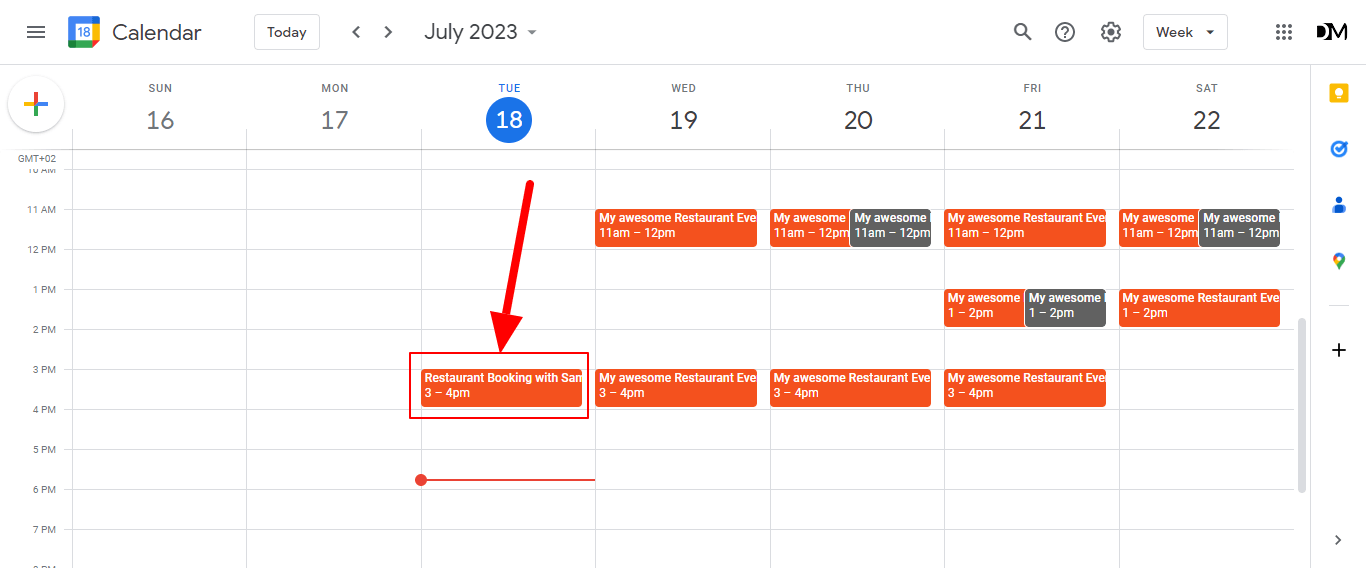
- Select the Google Calendar event you want to be reminded of
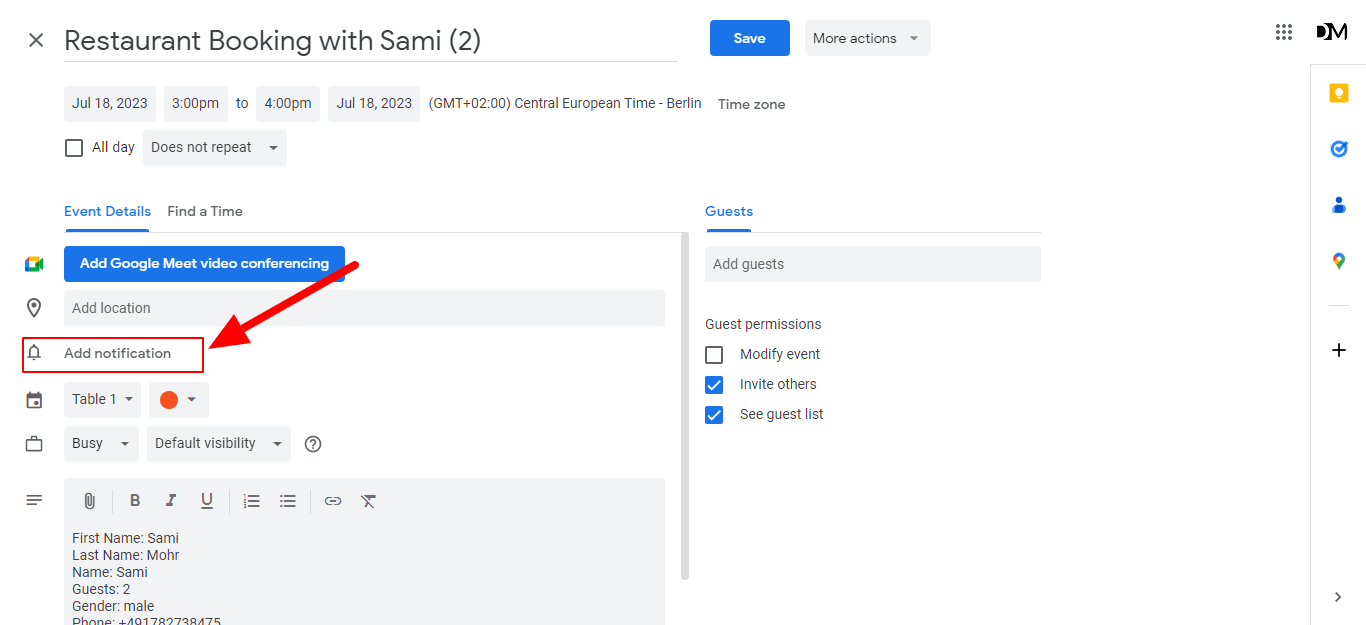
- Click the Edit Icon
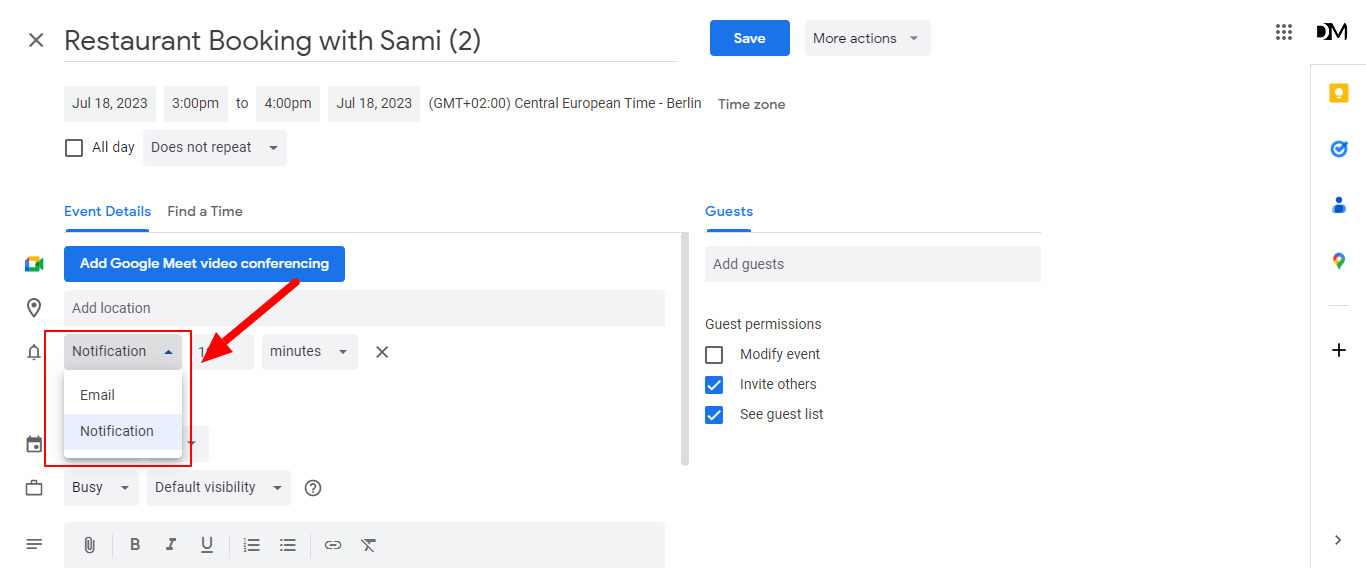
- Click on Notification
- Select your preferred notification style: Email or Push Notification
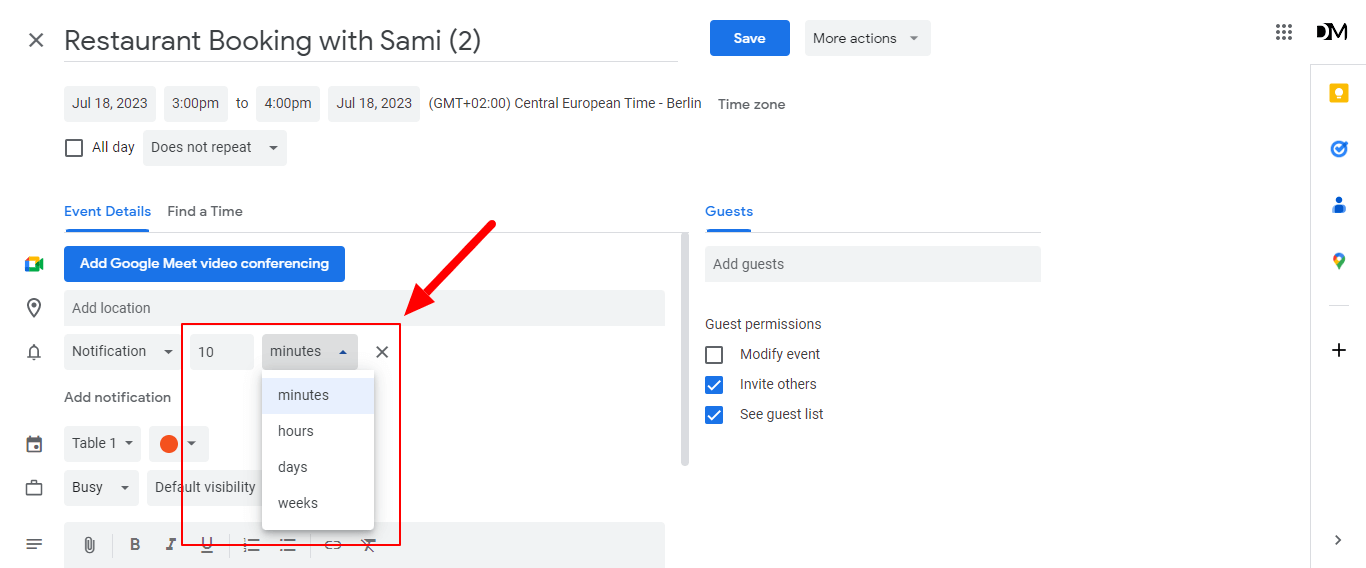
- Select how many minutes,hours,days or weeks in advance you want to be reminded
Here is an example of a Google Calendar reminder on your desktop:
Here is an example of a Google Calendar reminder on your mobile device:
Lastly, this is how you receive a Google Calendar notification via email:
You can create up to 5 notifications. To add another notification:
- Click on Add Notification
- Repeat the steps listed above
To remove a notification click the X symbol next to the notification
2. Activate Google Calendar Reminders For New Events
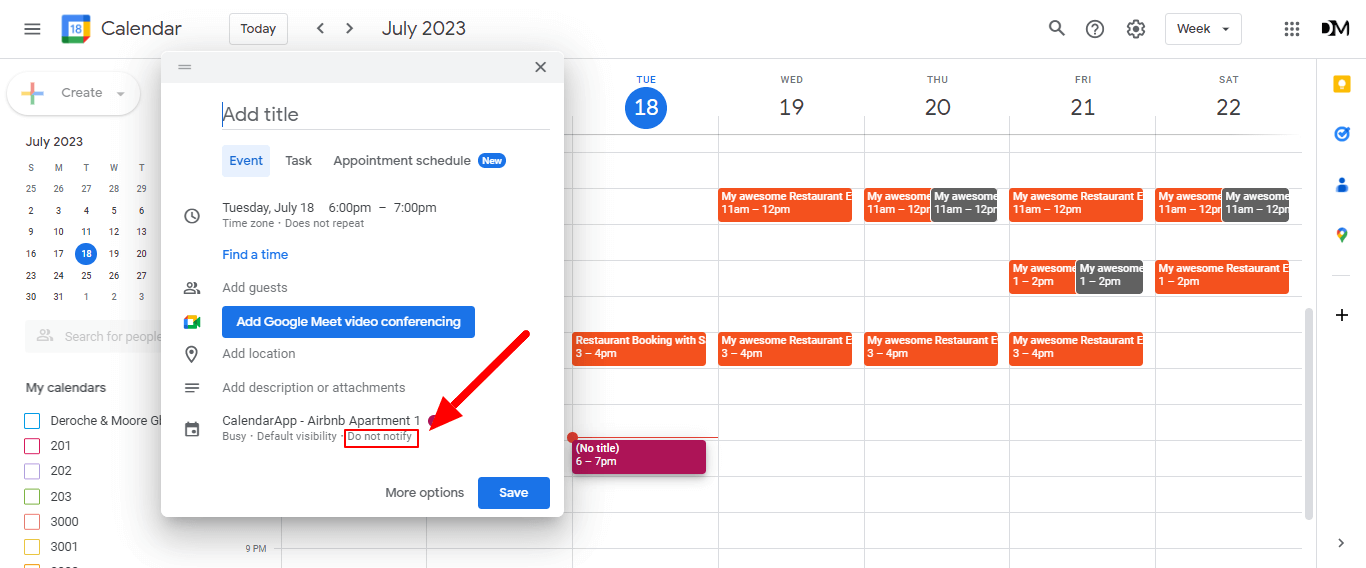
In case you are creating a new event here is how you activate Google Calendar Reminders:
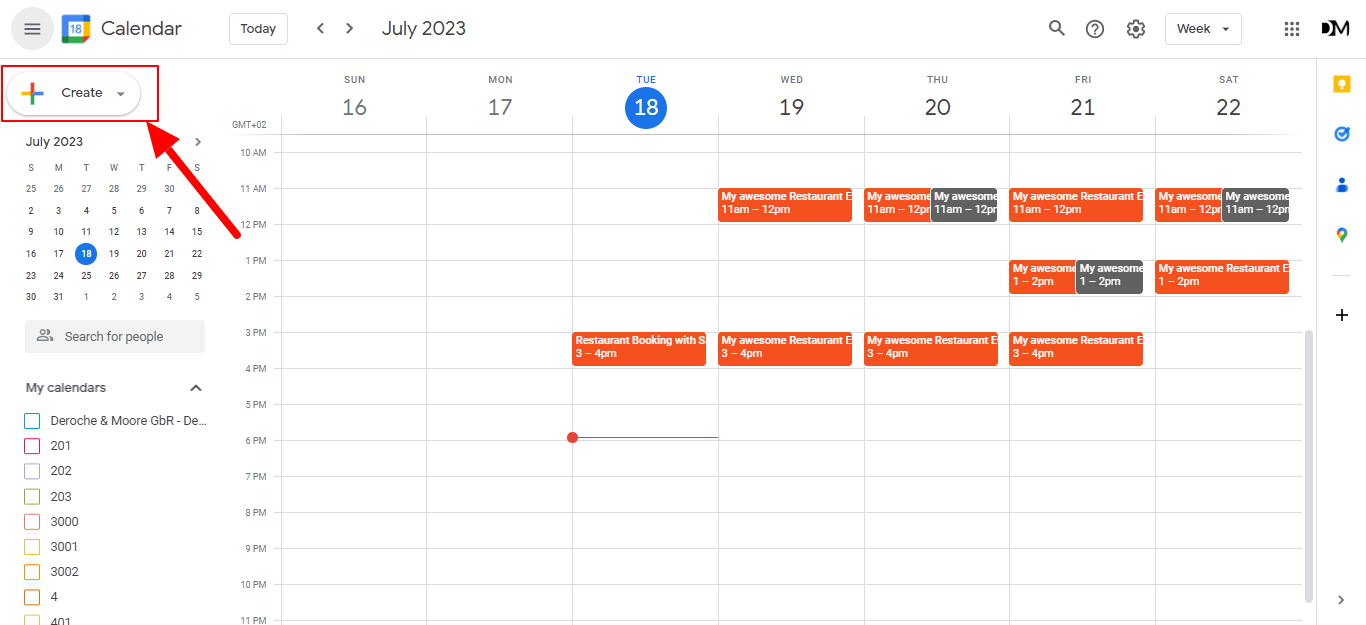
- Click the + Create Button in the top left corner
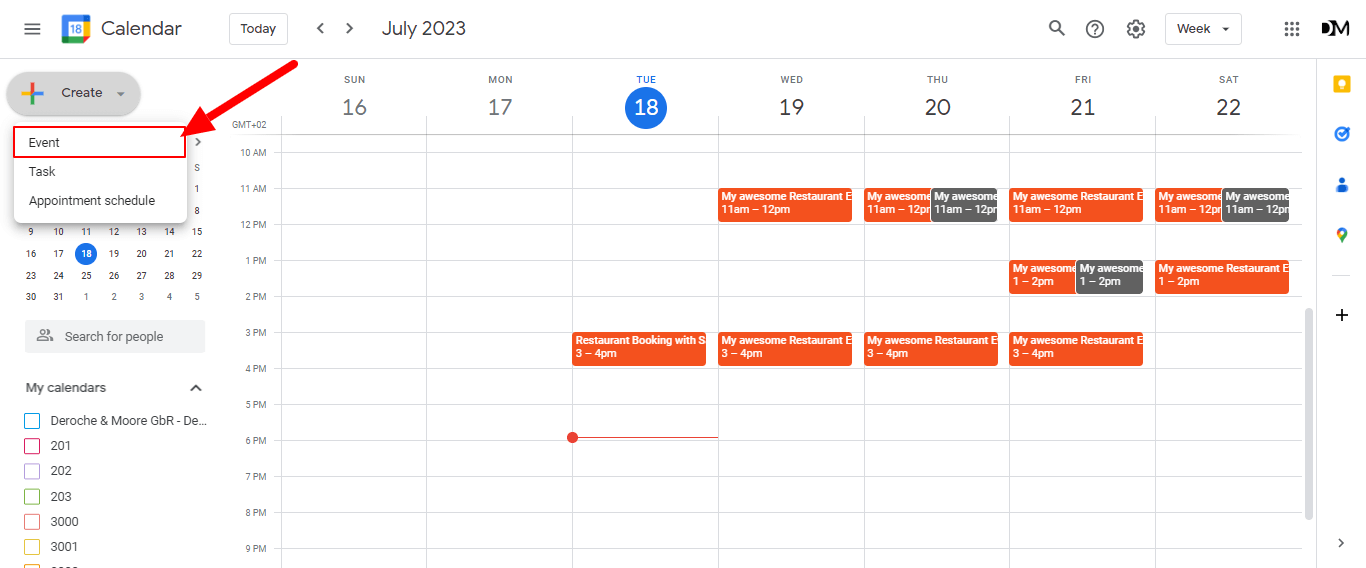
- Select Event
- Click on Do not notify
- Select an intervall from the dropdown or select Custom…
- Select your preferred notification style: Email or Push Notification
- Select how many minutes,hours,days or weeks in advance you want to be reminded
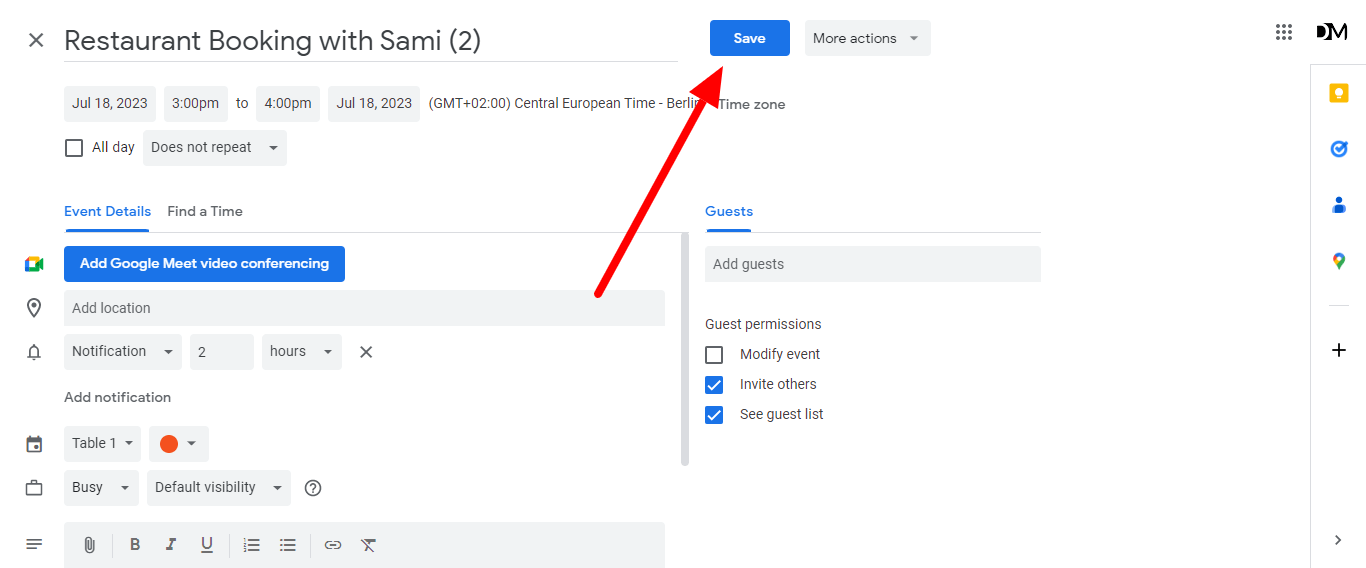
- Add the remaining details of your event and click Save
3. Send Appointment Reminders
Unlike receiving Google Calendar reminders you can also send appointment reminders to the customer you have scheduled an appointment with. The CalendarApp takes care about his for you.
When a guest for instance books a table at your restaurant you can remind him about the upcoming booking. This process is fully automated thanks to the use of the CalendarApp and Manychat custom rules. In order to activate those appointment reminders watch this youtube video.
4. Add An Add To Calendar Button And Set Reminders
So far we have learnt how you receive a Google Calendar Reminder and how you can send an automated reminder message to your customer. The final use case we are taking a look at now is how your guest can receive their own Google Calendar reminder.
In order a achieve this your client needs to save the Google Calendar event to it’s own Google Calendar as well. This is where the Add To Calendar – Button comes in handy.
This Add To Calendar Button contains a URL that once clicked prompts the user with an option to add the event to it’s own Google Calendar. This has many advantages:
- You can prefill most of the details of the event reducing the amount of work for your customer
- You make sure that your customer receives a notification making yourself independent from Meta’s 24 hour rule
- The Google Calendar Event can be shared amongst your guest’s friend so they can also get exicted about the upcoming event with you
To create such a Add to Calendar Button watch the Youtube video
If you have any questions on how to manage your client’s account or how to utilize the CalendarApp Event templates do not hestitate to submit a support ticket.
Other CalendarApp users also found these articles helpful
CalendarApp – Opening Hours
How to set Opening Hours to your CalendarApp Events Most likely you are not available 24/7 for your customer. That’s
How To Change Google Calendar Color
How to Change The Google Calendar Color Change the color of your Google Calendar to stay organized and on top of
Google Calendar Reminders
How to receive Google Calendar reminders Receiving Google Calendar reminders has become a must in our fast-paced world, juggling multiple
CalendarApp access to Google Calendar
Why the CalendarApp needs access to Your Google Calendar CalendarApp is a highly advanced and user-friendly scheduling and event management