
How to Cancel a Google Calendar Event
Canceling a Google Calendar Event is important for managing appointments and scheduling events for small businesses. With the help of CalendarApp, businesses can easily schedule appointments on social media and automate the process of cancellations. In this article, we will provide a step-by-step guide on how to cancel a Google Calendar event using your Google Calendar and using CalendarApp.
If you don’t have a CalendarApp account yet sign up for free!
Table of Contents
1. Cancel a Google Calendar Event
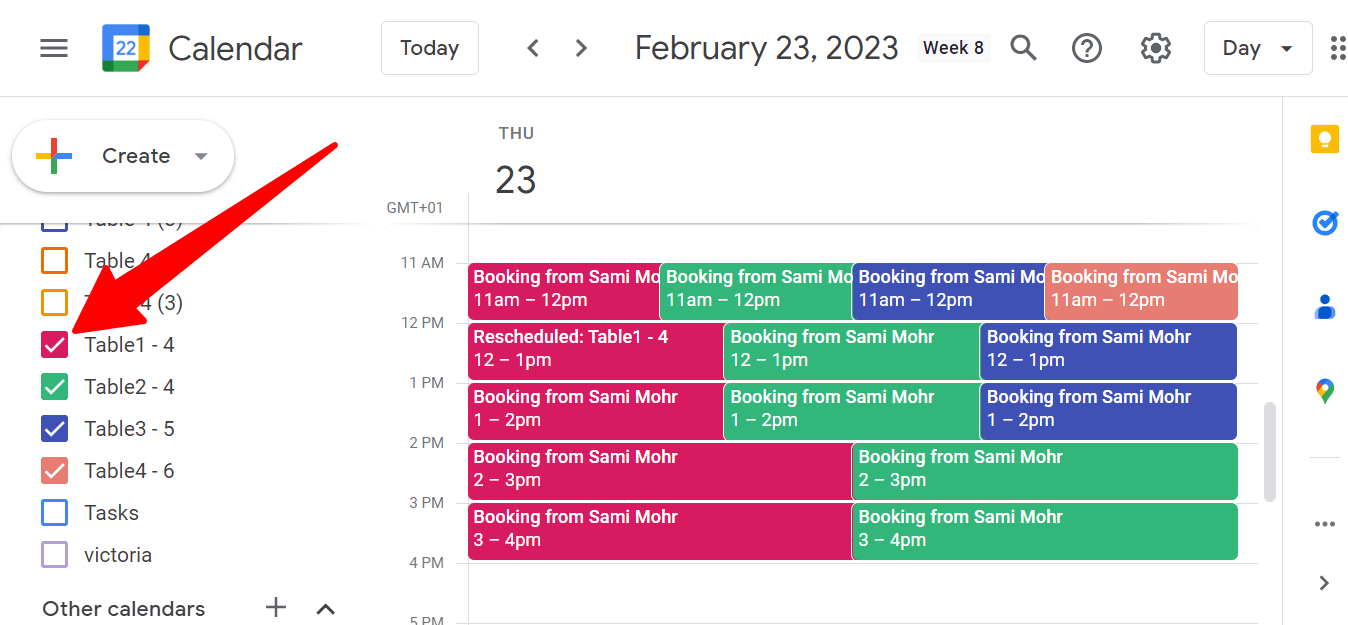
2. Once you made your Google Calendar visible, find the event you want to cancel and select it by clicking on the event. This will open the event details where you can make changes or cancel the event.
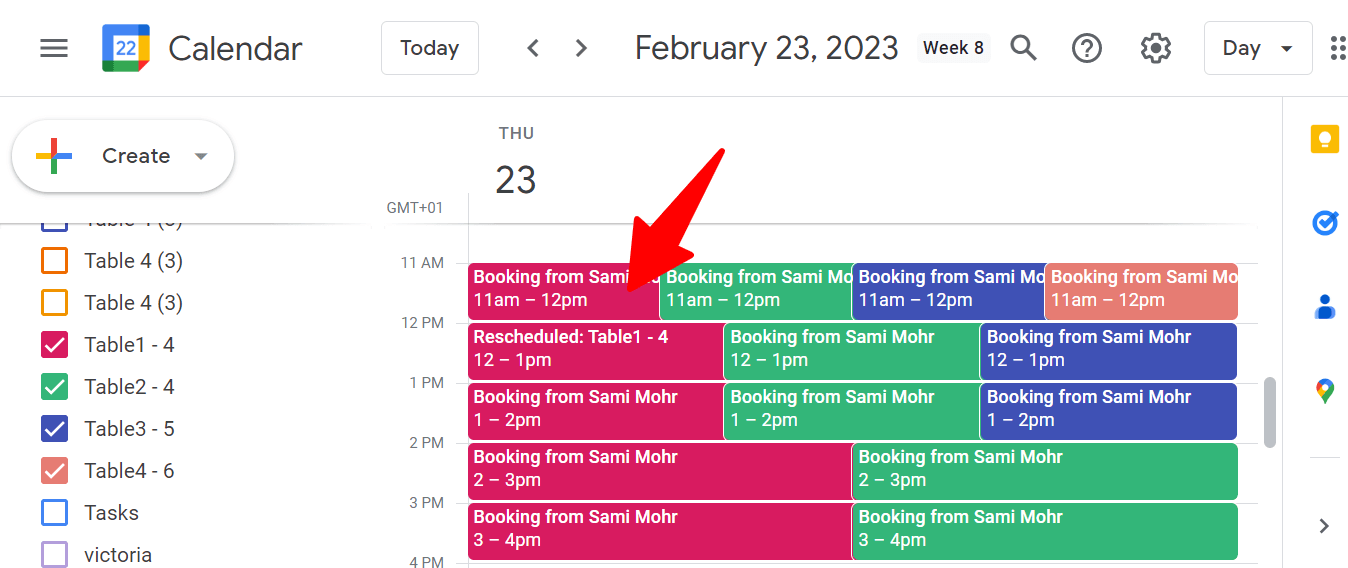
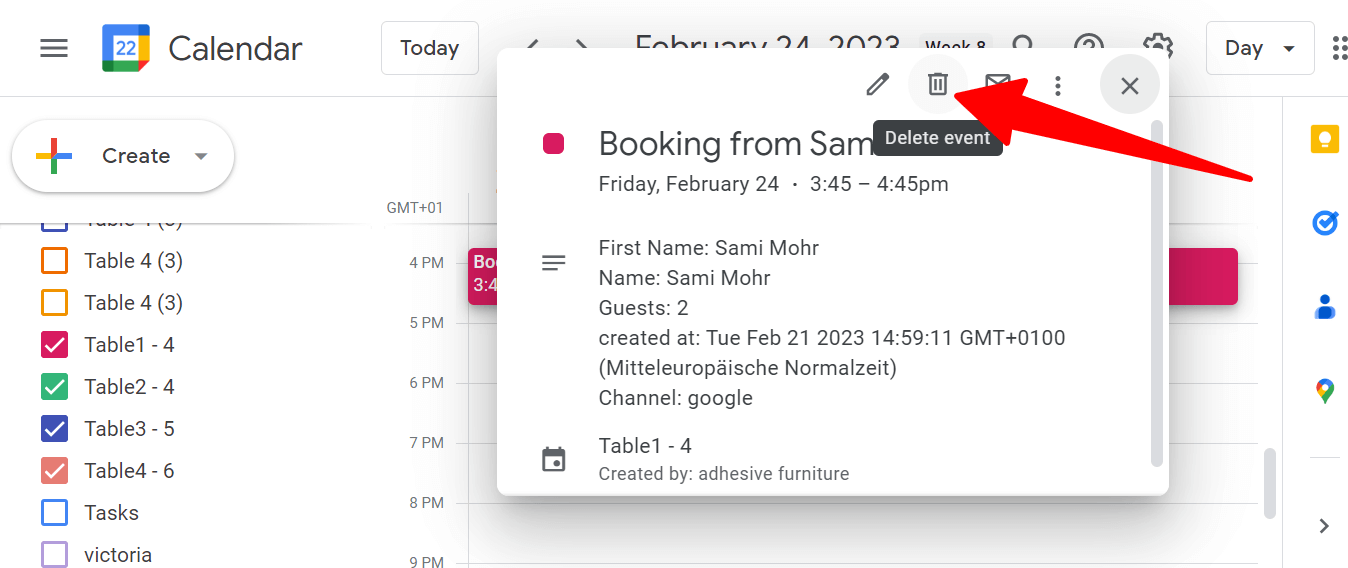
3. To cancel the event, click on the “Delete” button at the top of the event details.
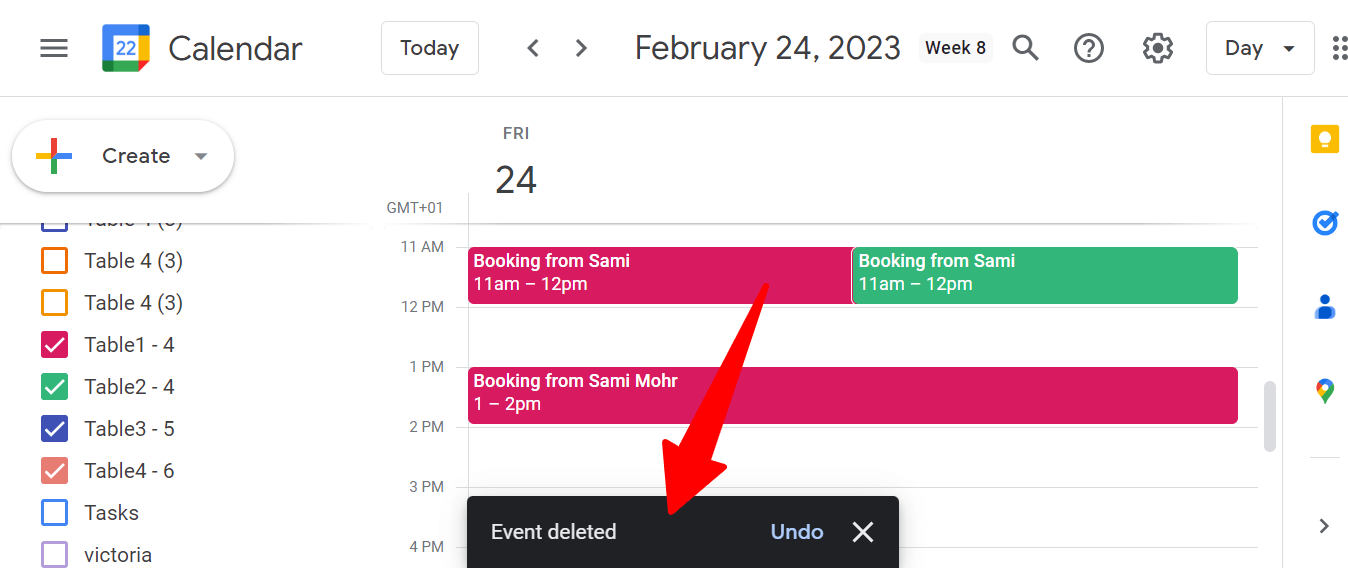
4. Your event is automatically deleted. Click on Undo to undo the changes.
And that’s it. Those are 3 easy steps on how to cancel a Google Calendar event. Besides canceling the Google Calendar Event manually you can also use a scheduling app like the CalendarApp to handle cancelations for you. Below you will see a few examples of how the CalendarApp cancels a Google Calendar event automatically when your customers wants to cancel an appointment with you.
2. Find a Table for a Restaurant
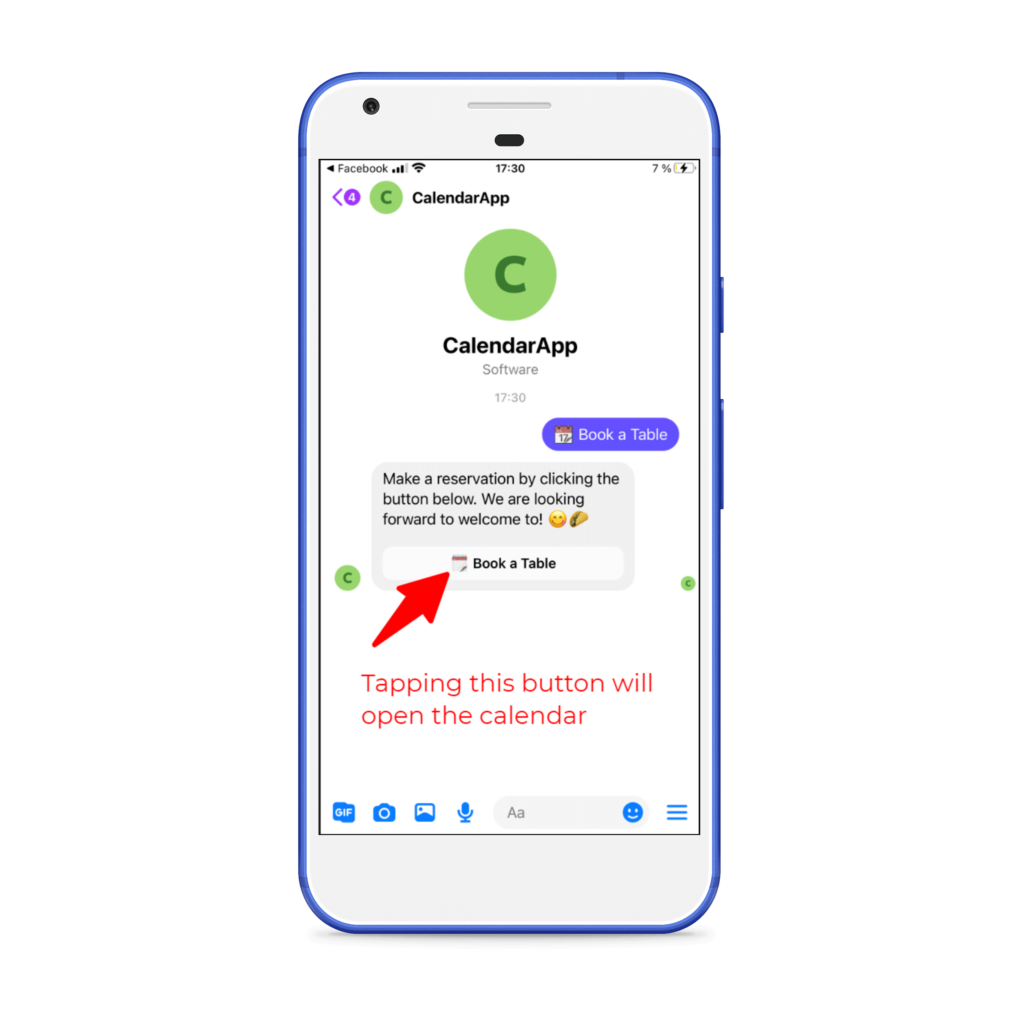
The CalendarApp can be used to book tables at a restaurant, making it easy for guests to find a table that suits their needs. Those bookings then show up in your Google Calendar:
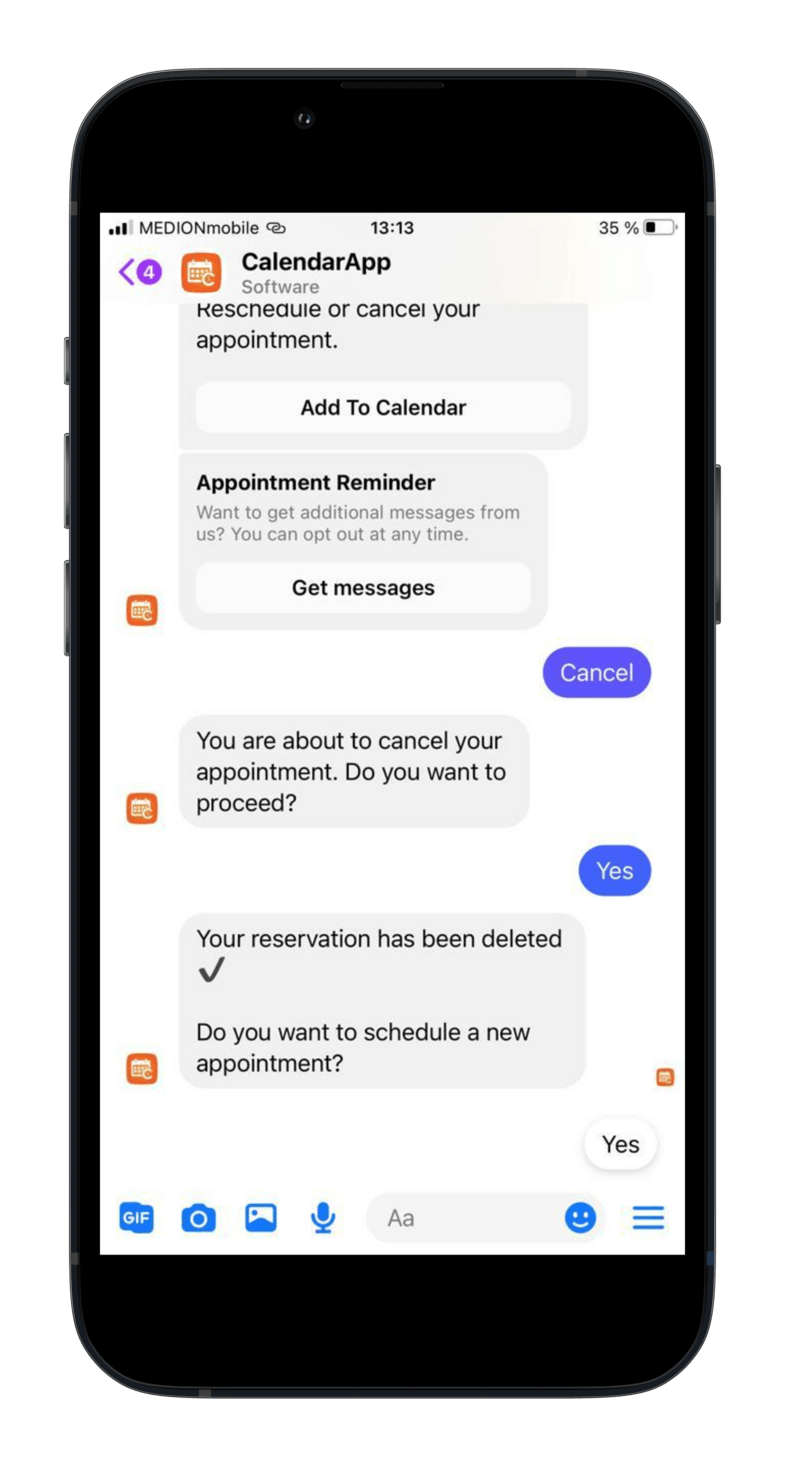
In case a guest wants to cancel a reservation the CalendarApp will cancel the Google Calendar event for you. The advantage is that is happens immediately, automatically and the table is free and can be booked by the next person.
3. Webinar Sign-ups
The CalendarApp can also be used for managing webinar sign-ups. Next time you host a webinar with a limited or unlimited number of attendees they can sign up easily by picking date and time of your next webinar. All attendees show up in your Google Calendar and in your CalendarApp dashboard.
In case an attendee cannot make it to your next webinar his spot can be canceled and is free for the next person to attend. The Google Calendar Event is then automatically canceled.
4. Cancel a Google Calendar Event When Sharing a Google Calendar
Canceling a Google Calendar event also works for those Calendars that are being shared. Depending on the level of access you have or permissions you grant cancellations basically work the same way as usual.
5. Adjust Your Opening Hours
When you set your opening hours in your Google Calendar you usually use recurring events at those times when you are not available. Depending on your business this may also include weekends like Saturdays and Sundays. However, on special occasions you also offer appointments on those days, for instance an open door day. In this case you want to cancel the Google Calendar event for that particular day so your customers can book an appointment with you.
Follow the 3 simple steps listed about to cancel the event and let your customers book an appointment with you.
If you have any questions submit a support ticket.
You can make more out of your Google Calendar by using the CalendarApp. The CalendarApp is a high performance highly reliable and easy to implement scheduling solution that automates the booking process with your customers.
If you don’t have a CalendarApp account yet sign up for free!