How to Change Google Calendar Time Zone: A Step-by-Step Guide
As a small business owner, it’s essential to keep your calendar up-to-date and ensure that appointments are scheduled in the correct time zone. With Google Calendar, you can easily change the time zone for your calendar to avoid any scheduling mishaps.
If you don’t have a CalendarApp account yet sign up for free!
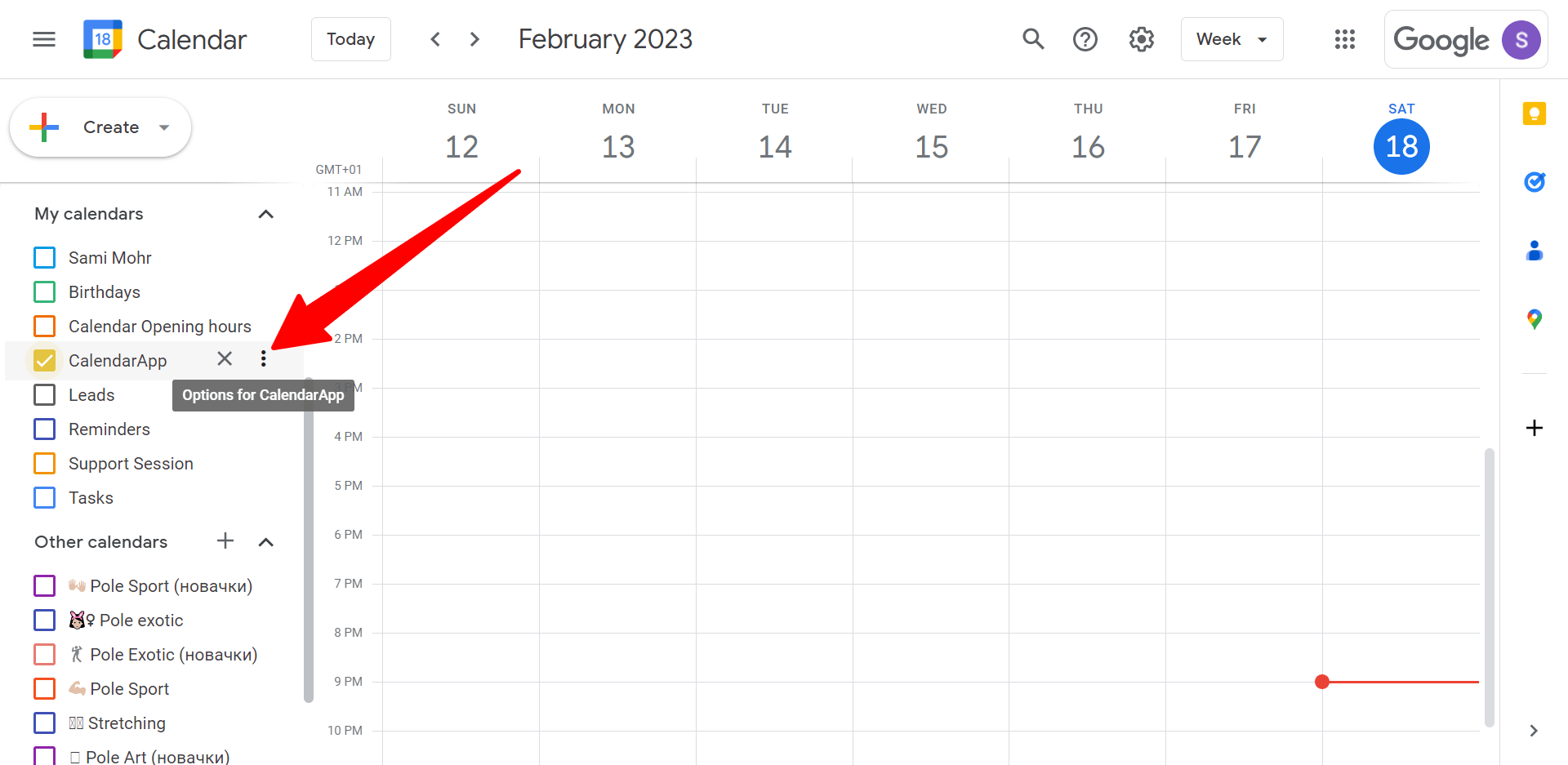
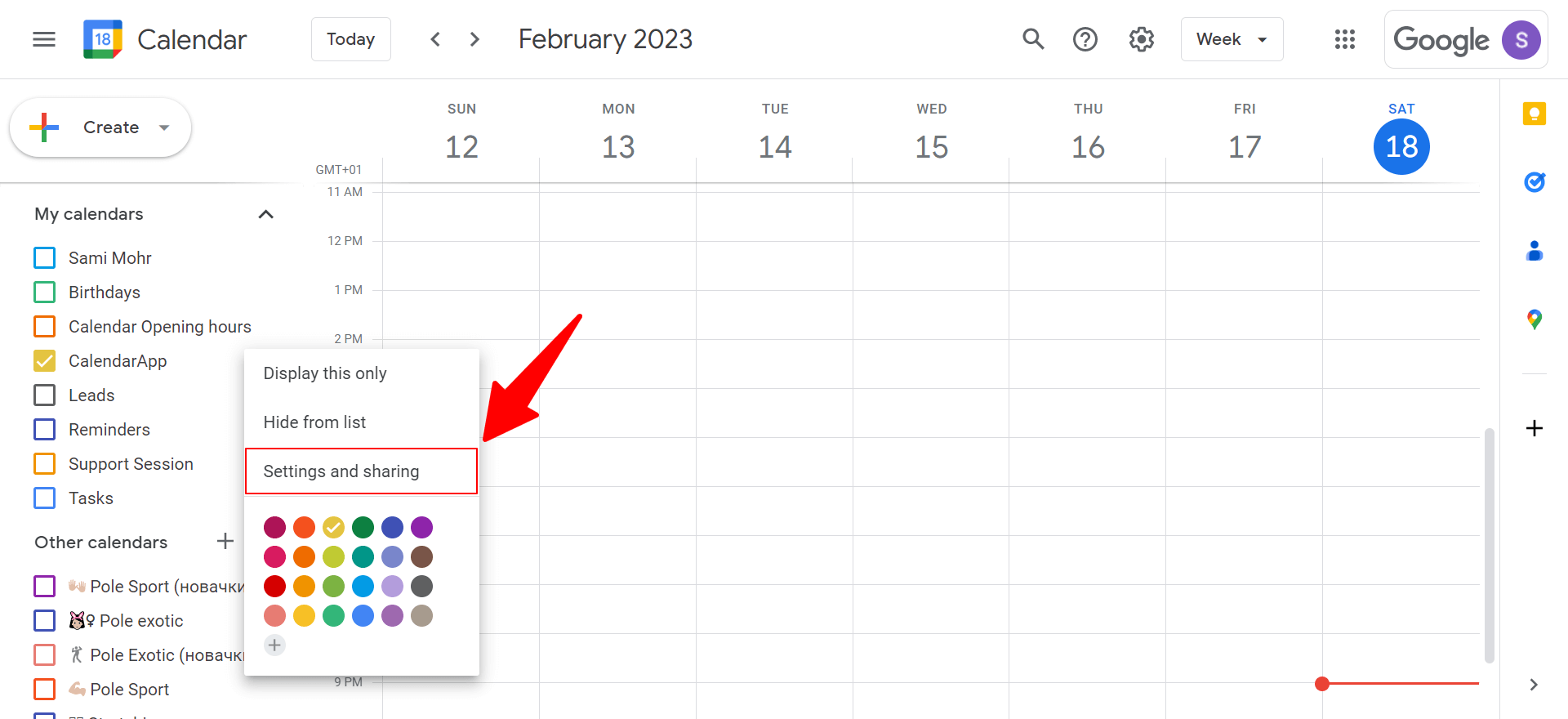
In the left-hand menu, click the three dots next to your calendar’s name and select „Settings and sharing.“
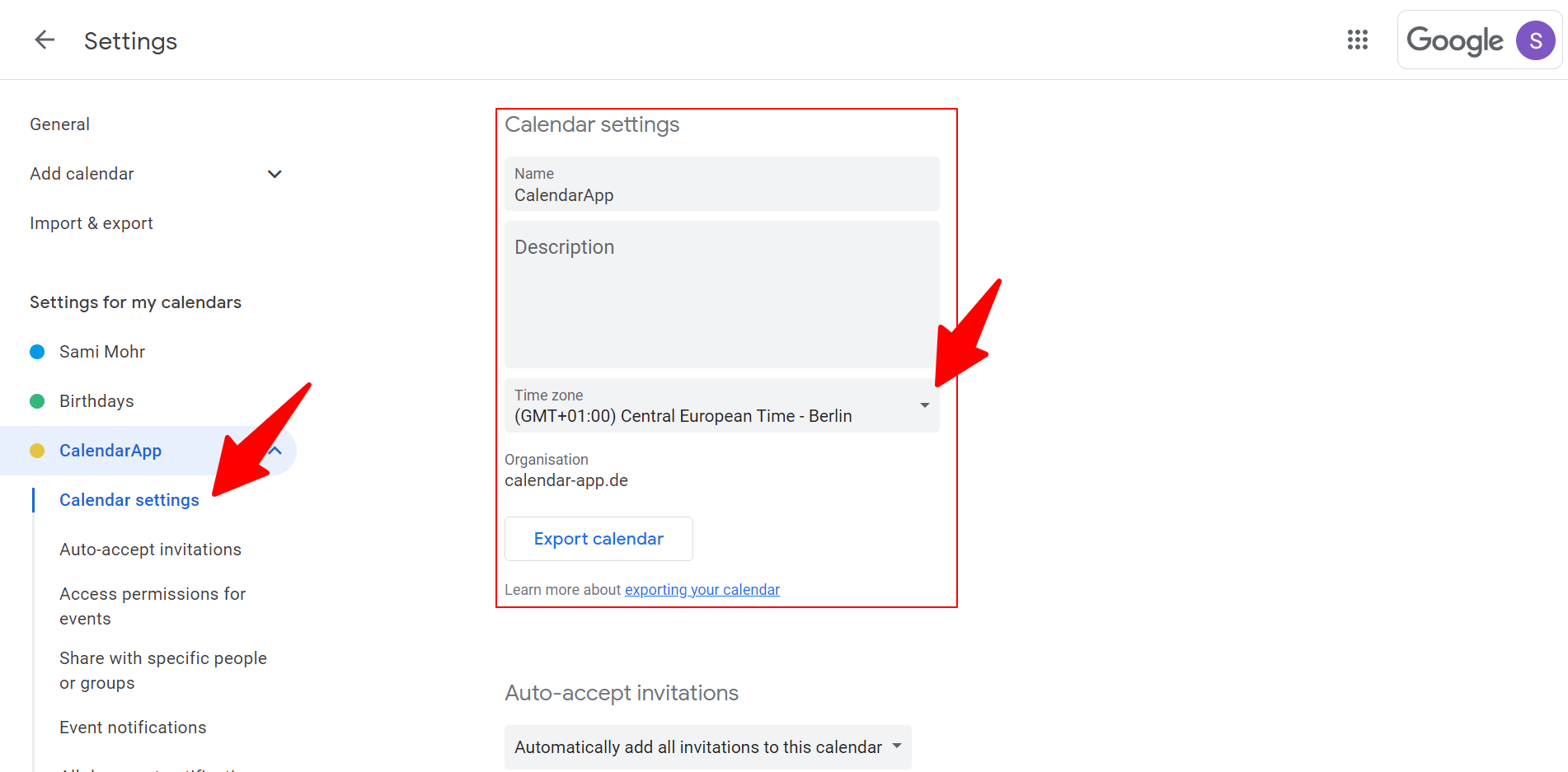
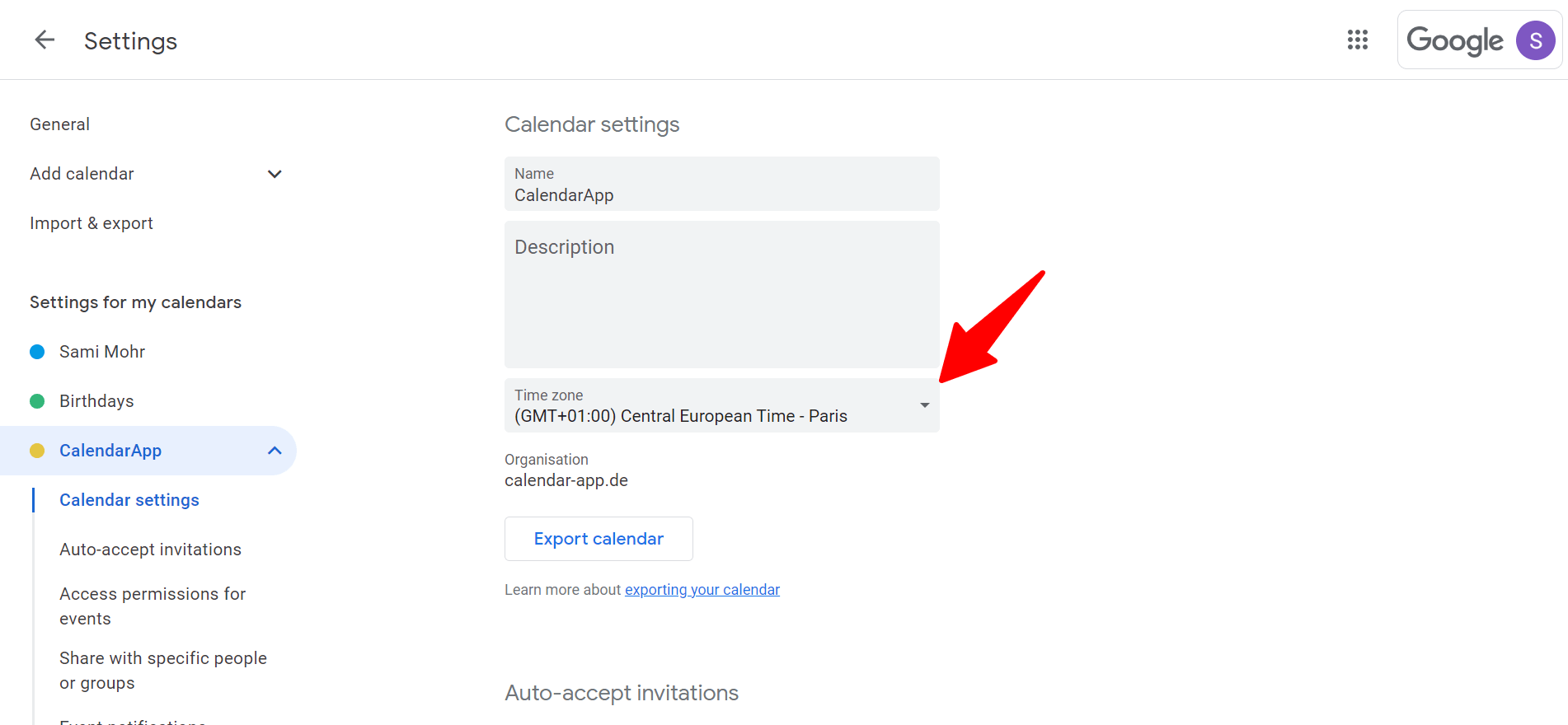
3. Click on Calendar Settings. On the right you will see your Calendar settings.
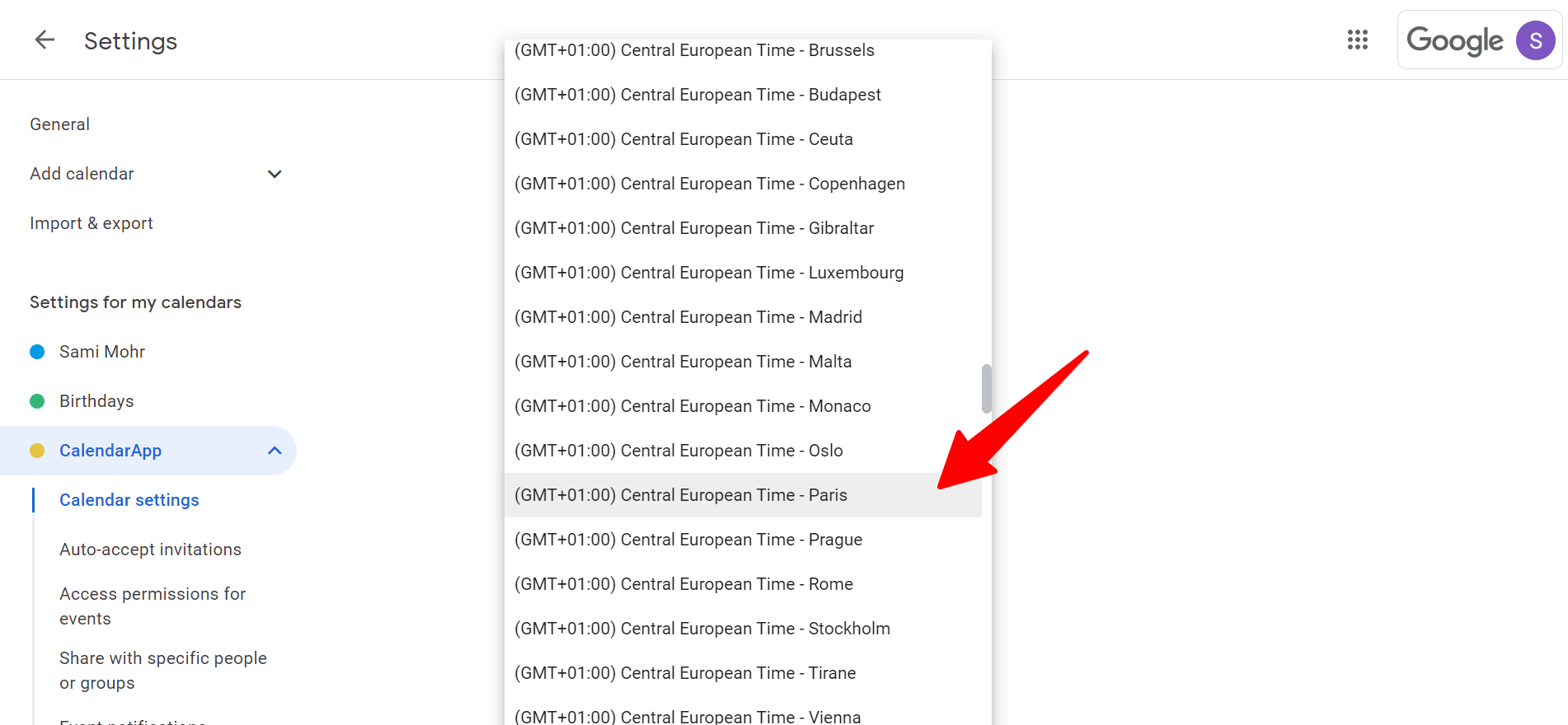
4. Click on Time zone to open the time zone selecting list. Select your time zone.
5. Your changes will automatically applied
2. How to Change How Your Events Are Displayed
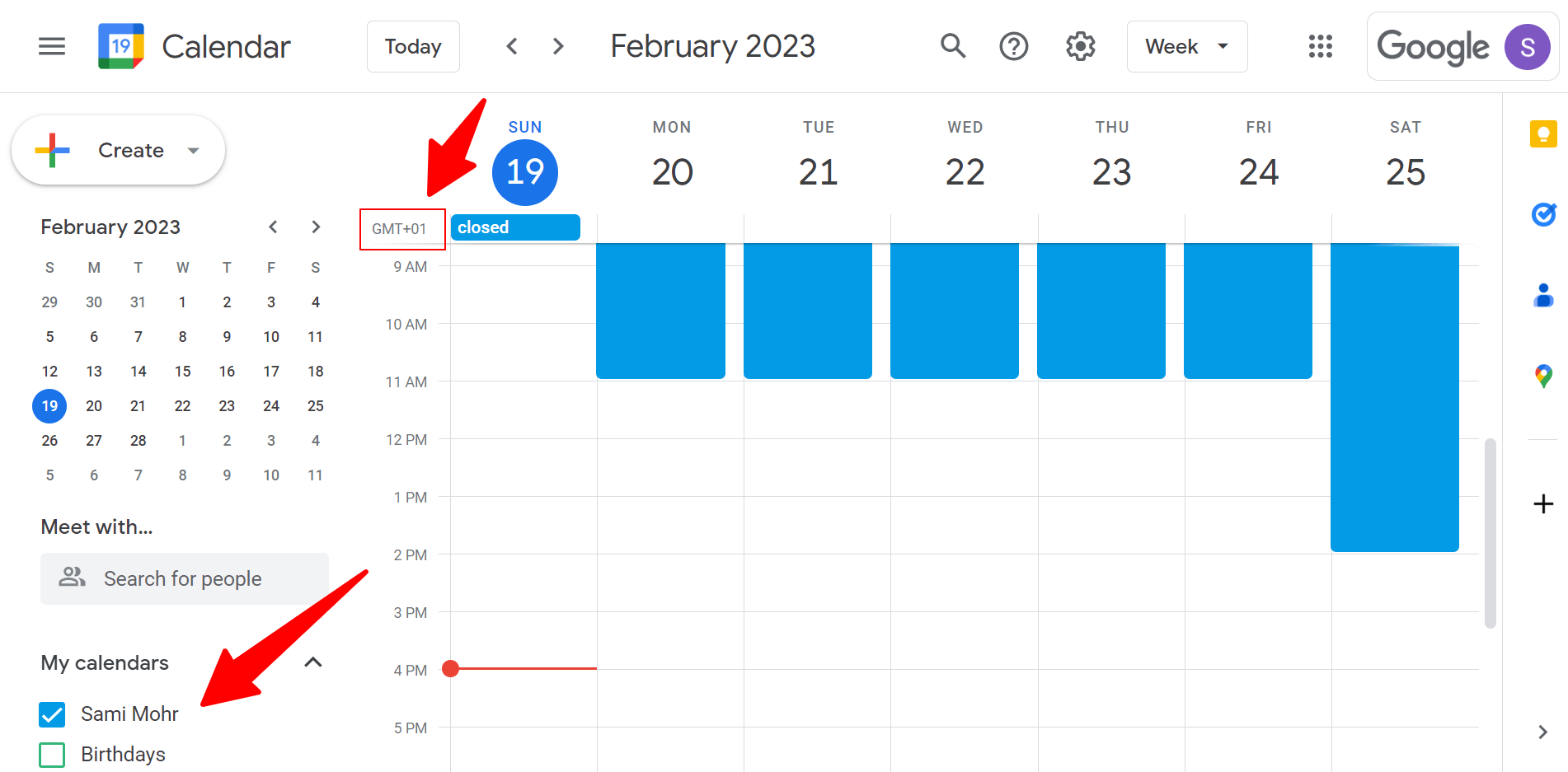
When changing the Google Calendar time zone you have to keep one important thing in mind: Only if you change the time zone of your primary Google Calendar the user interface will change and the events will be shown differently.
In case you change any other Google Calendar there will be no changes in the UI. Here is an example:
The primary Google Calendar (info@calendar-app.de) is set to GMT+1. Here is how the events are displayed:
Now the primary Google Calendar (info@calendar-app.de) is set to GMT-6. Here is how the events are displayed now:
If you had done this with any other of your Google Calendars the UI would NOT have been changed.
3. How To Use The CalendarApp To Change The Time Zone of Your Calendar
With CalendarApp, you can further customize your calendar settings by setting the duration of appointments, adding break times, and setting the time zone of your calendar to ensure accurate scheduling. This is especially helpful for businesses with opening hours, such as restaurants, where guests can find a table messaging your restaurant on Facebook, Instagram, Whatsapp, Telegram and Google.
You can also use CalendarApp for webinars, where people can sign up and have the event added to their Google Calendar automatically. And by sharing your Google Calendar with others, they can view the content of your calendar, even if the time zone has been changed.
If you have any questions watch our video tutorial or submit a support ticket.