Mastering Irregular Repeating Events in Google Calendar
Irregular Repeating Eventsfor your Google Calendar are essential for both personal and professional success in today’s fast-paced world. Google Calendar has emerged as a powerful tool to help individuals stay organized and manage their schedules effectively.
While it offers a range of features, one aspect that often stands out is its ability to handle irregular repeating events. In this article, we will explore the intricacies of irregular repeating events in Google Calendar and provide valuable insights on how to optimize their usage.
Even with an automated booking software like the CalendarApp you can schedule irregular repeating events in your Google Calendar. Sign up and learn more by testing the CalendarApp for free!
In traditional calendar systems, events are commonly set to repeat on a weekly or monthly basis. However, there are instances when events occur at irregular intervals.
Google Calendar’s custom recurrence feature empowers users to create repeating events that follow unique patterns, allowing for greater flexibility and precision.
2. How to Create Irregular Repeating Events in Google Calendar
To create an irregular repeating event in Google Calendar, follow these simple steps:
Open Google Calendar: Access Google Calendar by visiting calendar.google.com or using the Google Calendar mobile app.
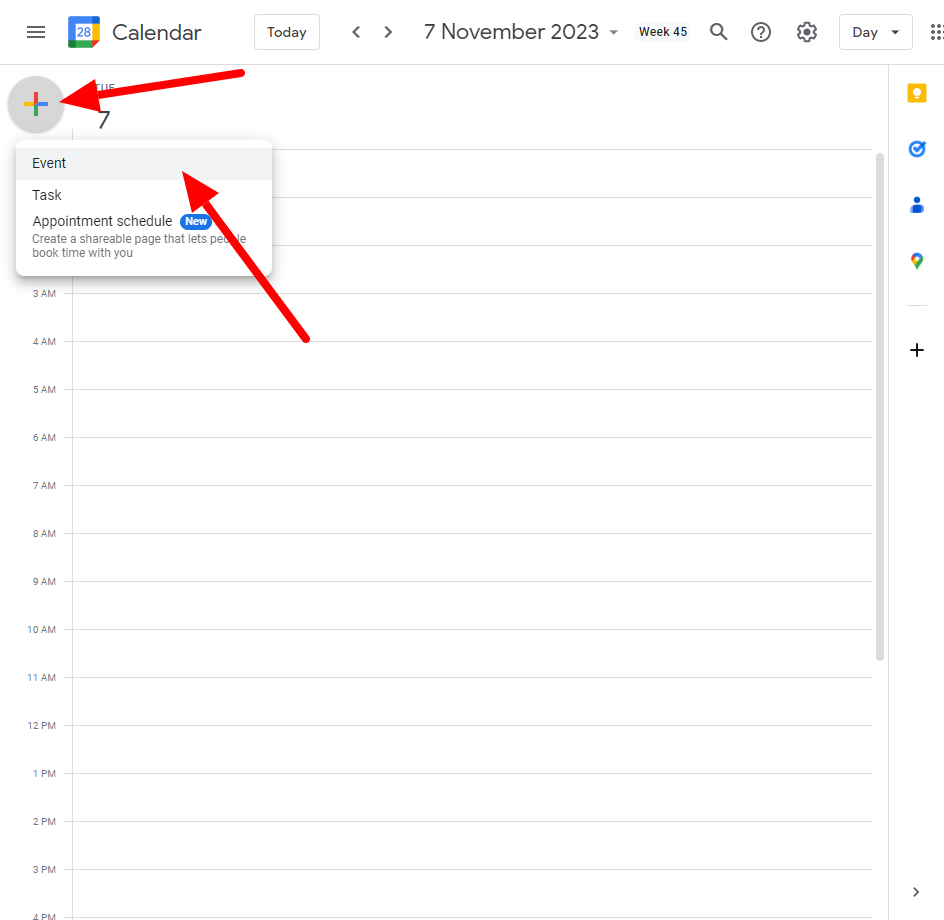
Create a New Event: Click on the “+” icon or select a suitable time slot to create a new event.
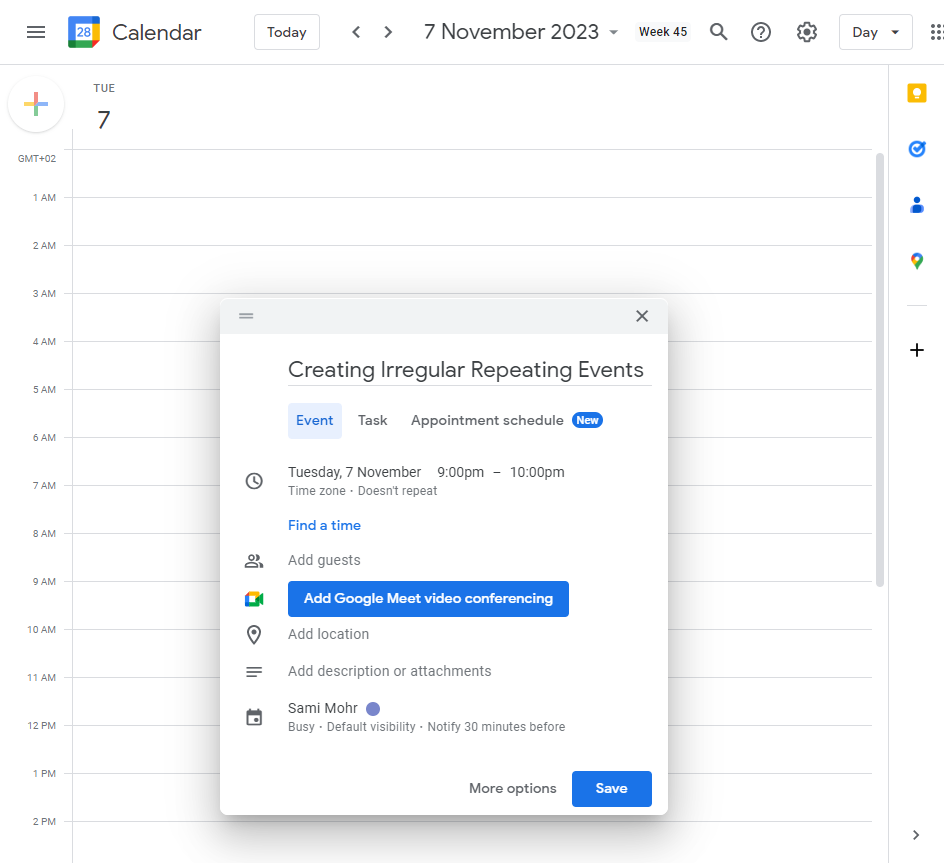
Define Event Details: Provide a title, location, and any additional information about the event.
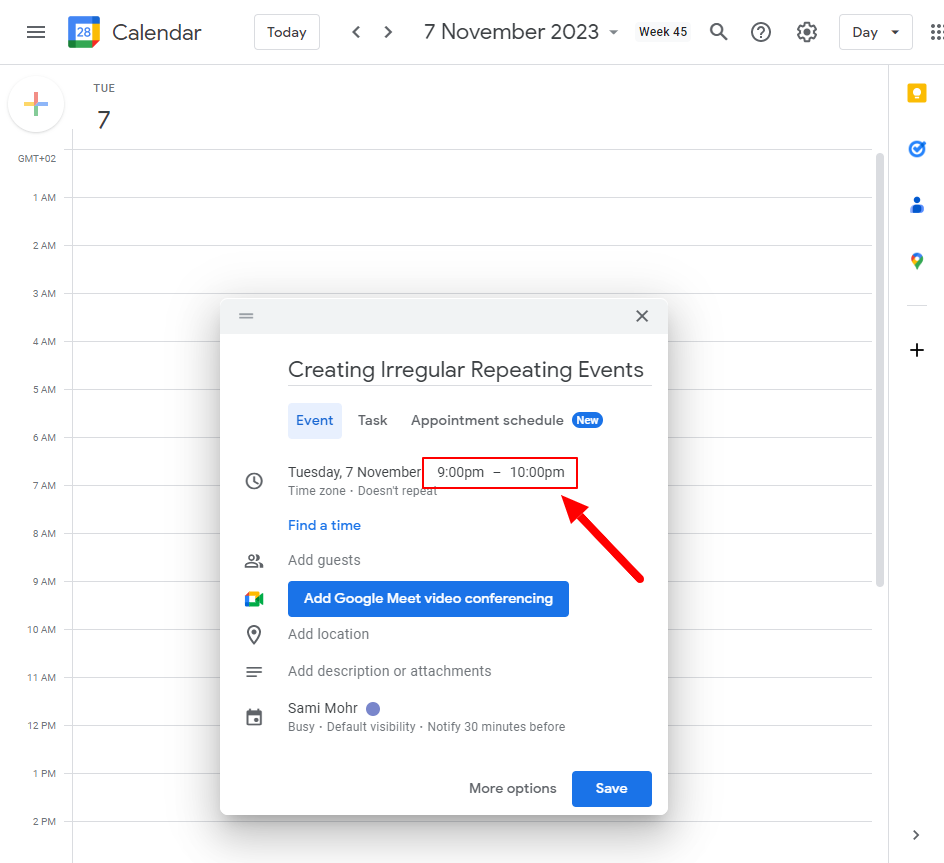
Set Event Time: Specify the start and end times for the initial event occurrence.
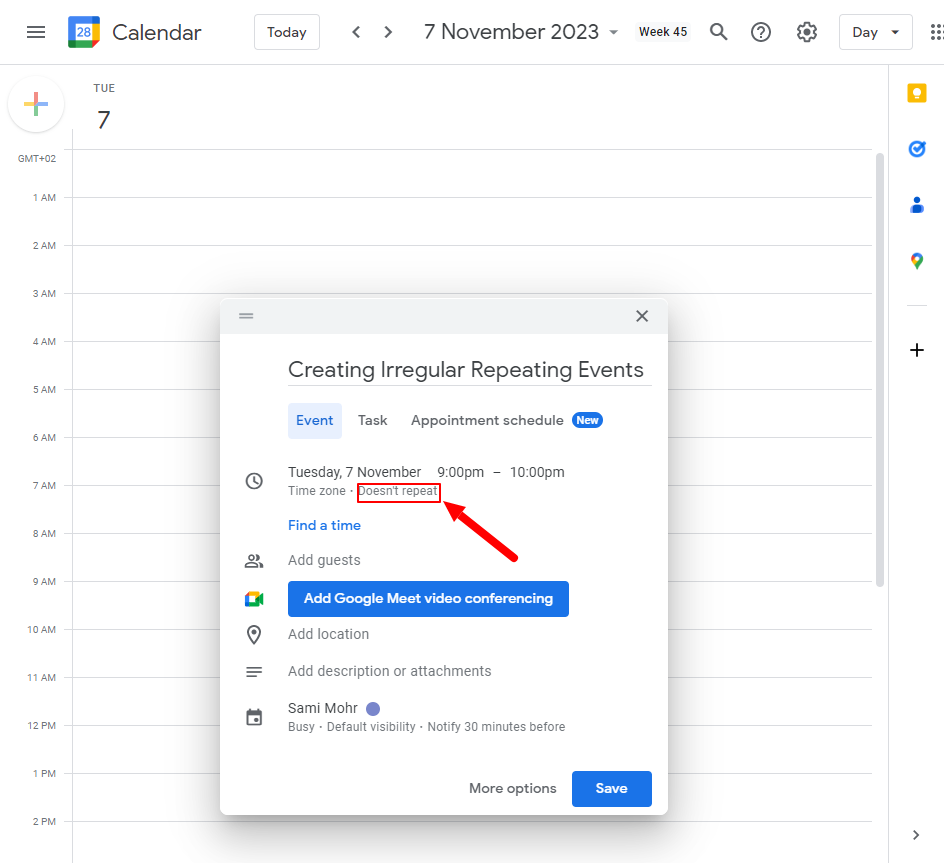
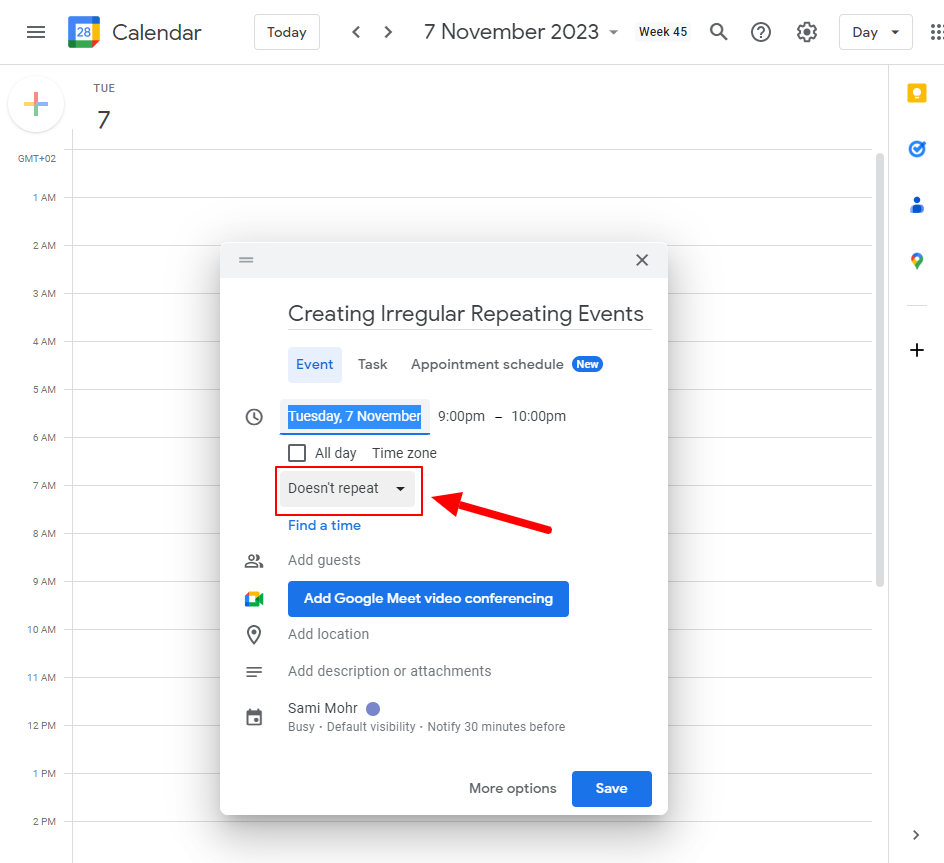
Enable Repeat: Toggle the “Repeat” option to activate the event recurrence settings.
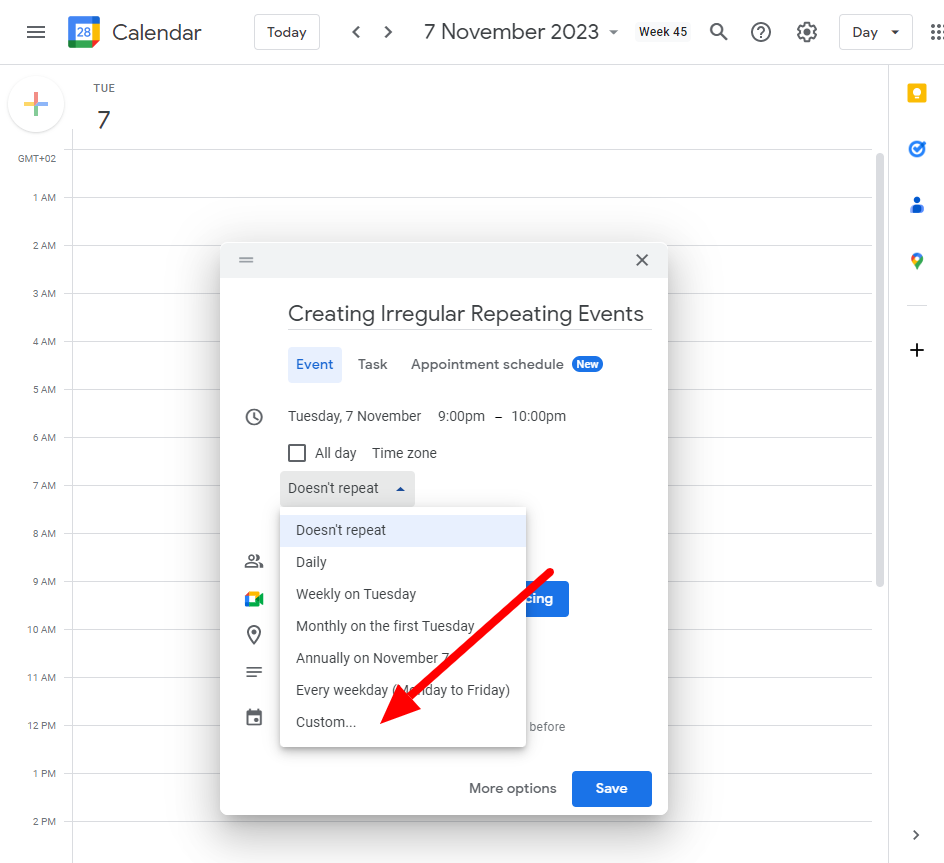
Custom Recurrence: Select the “Custom” option to access advanced recurrence options.
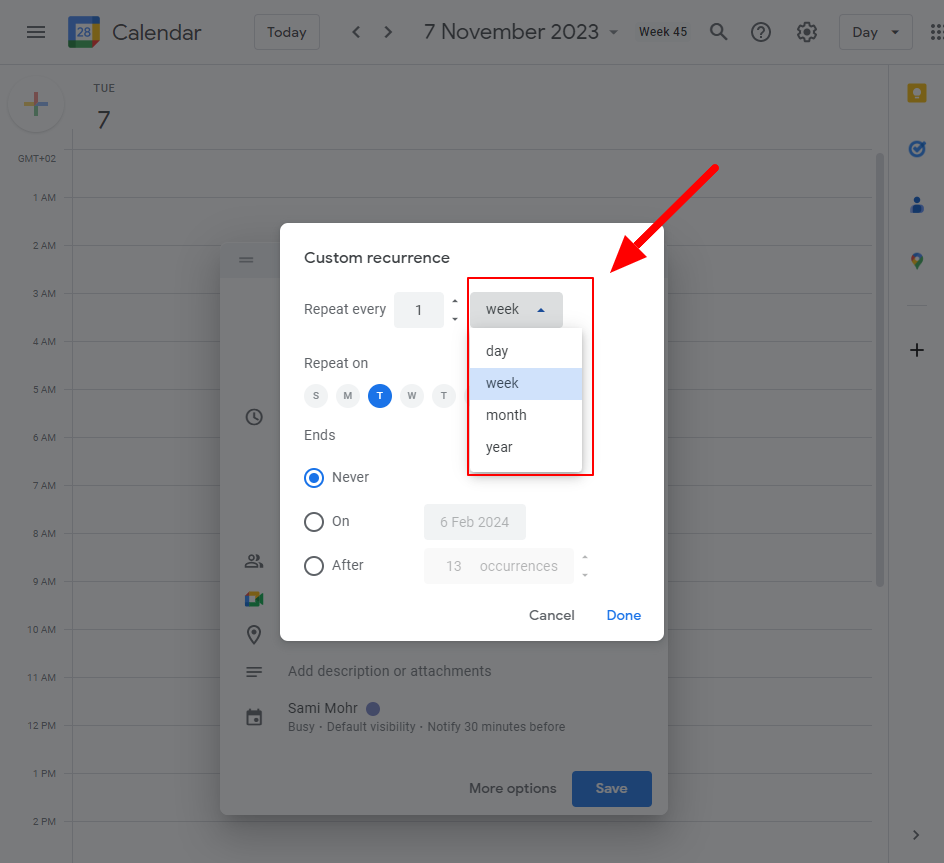
Define Irregular Pattern: Choose the days, weeks, or months on which the event should repeat irregularly.
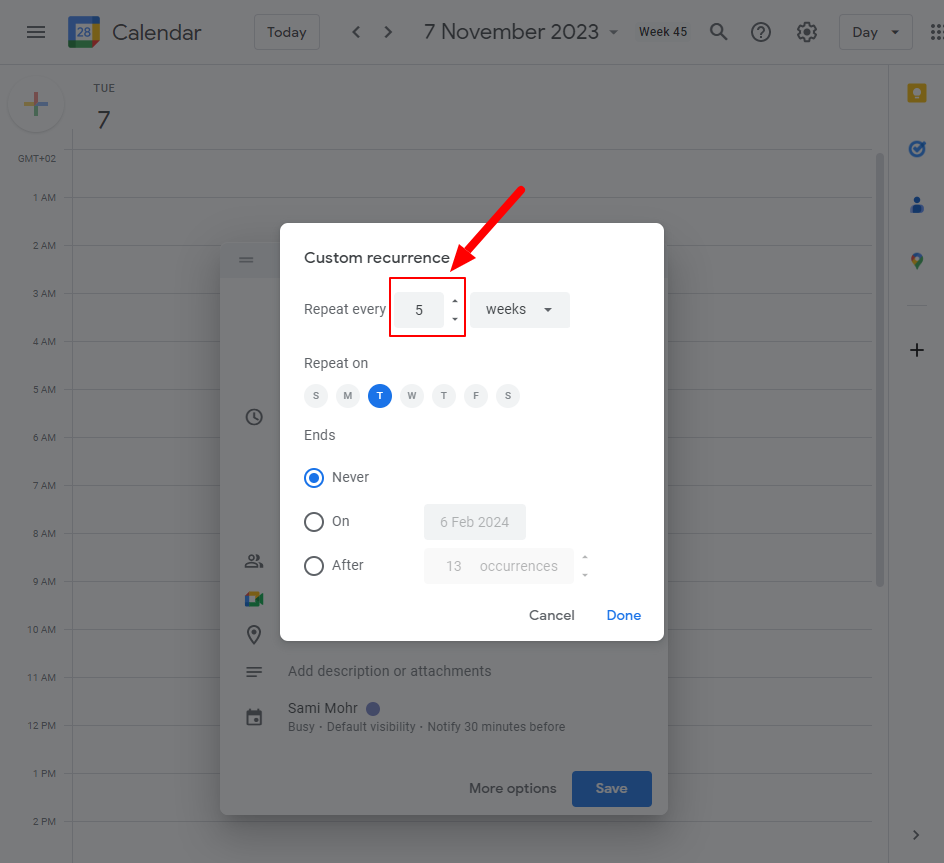
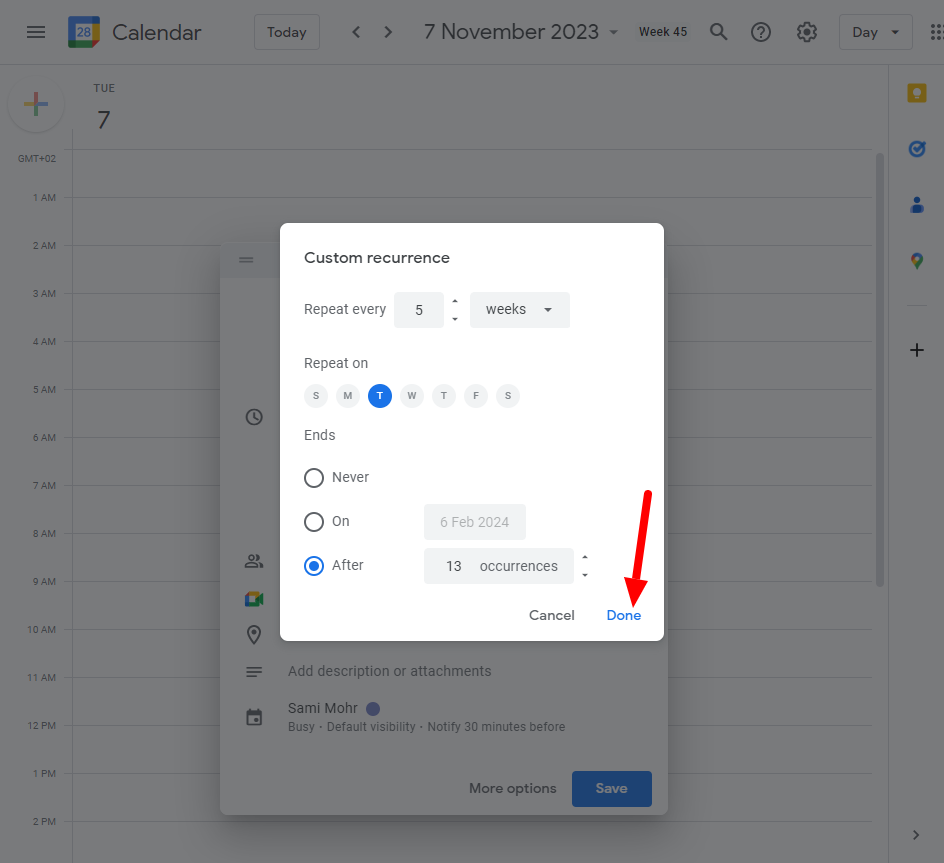
Specify Interval: Set the interval between each occurrence, allowing for irregular gaps.
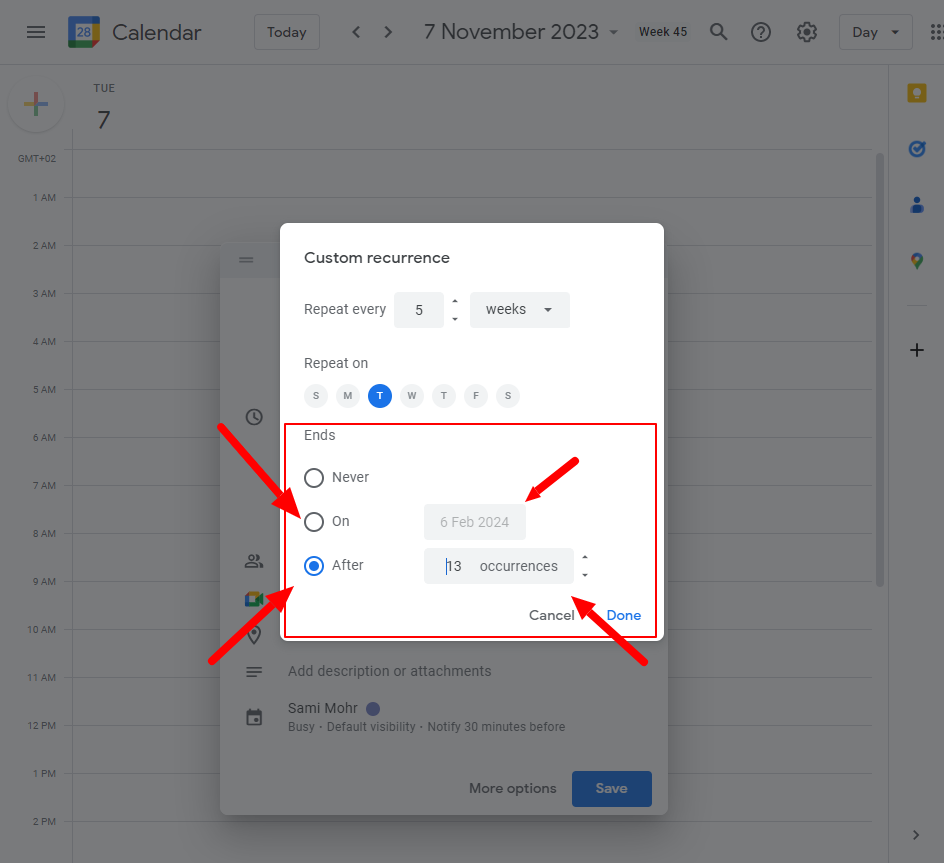
End Date or Occurrence Count: Determine the end date or occurrence count for the repeating event.
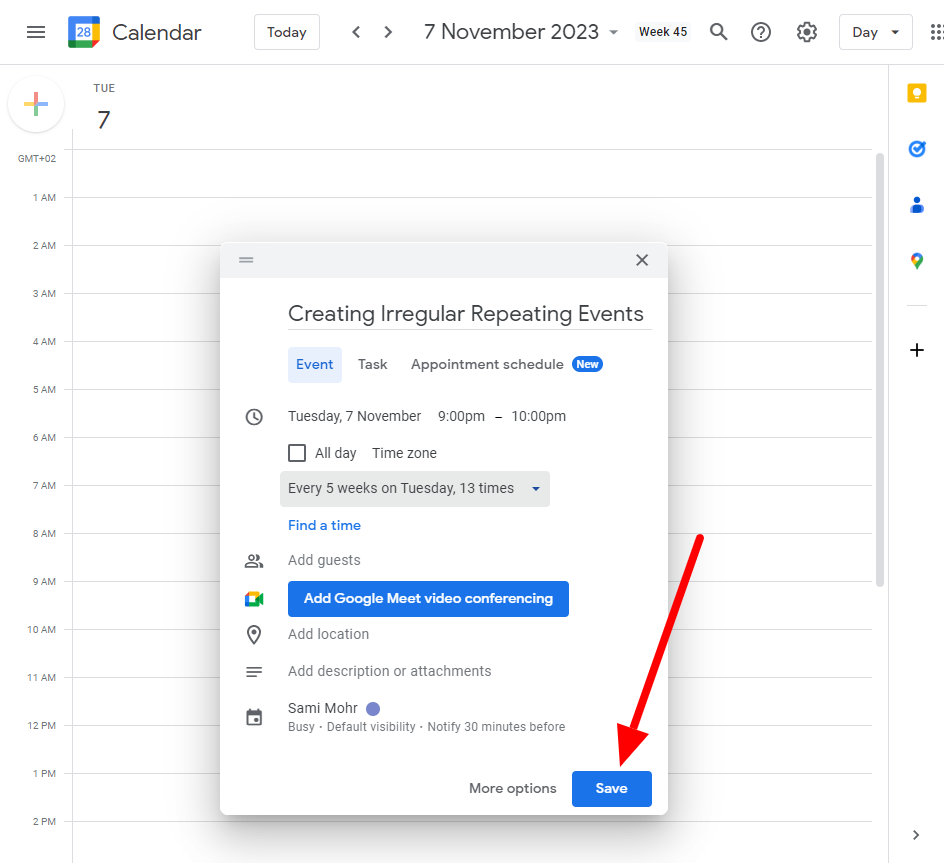
Save the Event: Click “Save” to finalize the creation of the irregular repeating event.
3. Optimizing Irregular Repeating Events in Google Calendar
Now that you know how to create irregular repeating events in Google Calendar, let’s explore some strategies to optimize their usage:
Prioritize Important Events: Identify crucial events that require your attention and set them as irregular repeating events. This way, you won’t miss any vital tasks or appointments.
Customizing Reminder Notifications: Take advantage of Google Calendar’s reminder feature to receive timely notifications for irregular repeating events. Adjust the reminder settings according to your preference and the significance of each event.
Color Coding for Visual Clarity: Assign distinct colors to different categories of irregular repeating events. By visually organizing your calendar, you can quickly identify and differentiate between various types of events.
Flexibility for Changing Schedules: Irregular repeating events provide the flexibility to adapt to changing schedules. If you need to reschedule or modify an occurrence, you can easily adjust it without affecting the entire series.
Sync with Other Devices and Apps: Ensure seamless integration of Google Calendar with your mobile devices and other productivity apps. Syncing your calendar allows you to access and manage irregular repeating events across multiple platforms.