
How to Change The Google Calendar Color
Change the color of your Google Calendar to stay organized and on top of your to-do list. The Google Calendar is a great tool for managing schedules, appointments, and events. It’s also highly customizable, allowing you to change the colors of your calendars. In this article, we will provide a step-by-step guide on how to change the color of your Google Calendar.
You can make more out of your Google Calendar by using the CalendarApp. The CalendarApp is a high performance highly reliable and easy to implement scheduling solution that automates the booking process with your customers.
If you don’t have a CalendarApp account yet sign up for free!
Table of Contents
1. Why Change Google Calendar Color?
One of the biggest benefits of using Google Calendar is its flexibility and customizability. By assigning different colors to different calendars, you can quickly and easily identify your events, appointments, and schedules at a glance. For example, you can assign different colors to different events, such as red for important appointments, green for personal events, and blue for work events.
2. Step-by-Step Guide to Changing Google Calendar Color
Here are the steps to change the color of your Google Calendar using CalendarApp:
1. Go to calendar.google.com and if necessary log in to your Google account.
2.In the left-hand menu, click the three dots next to your calendar’s name whose color you want to change
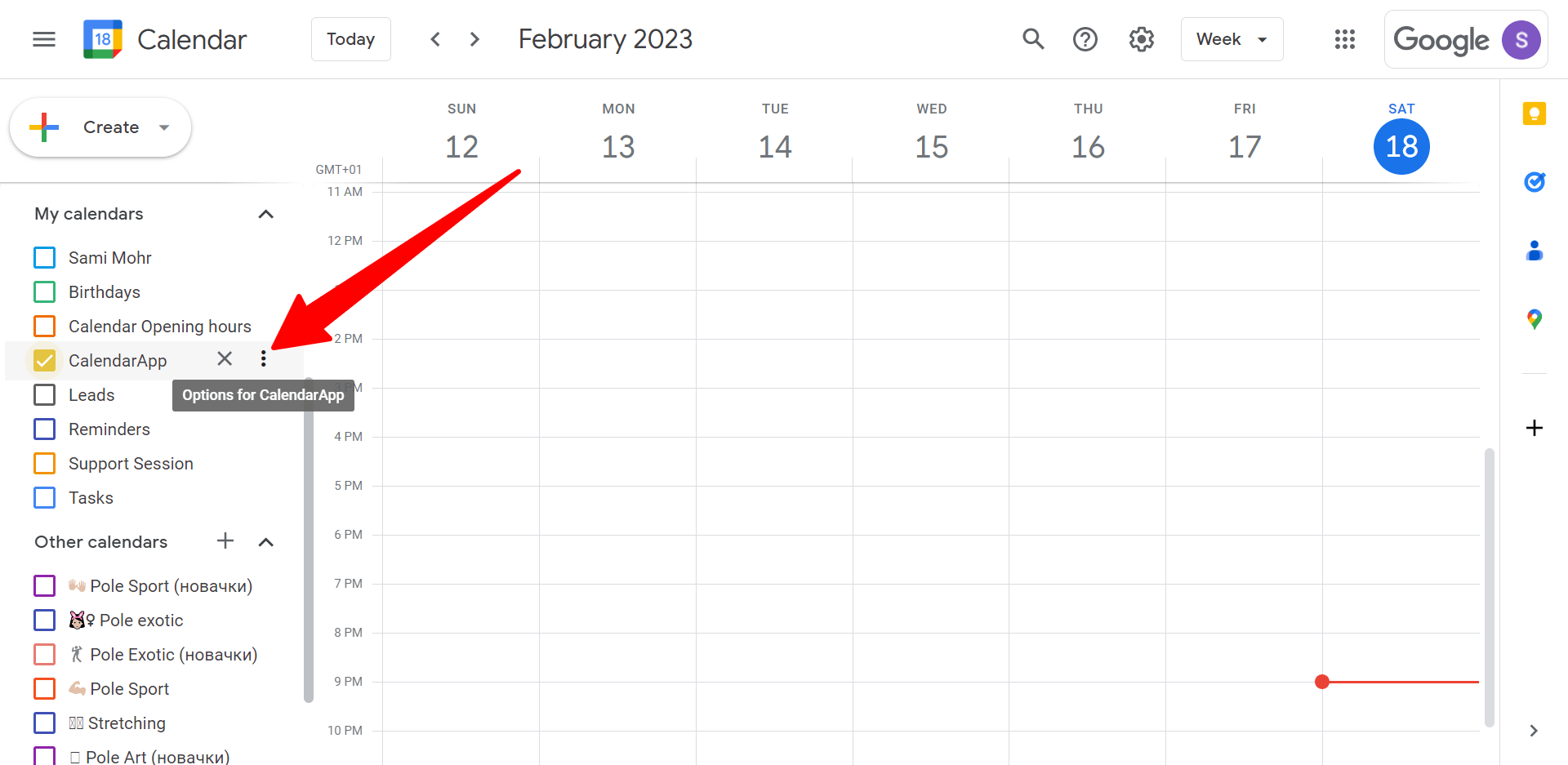
3. At the very bottom of the popper you will see a selection of colors you can change your Google Calendar into. Click on a color to change the Google Calendar color.
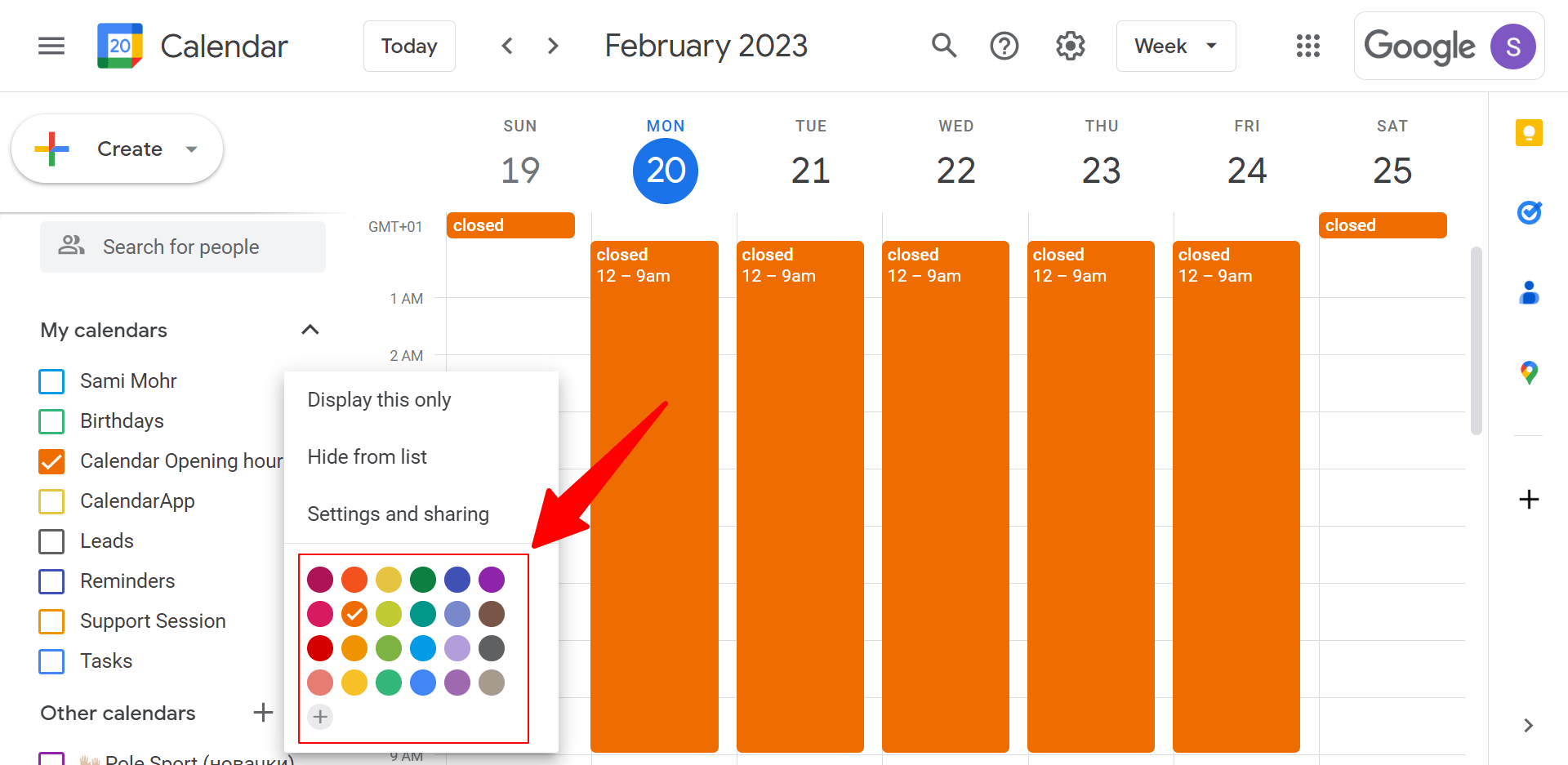
4. Optionally, if you want to change your Google Calendar into a different color click on the plus icon

5. In the window drag the selection tool to your desired color as shown in the video. Alternatively, input a hex code of your desired color. Click Save.
6. Your changes will be applied. Congratulations! You have successfully changed the color of your Google Calendar.
3. Sharing a Google Calendar
You can easily share your Google Calendar with others, so they can view your schedule and events. This feature is particularly useful for teams and collaborators who need to coordinate schedules and stay up-to-date with each other’s events.
4. Set Opening Hours In Your Google Calendar
The CalendarApp allows businesses to set their opening hours in a Google Calendar, so customers can only book appointments during those times. This feature helps businesses manage their schedules and ensures that customers are only booking appointments when staff is available.
5. CalendarApp Calendar Settings
With the CalendarApp, you can customize your calendar settings by setting the duration of your appointments, adding breaks between appointments, and changing the time zone of your calendar. These settings allow you to manage your schedule more efficiently and make the most of your time.
6. Find a Table for a Restaurant
For restaurants, the CalendarApp allows customers to find available tables and book a reservation right from social media platforms. This feature streamlines the reservation process for both customers and businesses, saving time and increasing efficiency.
7. Webinar Sign-Ups
The CalendarApp also allows businesses to schedule webinars and manage sign-ups right from their Google Calendar. This feature simplifies the registration process for customers and ensures that businesses can manage their webinar schedules effectively.
If you have any questions watch our video tutorial or submit a support ticket.